
ableton-copilot-mcp
About
An MCP server built on ableton-js enables AI assistants to control Ableton Live in real time, including Arrangement View operations such as song management, track control, MIDI editing, and audio recording, along with other capabilities.
Details
- License
- MIT
Explore
- Song info, track listing, and tempo control
- Create, delete, and duplicate MIDI/audio/return tracks
- Get, add, delete, and replace notes in clips
- Record track content based on time range
- Load and modify audio effects, instruments, and plugins
- Operation history with rollback support for note operations

Setting up with Highlight
This MCP is not yet compatible with Highlight’s one-click setup. However, you can still use it with Highlight by following these steps:
- Download and install Highlight from highlightai.com/download
- Navigate to the plugins tab and select "Add Custom Plugin"
-
Configure the plugin with the settings below
Plugin Name
ableton-copilot-mcpCommand (node, npx, python, etc.)Please refer to the README for specific instructions on how to obtain API keys or other required environment variables.
- Enable "Start Automatically" if you want the plugin to start when Highlight launches





From the repository
- Node.js environment: Ensure Node.js is installed (v20+ recommended) and the npx command is available
> 🔗 Download: Node.js official website
Choose ONE of the following three methods to install MIDI Remote Scripts:
- Method 1: One-line installation (Recommended)
npx @xiaolaa2/ableton-copilot-mcp --install-scripts
Add the following configuration to your Cursor settings:
"ableton-js-mcp": {
"command": "npx",
"args": [
"-y",
"@xiaolaa2/ableton-copilot-mcp"
]
}
For the latest version:
"ableton-js-mcp": {
"command": "npx",
"args": [
"-y",
"@xiaolaa2/ableton-copilot-mcp@latest"
]
}
```
Claude Desktop / Cursor
Paste into your MCP client config file to install this server.
{
    "mcpServers": {
        "ableton-copilot-mcp": {
            "ableton-copilot-mcp": {
                "command": "npx",
                "args": [
                    "@xiaolaa2/ableton-copilot-mcp",
                    "--install-scripts"
                ]
            }
        }
    }
}McpServers
{
    "ableton-copilot-mcp": {
        "command": "npx",
        "args": [
            "@xiaolaa2/ableton-copilot-mcp",
            "--install-scripts"
        ]
    }
}
<div align="center">
</div>




> An MCP (Model Context Protocol) server built on ableton-js for real-time interaction and control with Ableton Live's Arrangement View, dedicated to assisting music producers in their music production.
🎯 Note
As a music producer, I have some understanding of using Ableton for music creation. During the creative process, we often need to handle various tedious operations, such as humanizing note properties, merging notes, recording one track to another audio track, etc. Previously, we could only rely on the functions provided by the host DAW for these operations. However, with the emergence of large language models and MCP, we now have the possibility to let AI help us with automation. Although it's still not realistic for AI to directly generate notes or create a complete song (it can't generate a good-sounding song), having AI assist us with auxiliary operations presents a new possibility.
🎥 Demo
This is a simple demonstration video of MIDI operations.https://github.com/user-attachments/assets/8d635c4c-a1f2-44be-93ae-062038d14c71
🚀 Features
🎵 Song Control
- Get basic song information (root note, scale name, tempo, song length, etc.) - Get a list of all tracks - Create MIDI, audio, and return tracks - Delete and duplicate tracks🎹 Track Management
- Get all clips in a track - Create empty MIDI clips in the arrangement view tracks - Create audio clips in tracks based on provided sample file paths - Set track properties (mute, color, name, arm, solo, etc.) - Duplicate MIDI clips to specified tracks🎼 Clip Operations
- Get clips in the piano roll view - Get and manage all notes in a clip - Add, delete, and replace notes in clips - Set clip properties (name, color, looping, loop_start, loop_end, etc.)🎧 Audio Operations
- Supports recording track content based on time range🔌 Device Management
- Load audio effects, instruments and plugins - Modify device parameters - Browse available devices in the library📝 State Management
- Operation history tracking and detailed logging - Support for operation rollback (currently only supports note operations) - Browse and restore previous states📝 To-Do List
- Support automatic envelope adjustment - Support more snapshot types (track properties, device parameters, etc.)⚠️ Warning
- Direct manipulation of MIDI clips by AI may result in the loss of original notes and cannot be undone with Ctrl + Z. Please operate with caution. If needed, you can ask the AI to help you roll back note operations.📥 Installation
Prerequisites
- Node.js environment: Ensure Node.js is installed (v20+ recommended) and thenpx command is available
> 🔗 Download: Node.js official website
Installation Steps
1. Install AbletonJS MIDI Remote Scripts
Choose ONE of the following three methods to install MIDI Remote Scripts:
- Method 1: One-line installation (Recommended)
  npx @xiaolaa2/ableton-copilot-mcp --install-scripts

  # or use the short form

  npx @xiaolaa2/ableton-copilot-mcp -is
- Method 2: Tool-assisted installation
1. First, start ableton-copilot-mcp (see Usage section below)
2. Let AI assistant or manually call the MCP tool init_ableton_js to complete the installation automatically
- Method 3: Manual installation
1. Create a folder named "Remote Scripts" in your Ableton User Library:
- Windows: C:\Users\[username]\Documents\Ableton\User Library\Remote Scripts
- Mac: /Users/[username]/Music/Ableton/User Library/Remote Scripts
2. Download MIDI Remote Scripts from the ableton-js project
3. Copy the downloaded midi-script folder to the location above
4. Rename it to AbletonJS
🔧 Usage
Quick Start
1. Launch Ableton Live
2. Enable AbletonJS Control Surface
- Open Ableton Live Preferences: Preferences → Link/MIDI
- In the MIDI tab, locate the Control Surface section
- Select AbletonJS from the dropdown menu
<div align="center">
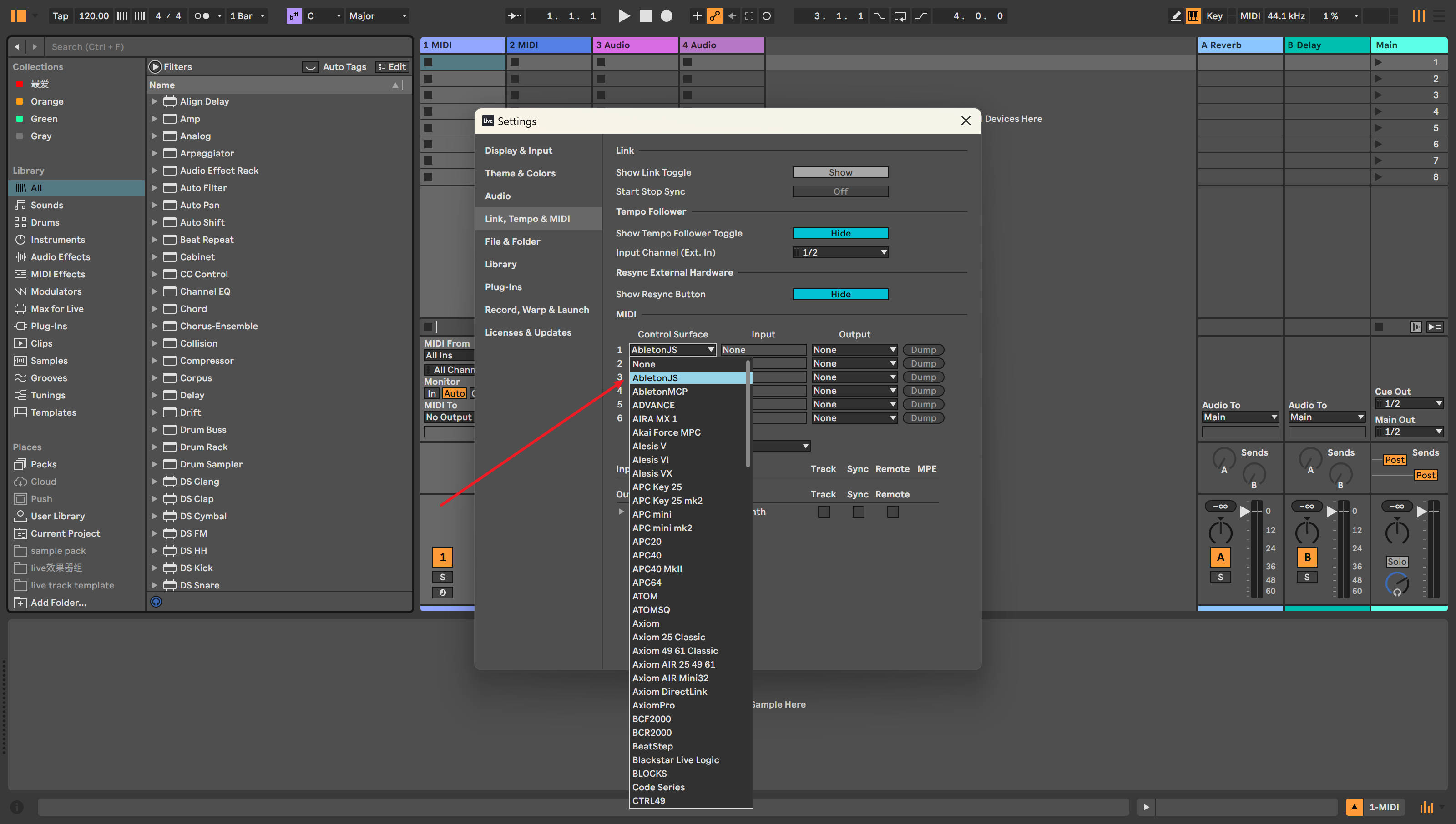
<p><em>Figure 1: Enabling AbletonJS Control Surface in Ableton Live Configuration</em></p>
</div>
3. Connect using an MCP client
The following clients can be used as MCP endpoints:
- Cursor
- Cherry Studio
- Claude Desktop
- Other MCP clients
Client Configuration
Cursor Configuration Example
Add the following configuration to your Cursor settings:
"ableton-js-mcp": {
    "command": "npx",
    "args": [
        "-y",
        "@xiaolaa2/ableton-copilot-mcp"
    ]
}
For the latest version:
"ableton-js-mcp": {
    "command": "npx",
    "args": [
        "-y",
        "@xiaolaa2/ableton-copilot-mcp@latest"
    ]
}
Custom Storage Path (Optional)
You can specify a custom data storage location using the BASE_PATH environment variable:
"ableton-js-mcp": {
    "command": "npx",
    "args": [
        "-y",
        "@xiaolaa2/ableton-copilot-mcp"
    ],
    "env": {
        "BASE_PATH": "D:\\ableton_copilot_mcp"
    }
}
> 💡 Tip: The storage path is used to save log files, operation history, and state snapshots
✅ Compatibility Testing
Compatibility primarily depends on the version support of the ableton-js library.
| Ableton Live Version | Test Status |
| -------------------- | ----------- |
| 12.1.10 | ✅ Tested and working |
| 11.x | ⚠️ Not tested yet |
| 10.x | ⚠️ Not tested yet |
🤝 Contributing
Issues and contributions are welcome. Please submit issues or suggestions through GitHub Issues.
📄 License
This project is licensed under the MIT License.
⚠️ Disclaimer
This is a third-party integration and not made by Ableton.Sign in to leave a review
Use Google, GitHub, or an email account so ratings stay tied to real people.
No reviews posted yet.



