
ArduPilot MCP Server Sandbox
About
The ArduPilot MCP Server Sandbox is an MCP server that enables natural language control of ArduPilot drones via an LLM host such as Claude Desktop or Cline. It communicates with the drone over MAVLink TCP at 127.0.0.1:5762 and is intended for developers and drone enthusiasts who…
Details
- License
- GPL-3.0
Explore
- Natural language drone control via LLM hosts
- Supports ArduPilot SITL simulation and real vehicles
- MAVLink communication over TCP at localhost:5762
- Provides tools: arm, disarm, takeoff, change_mode, get_position, etc.
- Includes star mission creation and upload capability
- Works with Claude Desktop and Cline

Setting up with Highlight
This MCP is not yet compatible with Highlight’s one-click setup. However, you can still use it with Highlight by following these steps:
- Download and install Highlight from highlightai.com/download
- Navigate to the plugins tab and select "Add Custom Plugin"
-
Configure the plugin with the settings below
Plugin Name
ArduPilot MCP Server SandboxCommand (node, npx, python, etc.)Please refer to the README for specific instructions on how to obtain API keys or other required environment variables.
- Enable "Start Automatically" if you want the plugin to start when Highlight launches





From the repository
Install Python 3.10+, run pip install -r requirements.txt, then start the server with python ardupilot_mcp_server.py. Configure your MCP host (Claude Desktop or Cline) by editing its settings file to point to the server script. The README provides exact JSON configuration examples for both hosts.
Claude Desktop / Cursor
Paste into your MCP client config file to install this server.
{
    "mcpServers": {
        "ardupilot mcp server sandbox": {
            "ardupilot-controller": {
                "command": "python",
                "args": [
                    "C:/Users/your-user-name/path/to/ardupilot_mcp_server.py"
                ],
                "alwaysAllow": [
                    "arm",
                    "disarm",
                    "takeoff",
                    "change_mode"
                ]
            }
        }
    }
}McpServers
{
    "ardupilot-controller": {
        "command": "python",
        "args": [
            "C:/Users/your-user-name/path/to/ardupilot_mcp_server.py"
        ],
        "alwaysAllow": [
            "arm",
            "disarm",
            "takeoff",
            "change_mode"
        ]
    }
}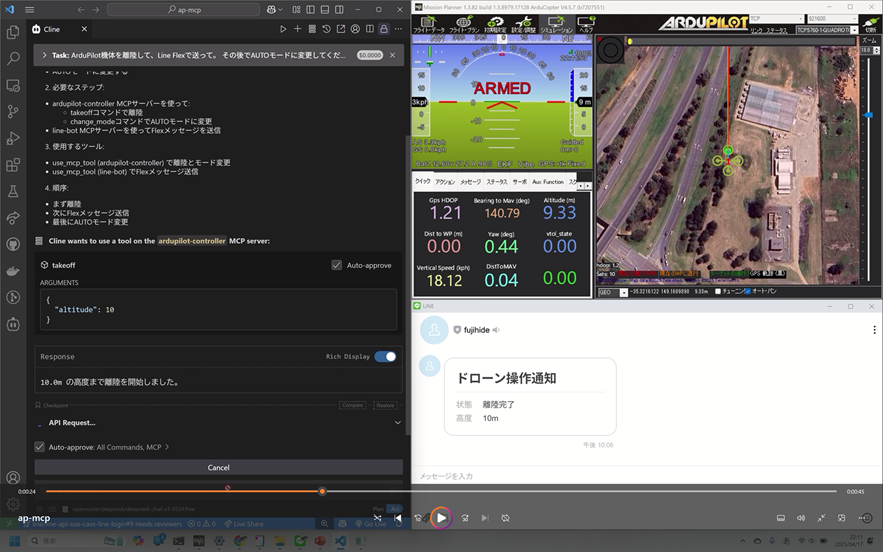 https://youtu.be/y1WE1cDC54Y?si=iy6vdGl38aTRcFcF
動作環境(SITLテスト可能)
- ArduPilot (SITL or 実機) - MAVLink 通信がtcp:127.0.0.1:5762 で受け付け可能であること
- Python 3.10+
---
Mission Planner のシミュレータを使う場合
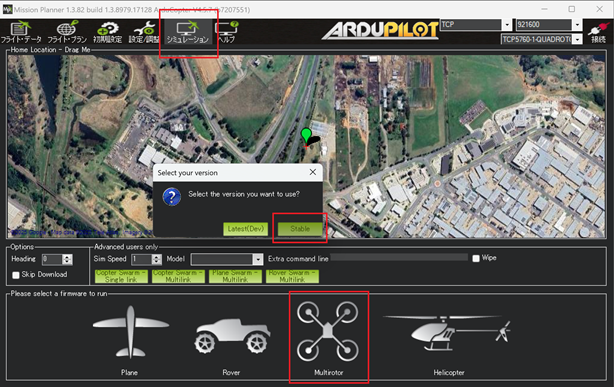
ArduPilotドローンのシミュレーションを簡単に試すには、Mission Planner の内蔵シミュレータを使うのが便利です。 1. Mission Planner をインストール 2. 起動後、上部メニューのシミュレーション ボタンをクリック
3. 次の画面で Multirotor(マルチローター) を選択
4. ダイアログの Stable ボタンをクリック
5. ArduPilotシミュレータが起動し、tcp:127.0.0.1:5762 で待ち受けを開始します
セットアップ手順
1. Python 環境の準備 - Python 3.10+ 推奨 - Windows / macOS / Linux 対応 2. 利用可能なツールのインストール ``
pip install -r requirements.txt
`
3. MCPサーバーの起動確認(手動実行)
`
python ardupilot_mcp_server.py
`
    「MCPサーバーを起動します...」と出れば準備完了です。

Cline との連携手順

1. OpenRouter にサインアップし、APIキーを取得
2. VS Code に Cline 拡張機能 をインストール
3. VS Code の settings.json に以下を追加:
`json
{
"cline.apiKey": "sk-xxxxxxx",
"cline.apiBaseUrl": "https://openrouter.ai/api/v1",
"cline.defaultModel": "deepseek/deepseek-chat-v3-0324:free",
"cline.mcpServers": {
"ardupilot-controller": {
"command": "python",
"args": [
"${workspaceFolder}/ardupilot_mcp_server.py"
],
"env": {
"PYTHONPATH": "${env:USERPROFILE}\\.local\\lib\\python3.12\\site-packages"
}
}
}
}
`
    ※ python のパスや PYTHONPATH は環境に応じて調整してください。

Claude Desktop からの使用方法(GUI連携)


1. Claude Desktop をインストール
2. 設定ファイル
claude_desktop_config.json を開く
Windows の場合: C:\Users\{ユーザー名}\AppData\Roaming\Claude\claude_desktop_config.json
3. 以下を追記:
`json
{
"mcpServers": {
"ardupilot-controller": {
"command": "python",
"args": [
"C:/Users/your-user-name/path/to/ardupilot_mcp_server.py"
],
"alwaysAllow": [
"arm",
"disarm",
"takeoff",
"change_mode"
]
}
}
}
``
※ パスは環境に応じて調整してください。
4. Claude Desktop を再起動
利用できるMCPツール一覧
|コマンド| 説明| |--------|--------| |arm()| 機体をアームします| |disarm()| 機体をディスアームします| |takeoff(altitude=10.0)| 指定高度まで離陸します| |change_mode(mode="GUIDED")| モードを変更します| |get_position()| 現在位置を取得します| |clear_mission()| 機体上のミッションを消去します| |download_mission()| 機体上のミッションを取得します| |upload_star_mission(altitude=15.0, outer_radius=50.0, inner_radius=20.0, points=5)| 現在位置を中心に星形ミッションを作成してアップロードします| |start_mission()| AUTOモードに変更してミッション開始状態にします|プロンプト例(チャットでの操作)
Cline、または Claude Desktop に話しかけて、ArduPilot を自然言語で操作できます: - 「ArduPilotをアームして」 - 「10メートルまで離陸して」 - 「モードをGUIDEDに変更して」 - 「高度15m、半径50mの星形ミッションを作って機体にアップロードして」 - 「ArduPilotをディスアームして」 ※ MCP サーバーに登録されているツールに応じて、自然文が自動で変換されます。Sign in to leave a review
Use Google, GitHub, or an email account so ratings stay tied to real people.
No reviews posted yet.



