
AWS MCP

by RafalWilinski

295 stars
675 downloads
Not rated
GitHub Website

About

Interact with your AWS environment using natural language to query and manage resources. Requires local AWS credentials.

Details

Author
RafalWilinski
GitHub stars
295
Downloads
675
Categories
Cloud Service, Other, Infrastructure, Database, AI

- Query and modify AWS resources via natural language
- Support for multiple AWS profiles and SSO authentication
- Multi-region support
- Secure local credential handling
- Runs entirely on your machine

Clone the repository, install dependencies with npm or pnpm, then configure Claude Desktop by editing its config file to point to the project. Start by selecting an AWS profile or directly asking natural language queries such as listing EC2 instances or S3 buckets.

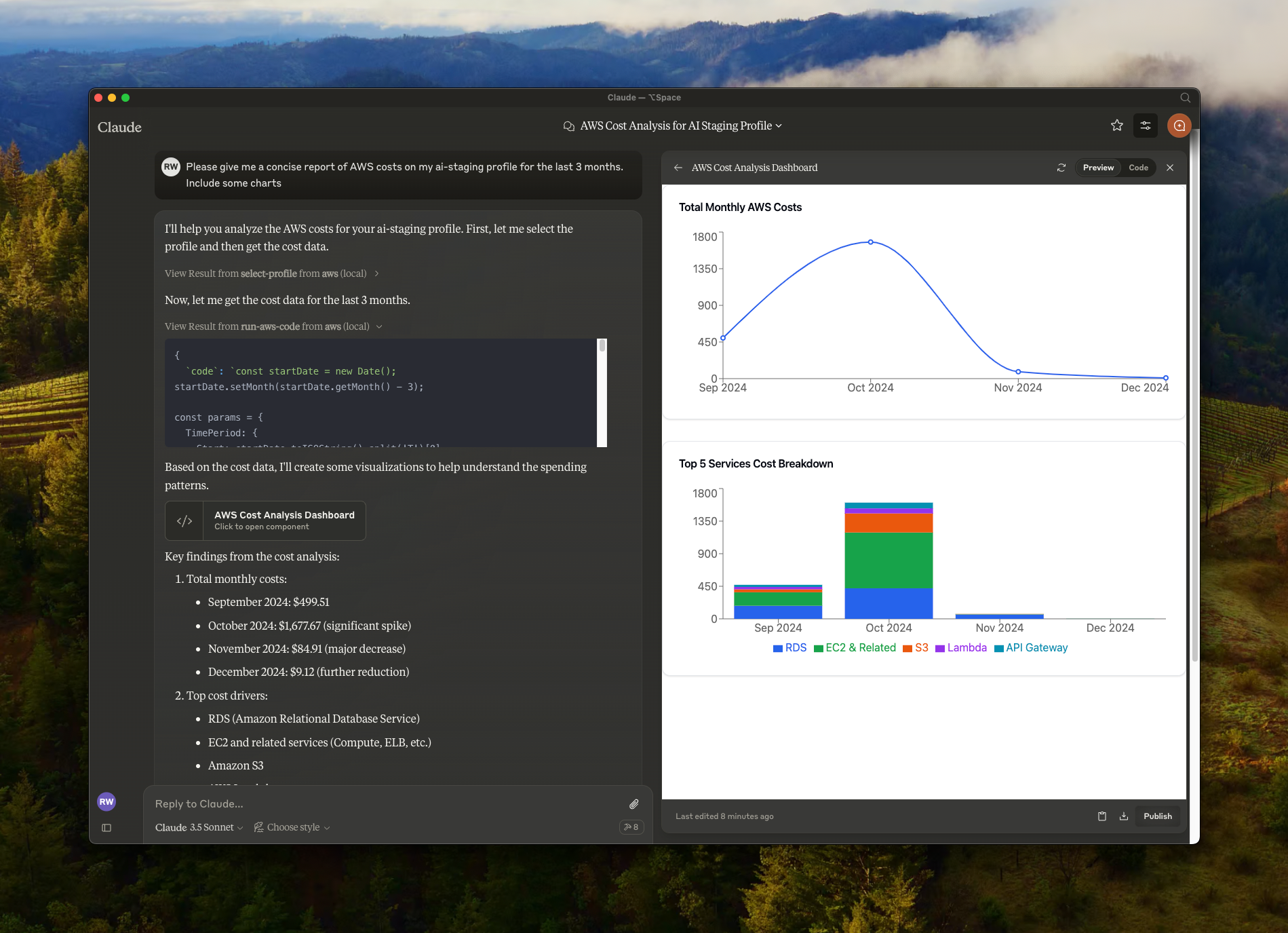
# AWS MCP A [Model Context Protocol (MCP)](https://www.anthropic.com/news/model-context-protocol) server that enables AI assistants like Claude to interact with your AWS environment. This allows for natural language querying and management of your AWS resources during conversations. Think of better Amazon Q alternative. ![AWS MCP](./images/aws-mcp-demo.png) ## Features - 🔍 Query and modify AWS resources using natural language - ☁️ Support for multiple AWS profiles and SSO authentication - 🌐 Multi-region support - 🔐 Secure credential handling (no credentials are exposed to external services, your local credentials are used) - 🏃‍♂️ Local execution with your AWS credentials ## Prerequisites - [Node.js](https://nodejs.org/) - [Claude Desktop](https://claude.ai/download) - AWS credentials configured locally (`~/.aws/` directory) ## Installation 1. Clone the repository: ```bash git clone https://github.com/RafalWilinski/aws-mcp cd aws-mcp ``` 2. Install dependencies: ```bash pnpm install # or npm install ``` ## Usage 1. Open Claude desktop app and go to Settings -> Developer -> Edit Config ![Claude Settings](./images/desktop_settings.png) 2. Add the following entry to your `claude_desktop_config.json`: ```json { "mcpServers": { "aws": { "command": "npm", // OR pnpm "args": [ "--silent", "--prefix", "/Users/<YOUR USERNAME>/aws-mcp", "start" ] } } } ``` Important: Replace `/Users/<YOUR USERNAME>/aws-mcp` with the actual path to your project directory. 3. Restart Claude desktop app. You should see this: ![Claude MCP Connection Status](./images/verify_installation.png) 4. Start by selecting an AWS profile or jump to action by asking: - "List available AWS profiles" - "List all EC2 instances in my account" - "Show me S3 buckets with their sizes" - "What Lambda functions are deployed in us-east-1?" - "List all ECS clusters and their services" ## Using with `nvm` Build from source first and add following config: ```json { "mcpServers": { "aws": { "command": "/Users/<USERNAME>/.nvm/versions/node/v20.10.0/bin/node", "args": [ "<WORKSPACE_PATH>/aws-mcp/node_modules/tsx/dist/cli.mjs", "<WORKSPACE_PATH>/aws-mcp/index.ts", "--prefix", "<WORKSPACE_PATH>/aws-mcp", "start" ] } } } ``` ## Troubleshooting To see logs: ```bash tail -n 50 -f ~/Library/Logs/Claude/mcp-server-aws.log # or tail -n 50 -f ~/Library/Logs/Claude/mcp.log ``` ## Features in Development - [ ] MFA support - [ ] Cache SSO credentials to prevent from refreshing them too eagerly <a href="https://glama.ai/mcp/servers/ta7kdy57us"><img width="380" height="200" src="https://glama.ai/mcp/servers/ta7kdy57us/badge" alt="aws-mcp MCP server" /></a>
No reviews yet — be the first

Sign in to leave a review

Use Google, GitHub, or an email account so ratings stay tied to real people.

Email sign in

No reviews posted yet.