BinjaLattice
About
Plugin interface for remote communications with Binary Ninja database and MCP server for interfacing with LLMs.
Details
- License
- MIT
Explore
- Secure Authentication: Token-based authentication system
- Encrypted Communication: Optional SSL/TLS encryption
- Binary Analysis Context: Export pseudocode, disassembly, variable names, binary information etc.
- Binary Modification: Update function names, add comments, rename variables
- Token Management: Automatic expiration and renewal of authentication tokens

Setting up with Highlight
This MCP is not yet compatible with Highlight’s one-click setup. However, you can still use it with Highlight by following these steps:
- Download and install Highlight from highlightai.com/download
- Navigate to the plugins tab and select "Add Custom Plugin"
-
Configure the plugin with the settings below
Plugin Name
BinjaLatticeCommand (node, npx, python, etc.)Please refer to the README for specific instructions on how to obtain API keys or other required environment variables.
- Enable "Start Automatically" if you want the plugin to start when Highlight launches





From the repository
1. Copy plugin/lattice_server_plugin.py and plugin/lattice_config.ini to your Binary Ninja plugins directory:
- Linux: ~/.binaryninja/plugins/
- macOS: ~/Library/Application Support/Binary Ninja/plugins/
- Windows: %APPDATA%\Binary Ninja\plugins\
2. Generate a secure API key and set this as the api_key value within lattice_config.ini
3. Create a virtual environment:
python -m venv .venv
4. Activate and install dependencies:
The Lattice client library provides a Python interface for interacting with the BinjaLattice server:
from lib.lattice import Lattice
1. Create a Python virtual environment and install the requirements.txt
2. Install the Binary Ninja Python API with the install_api.py provided in your Binary Ninja installation directory
3. Run the tests with pytest tests/ -v
The following tools are available through the MCP server:
Claude Desktop / Cursor
Paste into your MCP client config file to install this server.
{
    "mcpServers": {
        "binjalattice": {
            "binja-lattice-mcp": {
                "command": "python",
                "args": [
                    "-m",
                    "venv",
                    ".venv"
                ]
            }
        }
    }
}McpServers
{
    "binja-lattice-mcp": {
        "command": "python",
        "args": [
            "-m",
            "venv",
            ".venv"
        ]
    }
}
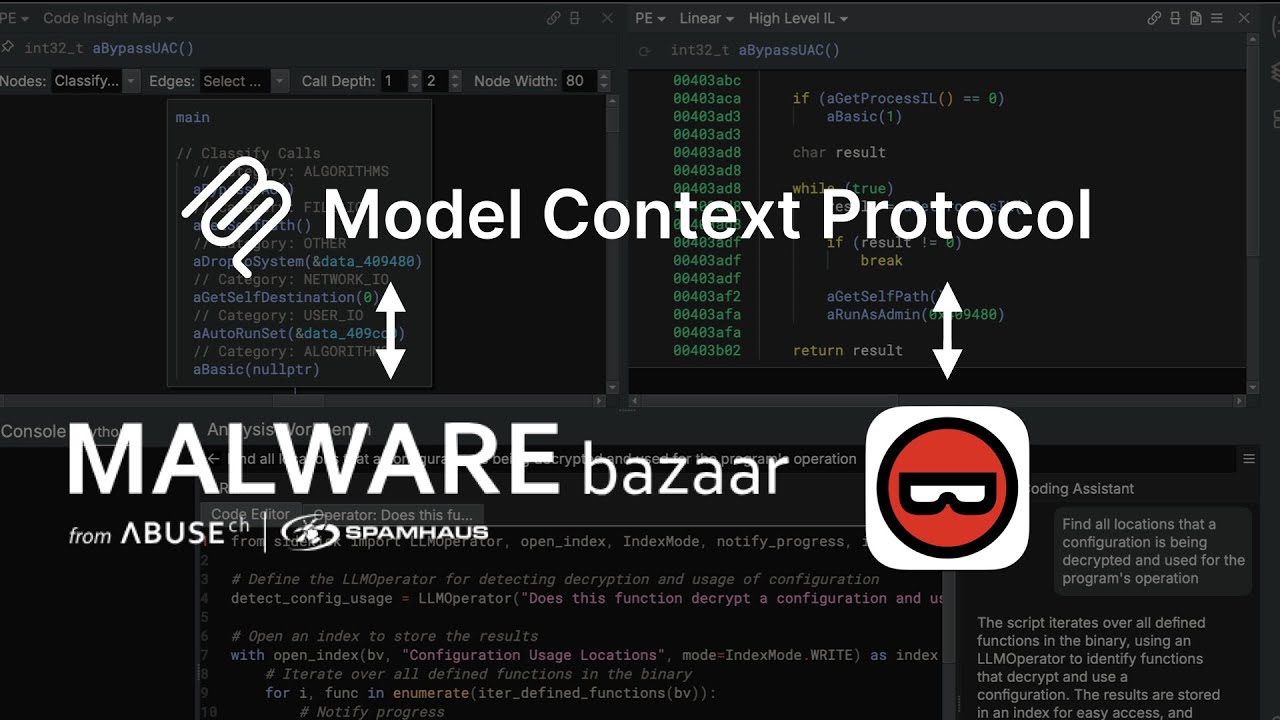
BinjaLattice is a secure communication protocol for Binary Ninja that enables interaction with external Model Context Protocol (MCP) servers and tools. It provides a structured way to acquire information from Binary Ninja and the ability to modify an active Binary Ninja database over HTTP with a REST API.
Demo
Features
- Secure Authentication: Token-based authentication system
- Encrypted Communication: Optional SSL/TLS encryption
- Binary Analysis Context: Export pseudocode, disassembly, variable names, binary information etc.
- Binary Modification: Update function names, add comments, rename variables
- Token Management: Automatic expiration and renewal of authentication tokens
Installation
Windows (Automated)
Run the PowerShell installer for a one-shot setup:
.\scripts\install_windows.ps1
This will:
- Install the plugin to %APPDATA%\Binary Ninja\plugins\
- Create a Python virtual environment (.venv)
- Install all dependencies
- Output a ready-to-use MCP configuration
Manual Installation (All Platforms)
1. Copy plugin/lattice_server_plugin.py and plugin/lattice_config.ini to your Binary Ninja plugins directory:
- Linux: ~/.binaryninja/plugins/
- macOS: ~/Library/Application Support/Binary Ninja/plugins/
- Windows: %APPDATA%\Binary Ninja\plugins\
2. Generate a secure API key and set this as the api_key value within lattice_config.ini
3. Create a virtual environment:
python -m venv .venv
4. Activate and install dependencies:
   # Linux/macOS

   source .venv/bin/activate


   # Windows

   .venv\Scripts\activate


   pip install -r requirements.txt
Usage
Starting the Server in Binary Ninja
1. Open Binary Ninja and load a binary file
2. Go to Plugins > Start Lattice Protocol Server
3. The server will start and display the API key in the log console
4. Set the API key as the BNJLAT environment variable in your MCP configuration
Example MCP configuration (mcp.json):
{

    "mcpServers": {

      "binja-lattice-mcp": {

        "command": "/path/to/BinjaLattice/.venv/bin/python",

        "args": ["/path/to/BinjaLattice/mcp_server.py"],

        "env": {

            "BNJLAT": "your_api_key_here"

        }

      }

    }

}
On Windows, use backslashes:
{

    "mcpServers": {

      "binja-lattice-mcp": {

        "command": "C:\\path\\to\\BinjaLattice\\.venv\\Scripts\\python.exe",

        "args": ["C:\\path\\to\\BinjaLattice\\mcp_server.py"],

        "env": {

            "BNJLAT": "your_api_key_here"

        }

      }

    }

}
> Tip: The Windows installer outputs a ready-to-paste configuration with the correct paths.
Available MCP Tools
The following tools are available through the MCP server:
Binary Information
-get_binary_info: Get metadata about the binary (filename, architecture, entry point, segments, sections, function count)
- get_all_function_names: List all function names in the binary
- get_strings: Get strings with optional min_length and substring filter
- get_imports: List imported functions with addresses and source libraries
- get_exports: List exported functions with addresses
- get_analysis_progress: Get Binary Ninja analysis status and progress percentage
Function Analysis
-get_function_disassembly: Get assembly instructions for function by name
- get_function_pseudocode: Get decompiled C-like pseudocode for function
- get_function_variables: Get parameters, local variables, and global variables
- get_cross_references_to_function: List functions that call the specified function
- get_call_graph: Get callers and callees of function with configurable depth
- get_global_variable_data: Read data from global variable referenced in function
Data Access
-get_data_at_address: Read bytes at address with optional type interpretation
- search_bytes: Search for hex byte pattern with wildcard support (e.g., '48 89 ?? 24')
Type Management
-get_types: List defined types (structs, enums, typedefs) with optional filter
- create_struct: Create a new struct type with JSON member definitions
- update_struct: Update an existing struct type
Annotations
-update_function_name: Rename a function
- update_variable_name: Rename a variable in a function
- set_variable_type: Set variable type annotation (C-style like 'uint32_t')
- set_function_signature: Set function prototype (C-style like 'int foo(char* arg1)')
- add_comment_to_address: Add comment at address
- add_comment_to_function: Add comment to function
- create_tag: Create tag at address with type and optional description
- get_tags: List all tags with optional type filter
Client Library Usage
The Lattice client library provides a Python interface for interacting with the BinjaLattice server:
```python
from lib.lattice import Lattice
Sign in to leave a review
Use Google, GitHub, or an email account so ratings stay tied to real people.
No reviews posted yet.