
Brightspace Mcp Server
About
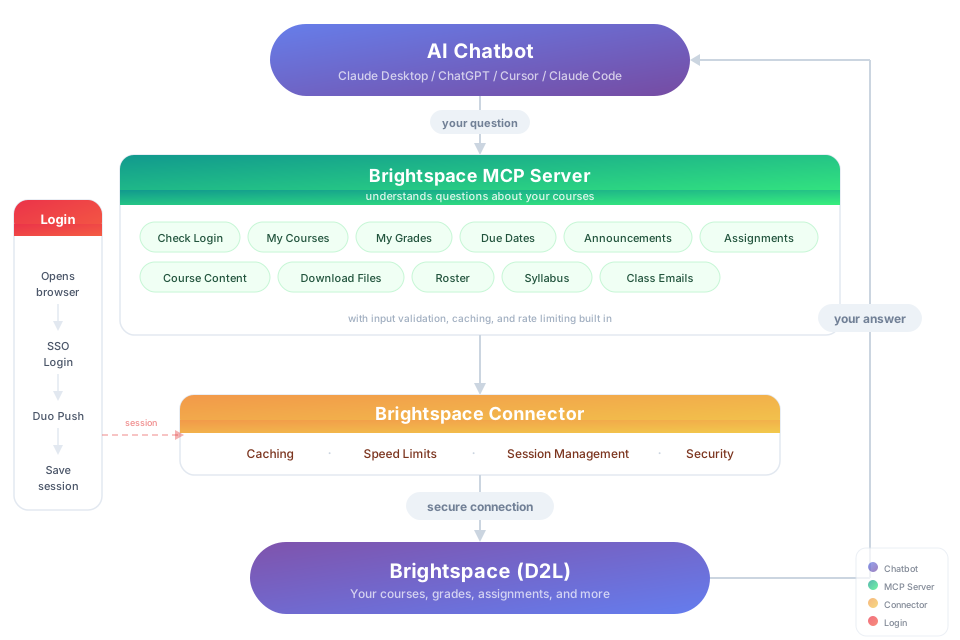
MCP server for Brightspace (D2L): check grades, due dates, announcements, rosters & more using Claude, ChatGPT, Cursor, or any MCP client. Built with TypeScript and the D2L REST API.
Explore
- Query real-time grades across all courses
- List upcoming assignments and due dates
- Retrieve course announcements and discussion posts
- Download lecture slides and course content
- View course roster with instructor/TA contact info
- Works with any Brightspace‑enabled institution
- Automatic session re‑authentication and encrypted local storage

Setting up with Highlight
This MCP is not yet compatible with Highlight’s one-click setup. However, you can still use it with Highlight by following these steps:
- Download and install Highlight from highlightai.com/download
- Navigate to the plugins tab and select "Add Custom Plugin"
-
Configure the plugin with the settings below
Plugin Name
Brightspace Mcp ServerCommand (node, npx, python, etc.)Please refer to the README for specific instructions on how to obtain API keys or other required environment variables.
- Enable "Start Automatically" if you want the plugin to start when Highlight launches





From the repository
You need: Node.js 18+ (download the LTS version)
Purdue students:
``bash`
npx brightspace-mcp-server setup --purdue
Everyone else:
bash``
npx brightspace-mcp-server setup
This command might take a few minutes to download, especially on Windows. Please be patient.
The wizard handles everything: credentials, MFA, and configuring your AI client. When it's done, restart Claude/ChatGPT/Cursor and start asking questions.
That's it! You're ready to go.
check_auth
Check if you are authenticated with Brightspace. Run the brightspace-auth CLI first to authenticate. Use this when the user asks if they're logged in, if authentication is working, or when other tools return auth errors.
get_my_courses
Fetch your enrolled Brightspace courses with names, codes, and IDs. Use this when the user asks about their courses, enrolled classes, what they're taking this semester, or needs a course ID for other queries.
get_upcoming_due_dates
Fetch upcoming due dates across all your courses. Shows assignments, quizzes, and other items due within the specified time window. Use this when the user asks about deadlines, what's due, upcoming work, or what they need to do this week.
get_my_grades
Fetch your grade breakdown for a specific course or all enrolled courses. Shows grade items with points, percentages, and comments. Use this when the user asks about grades, scores, marks, GPA, academic performance, or how they're doing in a class.
get_announcements
Fetch recent announcements from your courses. Can filter to a specific course or get announcements across all courses. Use this when the user asks about announcements, news, updates from instructors, recent posts, or what professors said.
get_assignments
Fetch assignments and quizzes for a specific course or all enrolled courses. Shows dropbox submissions and quizzes with due dates, status, and rubric info. Use this when the user asks about assignments, homework, what to submit, quizzes, or assignment details and rubrics.
get_course_content
Fetch the content tree for a course showing modules, topics, files, and links. Use this when the user asks about course materials, lecture slides, uploaded files, content structure, or what's in a course module. Use moduleTitle to filter to a specific module (e.g. 'Labs', 'Staff', 'Homeworks') instead of fetching the entire tree. Use maxDepth to limit recursion depth for a table-of-contents view.
download_file
Download a file from course content or assignment submissions to a local directory. Use this when the user wants to download, save, or get a file from Brightspace course content or dropbox submissions. IMPORTANT: You MUST ask the user where they want to save the file before calling this tool. Never guess or assume a download directory. After identifying the file to download, suggest a clean readable filename to the user (e.g., 'Lecture 7 - Memory Management.pdf' instead of 'L07_CS251_2026SP_v2.pdf') and ask if they'd like to rename it. Pass their preferred name as customFilename, or omit it to keep the original.
get_classlist_emails
Fetch all email addresses for everyone in a course — instructors, TAs, and students. Use this when the user wants a list of emails for a class, needs to email the whole class, or wants contact info for everyone enrolled.
get_roster
Fetch the roster for a course including instructors, TAs, and optionally students with their names, emails, and roles. Use this when the user asks about classmates, instructor contact info, TA emails, professor names, or who's in a class. By default returns only instructors and TAs for privacy. Use includeStudents to get full class list.
get_syllabus
Fetch the syllabus/overview text and optional attachment for a course. Returns the course overview description as markdown. If downloadPath is provided, also downloads the syllabus attachment (e.g. PDF). IMPORTANT: You MUST ask the user where they want to save the file before calling this tool with a downloadPath.
get_discussions
Fetch discussion board content for a course including forums, topics, and posts. Use this when the user asks about discussion boards, forum posts, class discussions, or wants to see what's been posted. Provide just courseId to list all forums and their topics. Add forumId to get topics and posts for a specific forum. Add both forumId and topicId to get all posts in a specific discussion topic.
Claude Desktop / Cursor
Paste into your MCP client config file to install this server.
{
    "mcpServers": {
        "brightspace mcp server": {
            "brightspace": {
                "command": "npx",
                "args": [
                    "-y",
                    "brightspace-mcp-server@latest"
                ]
            }
        }
    }
}McpServers
{
    "brightspace": {
        "command": "npx",
        "args": [
            "-y",
            "brightspace-mcp-server@latest"
        ]
    }
} </p>
</p>
Try It
> "Download my lecture slides and turn them into interactive flashcards" > "Grab every assignment rubric and build me a visual dashboard of what I need to hit for an A"Steps to Install
You need: Node.js 18+ (download the LTS version) Purdue students: ``bash
npx brightspace-mcp-server setup --purdue
`
Everyone else:
`bash
npx brightspace-mcp-server setup
`
This command might take a few minutes to download, especially on Windows. Please be patient.

The wizard handles everything: credentials, MFA, and configuring your AI client. When it's done, restart Claude/ChatGPT/Cursor and start asking questions.

That's it! You're ready to go.

Session Expired?


Sessions re-authenticate automatically. If auto-reauth fails (e.g., you missed the Duo push):
`bash
npx brightspace-mcp-server auth
`
What You Can Ask About


| Topic | Examples |
|-------|---------|
| Grades | "Am I passing all my classes?" · "Compare my grades across all courses" |
| Assignments | "What's due in the next 48 hours?" · "Summarize every assignment I haven't turned in yet" |
| Announcements | "Did any professor post something important today?" · "What did my CS prof announce this week?" |
| Course content | "Find the midterm review slides" · "Download every PDF from Module 5" |
| Roster | "Who are the TAs for ECE 264?" · "Get me my instructor's email" |
| Discussions | "What are people saying in the final project thread?" · "Summarize the latest discussion posts" |
| Planning | "Build me a study schedule based on my upcoming due dates" · "Which class needs the most attention right now?" |

Troubleshooting


"Not authenticated" → Run
npx brightspace-mcp-server auth
AI client not responding → Quit and reopen it completely (not just close the window)

Need to redo setup → Run
npx brightspace-mcp-server setup again
Config location → ~/.brightspace-mcp/config.json (you can edit this directly)
Browser launch times out (Windows) → Open Task Manager, end all Chromium/Chrome processes, and try again. If it persists, add the Playwright Chromium folder to your antivirus exclusion list.
Auth fails in WSL or Docker → Chromium dependencies may be missing. Run npx playwright install-deps chromium to install them. The server automatically adds --no-sandbox for these environments.
Headless login fails (Windows) → SSO login flows can fail in headless mode on Windows. The default is headed (a browser window opens). If you set D2L_HEADLESS=true and auth fails, switch back to headed mode.
Security
- Credentials stay on your machine at ~/.brightspace-mcp/config.json` (restricted permissions)
- Session tokens are encrypted (AES-256-GCM)
- All traffic to Brightspace is HTTPS
- Nothing is sent anywhere except your school's login page
Built With





Updates
Automatic. Your AI client pulls the latest version every time it starts. No action needed. --- Proudly made for Boilermakers by Rohan Muppa 🚂 Report a bug · AGPL-3.0 · Copyright 2026 Rohan MuppaSign in to leave a review
Use Google, GitHub, or an email account so ratings stay tied to real people.
No reviews posted yet.



