
Cursor MCP Servers 0.46 Windows 配置指南
About
This guide provides step-by-step instructions for configuring Model Context Protocol (MCP) servers in Cursor IDE version 0.46 on Windows. MCP allows the Cursor AI assistant to interact with external tools and services, such as web search, browser automation, file system access…
Details
- License
- MIT
Explore
- Covers three configuration methods for different user needs.
- Lists commands for five commonly used MCP servers.
- Provides Windows-specific environment variable setup instructions.
- Includes troubleshooting for common issues (yellow status, permission problems).
- Offers best practices for security, token usage, and configuration sharing.

Setting up with Highlight
This MCP is not yet compatible with Highlight’s one-click setup. However, you can still use it with Highlight by following these steps:
- Download and install Highlight from highlightai.com/download
- Navigate to the plugins tab and select "Add Custom Plugin"
-
Configure the plugin with the settings below
Plugin Name
Cursor MCP Servers 0.46 Windows 配置指南Command (node, npx, python, etc.)Please refer to the README for specific instructions on how to obtain API keys or other required environment variables.
- Enable "Start Automatically" if you want the plugin to start when Highlight launches





From the repository
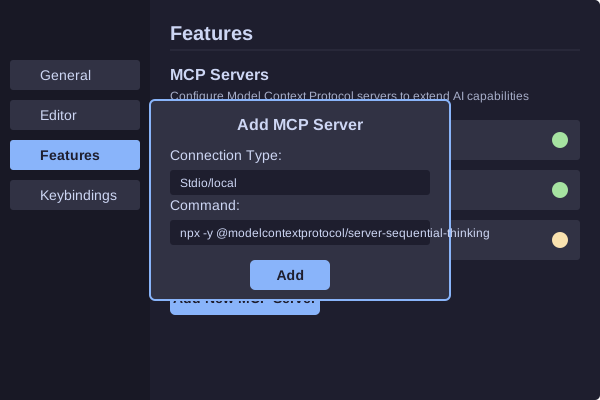
Follow one of three installation methods described in the guide: (1) add servers through Cursor’s settings UI (Features → MCP Servers → Add New MCP Server, using Stdio/local type), (2) create a project-level .cursor/mcp.json file, or (3) create a global mcp.json in %APPDATA%\Cursor. The guide lists example commands for servers such as Sequential Thinking (npx -y @modelcontextprotocol/server-sequential-thinking) and Brave Search (env BRAVE_API_KEY=[key] npx -y @modelcontextprotocol/server-brave-search). Environment variables can be set inline, via PowerShell, or through Windows system settings.
sequentialthinking
A detailed tool for dynamic and reflective problem-solving through thoughts. This tool helps analyze problems through a flexible thinking process that can adapt and evolve. Each thought can build on, question, or revise previous insights as understanding deepens. When to use this tool: - Breaking down complex problems into steps - Planning and design with room for revision - Analysis that might need course correction - Problems where the full scope might not be clear initially - Problems that require a multi-step solution - Tasks that need to maintain context over multiple steps - Situations where irrelevant information needs to be filtered out Key features: - You can adjust total_thoughts up or down as you progress - You can question or revise previous thoughts - You can add more thoughts even after reaching what seemed like the end - You can express uncertainty and explore alternative approaches - Not every thought needs to build linearly - you can branch or backtrack - Generates a solution hypothesis - Verifies the hypothesis based on the Chain of Thought steps - Repeats the process until satisfied - Provides a correct answer Parameters explained: - thought: Your current thinking step, which can include: * Regular analytical steps * Revisions of previous thoughts * Questions about previous decisions * Realizations about needing more analysis * Changes in approach * Hypothesis generation * Hypothesis verification - nextThoughtNeeded: True if you need more thinking, even if at what seemed like the end - thoughtNumber: Current number in sequence (can go beyond initial total if needed) - totalThoughts: Current estimate of thoughts needed (can be adjusted up/down) - isRevision: A boolean indicating if this thought revises previous thinking - revisesThought: If is_revision is true, which thought number is being reconsidered - branchFromThought: If branching, which thought number is the branching point - branchId: Identifier for the current branch (if any) - needsMoreThoughts: If reaching end but realizing more thoughts needed You should: 1. Start with an initial estimate of needed thoughts, but be ready to adjust 2. Feel free to question or revise previous thoughts 3. Don't hesitate to add more thoughts if needed, even at the "end" 4. Express uncertainty when present 5. Mark thoughts that revise previous thinking or branch into new paths 6. Ignore information that is irrelevant to the current step 7. Generate a solution hypothesis when appropriate 8. Verify the hypothesis based on the Chain of Thought steps 9. Repeat the process until satisfied with the solution 10. Provide a single, ideally correct answer as the final output 11. Only set nextThoughtNeeded to false when truly done and a satisfactory answer is reached
Claude Desktop / Cursor
Paste into your MCP client config file to install this server.
{
    "mcpServers": {
        "cursor mcp servers 0.46 windows \u914d\u7f6e\u6307\u5357": {
            "sequential_thinking": {
                "command": "npx",
                "args": [
                    "-y",
                    "@modelcontextprotocol/server-sequential-thinking"
                ]
            }
        }
    }
}McpServers
{
    "sequential_thinking": {
        "command": "npx",
        "args": [
            "-y",
            "@modelcontextprotocol/server-sequential-thinking"
        ]
    }
}
这是全部在cursor中进行的,从仓库创建-文件生成-README配置全套-到上传更新仓库-全都是在cursor中用自然语言实现的。这是全部在cursor中进行的,从仓库创建-文件生成-README配置全套-到上传更新仓库-全都是在cursor中用自然语言实现的。
(仓库中的部分内容应该是有问题的,所以不要100%相信它)
This is all done in Cursor. From repository creation to file generation, full README configuration, and up to uploading and updating the repository.
It's all achieved using natural language in Cursor. (Some of the content in the repository may be problematic, so don't trust it 100%).
简介
本仓库提供了在Windows环境下配置和使用Cursor IDE 0.46版本中的MCP (Model Context Protocol) Servers功能的详细指南。MCP允许AI助手使用外部工具和服务,极大地扩展了其功能和实用性。
什么是MCP?
MCP (Model Context Protocol) 是一种允许大型语言模型(LLM)与外部工具和服务交互的协议。在Cursor IDE中,MCP Servers功能允许AI助手调用各种工具来执行搜索、浏览网页、执行代码等操作。
目录
- 前提条件
- 安装方法
- 方法1: 通过Cursor设置界面
- 方法2: 使用项目级配置文件
- 方法3: 使用全局配置文件
- 常用MCP服务器
- 环境变量配置
- 故障排除
- 最佳实践
- 常见问题
- 参考资源
前提条件
在开始配置MCP Servers之前,请确保满足以下条件:
- Cursor IDE 0.46或更高版本
- Windows 10/11操作系统
- Node.js v18或更高版本
- 基本的命令行知识
- 特定MCP服务器可能需要的API密钥
安装方法
方法1: 通过Cursor设置界面
这是最简单的方法,适合初学者:
1. 打开Cursor IDE
2. 点击左下角的设置图标(⚙️)
3. 导航至"Features"部分
4. 滚动到"MCP Servers"部分
5. 点击"Add New MCP Server"
6. 选择"Stdio/local"作为连接类型
7. 输入服务器命令(见常用MCP服务器部分)
8. 点击"Add"保存配置
方法2: 使用项目级配置文件
> 注意: 在Windows环境中,项目级配置文件功能在Cursor 0.46版本可能存在问题。如果此方法不起作用,请使用方法1或方法3。
为特定项目配置MCP服务器:
1. 在项目根目录创建.cursor文件夹(如果不存在)
2. 在.cursor文件夹中创建mcp.json文件
3. 使用以下格式配置MCP服务器:
{
  "mcpServers": {
    "server_name": {
      "command": "command_executable",
      "args": ["arg1", "arg2", "..."]
    }
  }
}
例如,配置Sequential Thinking服务器:
{
  "mcpServers": {
    "sequential_thinking": {
      "command": "npx",
      "args": ["-y", "@modelcontextprotocol/server-sequential-thinking"]
    }
  }
}
方法3: 使用全局配置文件
> 注意: 全局配置文件功能可能需要特定版本的Cursor才能支持。
为所有项目配置MCP服务器:
1. 导航到Cursor的配置目录(通常在%APPDATA%\Cursor)
2. 创建或编辑mcp.json文件
3. 使用与项目级配置相同的格式
常用MCP服务器
以下是一些常用的MCP服务器及其配置命令:
Sequential Thinking
npx -y @modelcontextprotocol/server-sequential-thinking
Brave Search
env BRAVE_API_KEY=[your-key] npx -y @modelcontextprotocol/server-brave-search
Puppeteer (网页浏览)
npx -y @modelcontextprotocol/server-puppeteer
GitHub工具
npx -y @modelcontextprotocol/server-github
文件系统工具
npx -y @modelcontextprotocol/server-fs
环境变量配置
某些MCP服务器需要环境变量来配置API密钥或其他设置。在Windows中,有几种方法可以设置环境变量:
方法1: 在命令中直接设置
env API_KEY=your_key_here npx -y @package/server-name
方法2: 使用PowerShell设置临时环境变量
$env:API_KEY="your_key_here"
npx -y @package/server-name
方法3: 使用系统环境变量
1. 右键点击"此电脑",选择"属性"
2. 点击"高级系统设置"
3. 点击"环境变量"
4. 在"用户变量"部分添加新变量
故障排除
常见问题及解决方案
1. MCP服务器状态显示为黄色
- 尝试刷新服务器状态
- 检查命令是否正确
- 重启Cursor IDE
2. 无法找到MCP工具
- 确保在Composer或Agent模式下使用
- 明确指示AI使用MCP工具
- 检查服务器状态是否为绿色
3. Windows权限问题
- 尝试以管理员身份运行终端
- 检查防火墙设置
- 确保Node.js有足够的权限
4. 项目级配置文件不起作用
- 这是Windows环境中的已知问题
- 尝试使用全局配置文件或通过设置界面添加
5. Node.js版本问题
- 使用nvm切换到Node.js v18或更高版本:
   nvm install 18

   nvm use 18
最佳实践
1. 按需添加服务器
- 只添加当前任务需要的MCP服务器
- 过多的服务器可能会增加token消耗
2. 使用Git Bash代替CMD
- Windows用户可能会发现Git Bash比CMD更适合运行某些MCP服务器
3. 安全存储API密钥
- 不要在共享代码中硬编码API密钥
- 使用环境变量或安全的密钥管理解决方案
4. 定期更新MCP服务器
- MCP生态系统发展迅速,定期检查更新
5. 项目特定配置
- 为不同项目使用不同的MCP服务器配置
- 考虑使用项目级配置文件(如果支持)
常见问题
MCP只在特定模式下工作吗?
是的,MCP工具只在Composer和Agent模式下可用。如何知道MCP服务器是否正常工作?
服务器状态指示器应显示为绿色,并且在使用时会弹出终端窗口。可以同时使用多少个MCP服务器?
理论上没有限制,但建议只添加当前需要的服务器以减少资源消耗。如何在多台计算机之间共享MCP配置?
可以将.cursor/mcp.json文件添加到版本控制系统中,或使用配置同步工具。
参考资源
- 官方Cursor MCP文档
- MCP服务器目录
- Cursor社区论坛
- Model Context Protocol规范
贡献
欢迎通过Issues或Pull Requests贡献改进和更新。
许可证
MIT License - 详见LICENSE文件。
Sign in to leave a review
Use Google, GitHub, or an email account so ratings stay tied to real people.
No reviews posted yet.



