
Flux
About
Flux is an MCP server that enables AI-based AO tool calling using natural language. It integrates with existing developer tools and editors such as Cursor, Windsurf, and Claude by exposing AO code execution and blueprint creation through standard MCP tool calls.
Explore
- Run AO code using just natural language
- Create and run custom AO code/blueprints completely using natural language
- Integrates with your existing AI dev tools like Cursor, Windsurf, Claude, and anything that supports MCP tool calling
- Can test out all the code it pushes to an process
- Can create and test complex handlers
- Inetgration with AO ecosystem tools
- Better code generation capabilities by adding more context about AO

Setting up with Highlight
This MCP is not yet compatible with Highlight’s one-click setup. However, you can still use it with Highlight by following these steps:
- Download and install Highlight from highlightai.com/download
- Navigate to the plugins tab and select "Add Custom Plugin"
-
Configure the plugin with the settings below
Plugin Name
FluxCommand (node, npx, python, etc.)Please refer to the README for specific instructions on how to obtain API keys or other required environment variables.
- Enable "Start Automatically" if you want the plugin to start when Highlight launches





From the repository
There are currently two ways to install and use Flux, right now it has been tested significantly only on Cursor so we will be showing how to install FLux in Cursor -
1. Local Setup - For users who want everything to be present locally, no remote servers involved
- Make sure you have latest stable version of NODE.js installed - Node.js download
- Copy the content of the file local/index.js to your local machine in any folder and copy the absolute path
- Open Cursor and go to Settings > Cursor Settings > MCP > Add new MCP tool
- Paste this code in the file
"mcpServers": {
"flux": {
"command": "node /path/to/your/local/index.js",
}
}
- if you did everything correctly you will be able to see the flux MCP loaded with all the tools, and its ready to be used in Cursor!
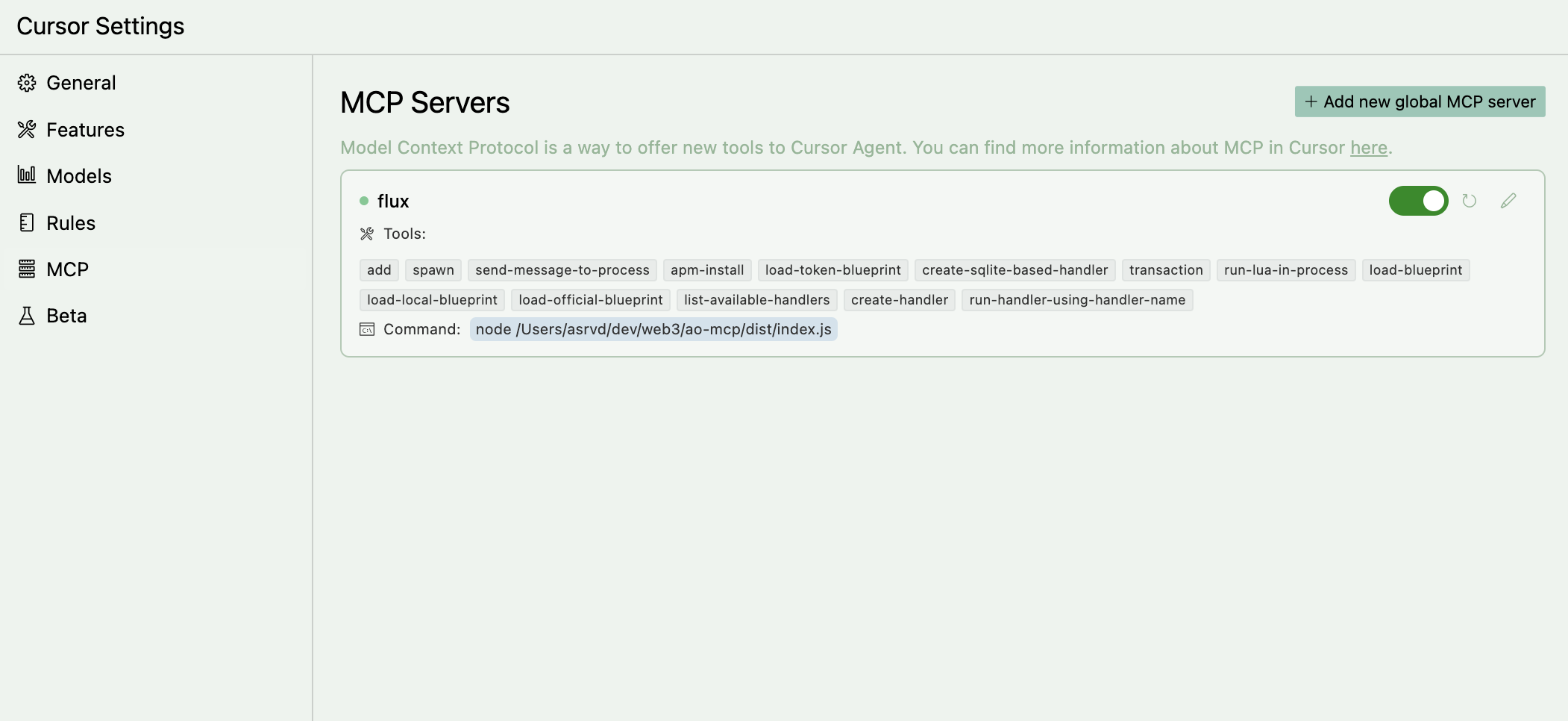
2. Remote Setup - For users who want to use Flux without installing anything locally
- Open Cursor and go to Settings > Cursor Settings > MCP > Add new MCP tool
- Paste this code in the file
"mcpServers": {
"flux": {
"url": "https://flux-2esw.onrender.com/sse",
}
}
- if you did everything correctly you will be able to see the flux MCP loaded with all the tools, and its ready to be used in Cursor!
spawn
spawn a new AO process
send-message-to-process
send a message to an existing AO process
apm-install
install a package in an existing AO process
load-token-blueprint
load the token blueprint in an existing AO process
create-sqlite-based-handler
create a new sqlite based handler in an existing AO process
run-lua-in-process
run a lua script in an existing AO process
load-blueprint
load a blueprint in an existing AO process
load-local-blueprint
load a local blueprint in an existing AO process
load-official-blueprint
load an official blueprint in an existing AO process
list-available-handlers
list all available handlers in an existing AO process
create-handler
create a new handler in an existing AO process
run-handler-using-handler-name
run a handler using its name in an existing AO process
Claude Desktop / Cursor
Paste into your MCP client config file to install this server.
{
    "mcpServers": {
        "flux": {
            "flux": {
                "type": "http",
                "url": "https://flux-2esw.onrender.com/sse"
            }
        }
    }
}McpServers
{
"flux": {
"type": "http",
"url": "https://flux-2esw.onrender.com/sse"
}
}https://github.com/user-attachments/assets/3484e2db-e7cb-479a-84a2-0b399e1149ac
Features Implemented
- Run AO code using just natural language - Create and run custom AO code/blueprints completely using natural language - Integrates with your existing AI dev tools like Cursor, Windsurf, Claude, and anything that supports MCP tool calling - Can test out all the code it pushes to an process - Can create and test complex handlersFeatures to be implemented
- Inetgration with AO ecosystem tools - Better code generation capabilities by adding more context about AOTech stack
- AO - Arweave - MCP typescript sdk - Typescript - Node.jsInstallation
There are currently two ways to install and use Flux, right now it has been tested significantly only on Cursor so we will be showing how to install FLux in Cursor -1. Local Setup - For users who want everything to be present locally, no remote servers involved
- Make sure you have latest stable version of NODE.js installed - Node.js download
- Copy the content of the file local/index.js to your local machine in any folder and copy the absolute path
- Open Cursor and go to Settings > Cursor Settings > MCP > Add new MCP tool
- Paste this code in the file
        "mcpServers": {

            "flux": {

                "command": "node /path/to/your/local/index.js",

            }

        }
- if you did everything correctly you will be able to see the flux MCP loaded with all the tools, and its ready to be used in Cursor!
2. Remote Setup - For users who want to use Flux without installing anything locally
- Open Cursor and go to Settings > Cursor Settings > MCP > Add new MCP tool
- Paste this code in the file
        "mcpServers": {

            "flux": {

                "url": "https://flux-2esw.onrender.com/sse",

            }

        }
- if you did everything correctly you will be able to see the flux MCP loaded with all the tools, and its ready to be used in Cursor!
Usage
We would suggest you add thellms.txt for AO docs in cursor first and use it as a context before you start using the MCP server. If you don't know how to do it, checkoout this documentation on how to add docs to cursor.
The more context you give to cursor, the more acurate the responses will be.
Now add these custom rules in your Cursor project to make sure Cursor doesn't hallucinate or give wrong responses. You can add these rules in the Settings > Cursor Settings > Rules > Add new rule.
For adding json capabilities ONLY IF NEEDED, you need to add a line "local json = require("json")" on top of file. BUT DONT USE IT UNLESS NEEDED. SIMPLE THINGS CAN BE DONE USING AO PROCESS STATE
Always use Send instead of msg.reply
Always make sure a handler is sending out a response/reply (using Send) and send it as data as well instaed of just returning using tags
Never add any tags by yourself, always add tags when needed or instructed by user, also {"Action":"Eval"} tag is for running lua in an ao process and {"Action" : "action_name"} is for running a handler
Never add the "Type" tag to anything, thats reserved for internal ao specifications
Always use Handler.utils whever possible when creating a handler, for example --

    Handlers.add(

        "pingpong",

        Handlers.utils.hasMatchingTag("Action", "Ping"),

        function (msg)

            Handlers.utils.reply("Pong")(msg) -- or use Send() here

        end

    )
Now you can start using the Flux MCP server in Cursor Agents.
Support
If you find any issues with the Server or encounter any bugs, please let us know by opening an issue or mailing us @ [email protected]Sign in to leave a review
Use Google, GitHub, or an email account so ratings stay tied to real people.
No reviews posted yet.



