CLI
About
An MCP server to run arbitrary commands on the local machine.
Details
- Repository
- g0t4/mcp-server-commands
- License
- MIT
Explore
- Runs commands via shell or direct argv invocation.
- Returns stdout and stderr as separate text outputs.
- Supports optional stdin for passing scripts or input.
- Single tool design, easy for models to learn.
- Security warning: always review commands before approving.
- Works with Claude Desktop, Groq Desktop, and HTTP via mcpo.

Setting up with Highlight
This MCP is not yet compatible with Highlight’s one-click setup. However, you can still use it with Highlight by following these steps:
- Download and install Highlight from highlightai.com/download
- Navigate to the plugins tab and select "Add Custom Plugin"
-
Configure the plugin with the settings below
Plugin Name
CLICommand (node, npx, python, etc.)npxArguments-
Argument 1
mcp-server-commands
Please refer to the README for specific instructions on how to obtain API keys or other required environment variables.
-
Argument 1
- Enable "Start Automatically" if you want the plugin to start when Highlight launches





From the repository
To use with Claude Desktop, add the server config:
On MacOS: ~/Library/Application Support/Claude/claude_desktop_config.json
On Windows: %APPDATA%/Claude/claude_desktop_config.json
Groq Desktop (beta, macOS) uses ~/Library/Application Support/groq-desktop-app/settings.json
run_process
Run a command on the host machine. This can be done via command line (string) or direct executable invocation (string array). Returns STDOUT and STDERR as text. An optional stdin parameter allows passing scripts or creating files.
Tools are for LLMs to request. Claude Sonnet 3.5 intelligently uses run_process. And, initial testing shows promising results with Groq Desktop with MCP and llama4 models.
Currently, just one command to rule them all!
- run_process - run a command, i.e. hostname or ls -al or echo "hello world" etc
- Returns STDOUT and STDERR as text
- Optional stdin parameter means your LLM can
- pass scripts over STDIN to commands like fish, bash, zsh, python
- create files with cat >> foo/bar.txt from the text in stdin
> [!WARNING]
> Be careful what you ask this server to run!
> In Claude Desktop app, use Approve Once (not Allow for This Chat) so you can review each command, use Deny if you don't trust the command.
> Permissions are dictated by the user that runs the server.
> DO NOT run with sudo.
Claude Desktop / Cursor
Paste into your MCP client config file to install this server.
{
    "mcpServers": {
        "cli": {
            "cwd": null,
            "env": {},
            "args": [
                "mcp-server-commands"
            ],
            "shell": false,
            "command": "npx"
        }
    }
}Linux
{
    "cwd": null,
    "env": [],
    "args": [
        "mcp-server-commands"
    ],
    "shell": false,
    "command": "npx"
}
Macos
{
    "cwd": null,
    "env": [],
    "args": [
        "mcp-server-commands"
    ],
    "shell": false,
    "command": "npx"
}
Windows
{
    "cwd": null,
    "env": [],
    "args": [
        "/c",
        "npx",
        "mcp-server-commands"
    ],
    "shell": false,
    "command": "cmd"
}
runProcess tool
The runProcess tool runs processes on the host machine. There are two mutually exclusive ways to invoke it:
1. command_line (string) — Executed via the system's default shell (just like typing into bash/fish/pwsh/etc). Shell features like pipes, redirects, and variable expansion all work.
2. argv (string array) — Direct executable invocation. argv[0] is the executable, the rest are arguments. No shell interpretation.
You cannot pass both. The tool infers whether to use a shell from which parameter you provide.
If you want your model to use specific shell(s) on a system, I would list them in your system prompt. Or, maybe in your tool instructions, though models tend to pay better attention to examples in a system prompt.
Let me know if you encounter problems!
Tools
Tools are for LLMs to request. Claude Sonnet 3.5 intelligently uses run_process. And, initial testing shows promising results with Groq Desktop with MCP and llama4 models.
Currently, just one command to rule them all!
- run_process - run a command, i.e. hostname or ls -al or echo "hello world" etc
- Returns STDOUT and STDERR as text
- Optional stdin parameter means your LLM can
- pass scripts over STDIN to commands like fish, bash, zsh, python
- create files with cat >> foo/bar.txt from the text in stdin
> [!WARNING]
> Be careful what you ask this server to run!
> In Claude Desktop app, use Approve Once (not Allow for This Chat) so you can review each command, use Deny if you don't trust the command.
> Permissions are dictated by the user that runs the server.
> DO NOT run with sudo.
Video walkthrough
<a href="https://youtu.be/0-VPu1Pc18w">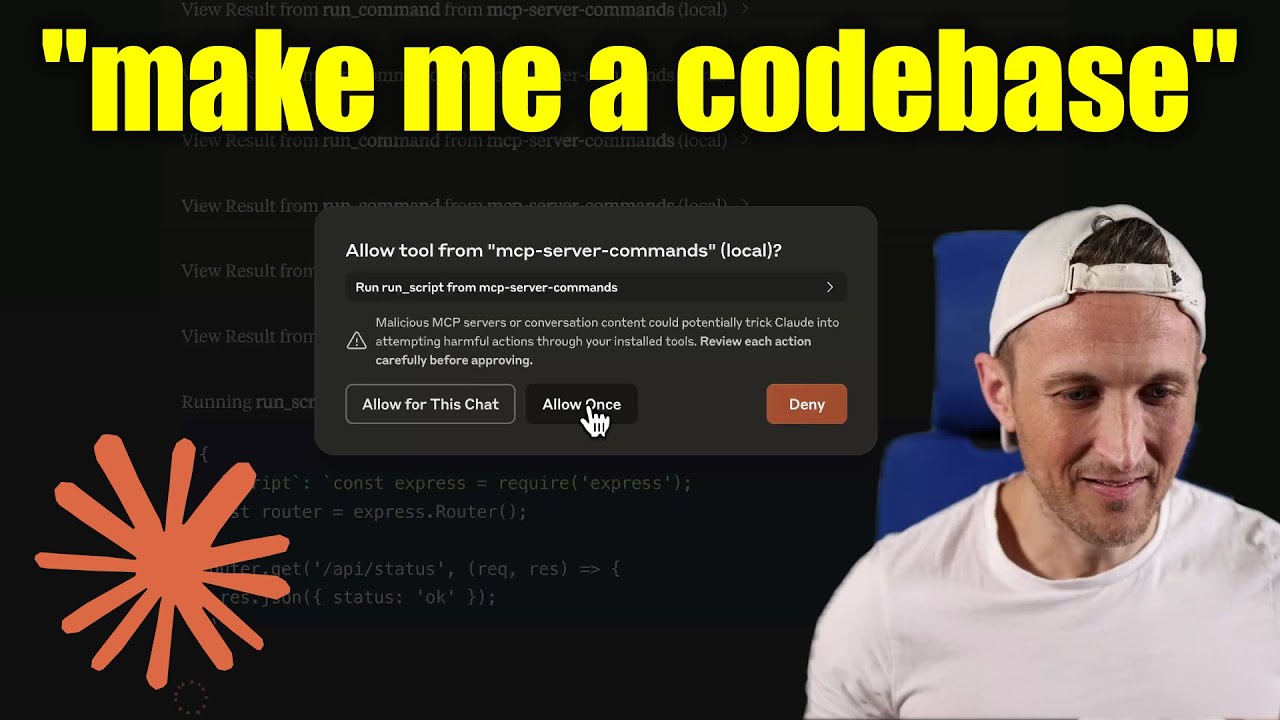 </a>
</a>
Prompts
Prompts are for users to include in chat history, i.e. via Zed's slash commands (in its AI Chat panel)
- run_process - generate a prompt message with the command output
- FYI this was mostly a learning exercise... I see this as a user requested tool call. That's a fancy way to say, it's a template for running a command and passing the outputs to the model!
Development
Install dependencies:
npm install
Build the server:
npm run build
For development with auto-rebuild:
npm run watch
Installation
To use with Claude Desktop, add the server config:
On MacOS: ~/Library/Application Support/Claude/claude_desktop_config.json
On Windows: %APPDATA%/Claude/claude_desktop_config.json
Groq Desktop (beta, macOS) uses ~/Library/Application Support/groq-desktop-app/settings.json
Use the published npm package
Published to npm as mcp-server-commands using this workflow
{
  "mcpServers": {
    "mcp-server-commands": {
      "command": "npx",
      "args": ["mcp-server-commands"]
    }
  }
}
Use a local build (repo checkout)
Make sure to run npm run build
{
  "mcpServers": {
    "mcp-server-commands": {
      // works b/c of shebang in index.js
      "command": "/path/to/mcp-server-commands/build/index.js"
    }
  }
}
Local Models
- Most models are trained such that they don't think they can run commands for you.
- Sometimes, they use tools w/o hesitation... other times, I have to coax them.
- Use a system prompt or prompt template to instruct that they should follow user requests. Including to use run_processs without double checking.
- Ollama is a great way to run a model locally (w/ Open-WebUI)
# NOTE: make sure to review variants and sizes, so the model fits in your VRAM to perform well!
Probably the best so far is OpenHands LM
ollama pull https://huggingface.co/lmstudio-community/openhands-lm-32b-v0.1-GGUF
https://ollama.com/library/devstral
ollama pull devstral
Qwen2.5-Coder has tool use but you have to coax it
ollama pull qwen2.5-coder
HTTP / OpenAPI
The server is implemented with the STDIO transport.
For HTTP, use mcpo for an OpenAPI compatible web server interface.
This works with Open-WebUI
uvx mcpo --port 3010 --api-key "supersecret" -- npx mcp-server-commands
uvx runs mcpo => mcpo run npx => npx runs mcp-server-commands
then, mcpo bridges STDIO <=> HTTP
> [!WARNING]
> I briefly used mcpo with open-webui, make sure to vet it for security concerns.
Logging
Claude Desktop app writes logs to ~/Library/Logs/Claude/mcp-server-mcp-server-commands.log
By default, only important messages are logged (i.e. errors).
If you want to see more messages, add --verbose to the args when configuring the server.
By the way, logs are written to STDERR because that is what Claude Desktop routes to the log files.
In the future, I expect well formatted log messages to be written over the STDIO transport to the MCP client (note: not Claude Desktop app).
Debugging
Since MCP servers communicate over stdio, debugging can be challenging. We recommend using the MCP Inspector, which is available as a package script:
npm run inspector
The Inspector will provide a URL to access debugging tools in your browser.
Sign in to leave a review
Use Google, GitHub, or an email account so ratings stay tied to real people.
No reviews posted yet.