[](https://mseep.ai/app/mohalmah-google-appscript-mcp-server) # Google Apps Script MCP Server [](https://mseep.ai/app/mohalmah-google-appscript-mcp-server)
# Google Apps Script MCP Server
[](https://smithery.ai/server/@mohalmah/google-appscript-mcp-server)
**Author**: [mohalmah](https://github.com/mohalmah)
**License**: MIT License
**Repository**: [google-apps-script-mcp-server](https://github.com/mohalmah/google-apps-script-mcp-server)
Welcome to the Google Apps Script MCP (Model Context Protocol) Server! 🚀
This MCP server provides comprehensive integration with the Google Apps Script API, allowing you to manage script projects, deployments, versions, and executions through any MCP-compatible client like Claude Desktop, VS Code with Cline, or Postman.
## 📋 Table of Contents
- [Overview](#overview)
- [Features](#features)
- [Prerequisites](#prerequisites)
- [Quick Start Guide](#quick-start-guide)
- [Detailed Setup Instructions](#detailed-setup-instructions)
- [Available Tools](#available-tools)
- [Script Authorization](#script-authorization)
- [MCP Client Configuration](#mcp-client-configuration)
- [Troubleshooting](#troubleshooting)
- [Advanced Usage](#advanced-usage)
## 🌟 Overview
This MCP server enables seamless interaction with Google Apps Script through:
- ✅ **OAuth 2.0 Authentication** - Secure token management with automatic refresh
- ✅ **16 Comprehensive Tools** - Complete Google Apps Script API coverage
- ✅ **MCP Protocol Compliance** - Works with Claude Desktop, VS Code, and other MCP clients
- ✅ **Secure Token Storage** - OS-specific secure storage for refresh tokens
- ✅ **Auto Token Refresh** - Handles token expiration automatically
- ✅ **Detailed Logging** - Comprehensive error handling and debugging
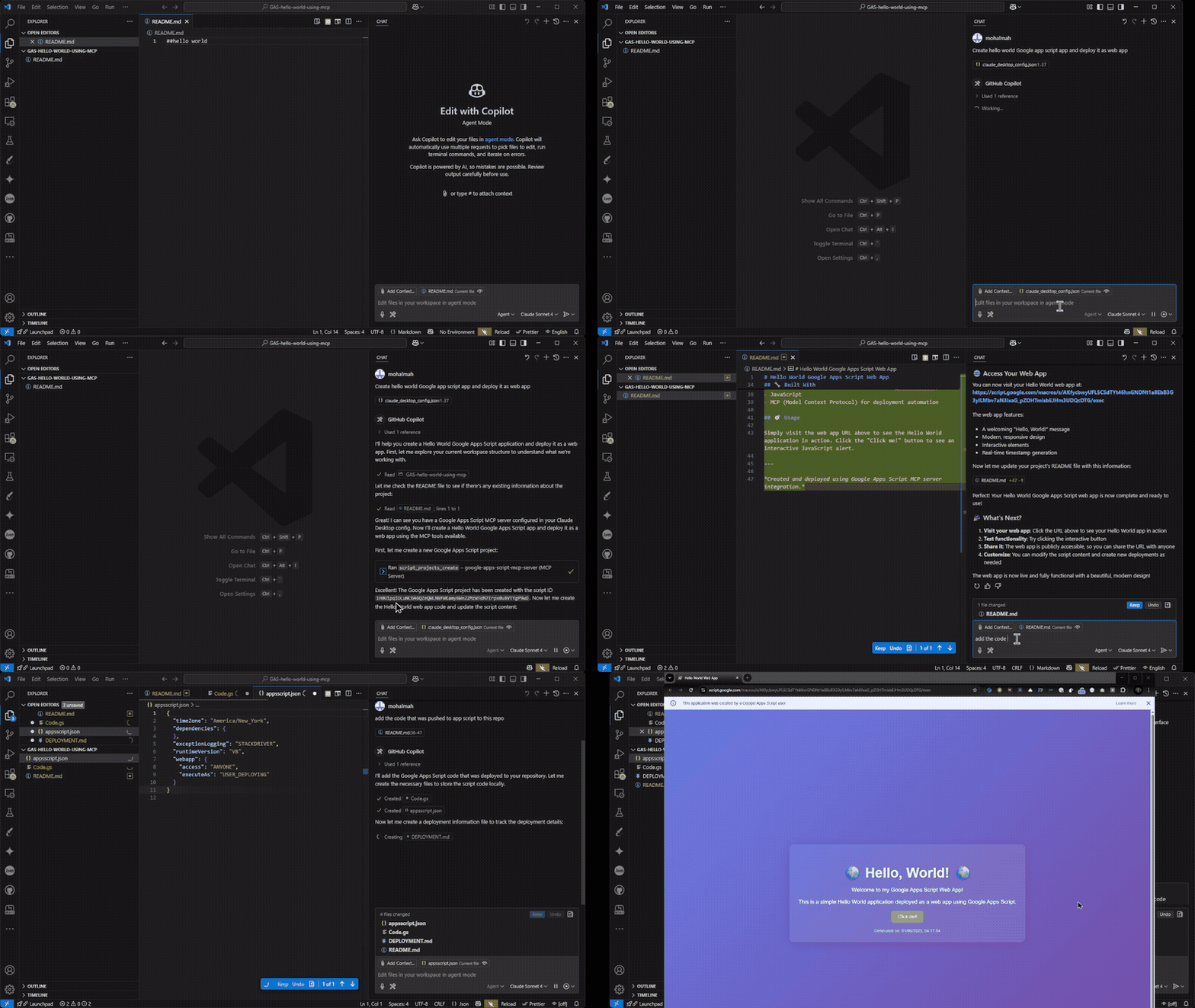
## 🎥 Demo Video

*Watch the Google Apps Script MCP Server in action - creating projects, managing deployments, and executing scripts through VS Code AI Agent.*
## 🚀 Features
### Core Capabilities
- **Project Management**: Create, retrieve, and update Google Apps Script projects
- **Deployment Management**: Create, list, update, and delete script deployments
- **Version Control**: Create and manage script versions
- **Content Management**: Get and update script content and files
- **Process Monitoring**: List and monitor script execution processes
- **Metrics Access**: Retrieve script execution metrics and analytics
- **Script Execution**: Run Google Apps Script functions remotely
### Security Features
- **OAuth 2.0 Flow**: Full Google OAuth implementation
- **Secure Token Storage**: Refresh tokens stored in OS keychain/credential manager
- **Automatic Token Refresh**: No manual token management required
- **Environment Variable Support**: Secure credential configuration
## ⚙️ Prerequisites
Before starting, ensure you have:
- **Node.js** (v18+ required, v20+ recommended) - [Download here](https://nodejs.org/)
- **npm** (included with Node.js)
- **Google Account** with access to Google Cloud Console
- **Git** (for cloning the repository)
## 🚀 Quick Start Guide
### 1. Clone the Repository
```bash
git clone https://github.com/mohalmah/google-apps-script-mcp-server.git
cd google-apps-script-mcp-server
```
### 2. Install Dependencies
```bash
npm install
```
### 3. Set Up Google Cloud OAuth
Follow the [detailed OAuth setup guide](#detailed-setup-instructions) below.
### 4. Run OAuth Setup
```bash
npm run setup-oauth
```
### 5. Test the Server
```bash
npm start
```
### 1.1 MCP config for Node.js
Edit your `claude_desktop_config.json` file:
- **Windows**: `%APPDATA%\Claude\claude_desktop_config.json`
- **macOS**: `~/Library/Application Support/Claude/claude_desktop_config.json`
- **Linux**: `~/.config/Claude/claude_desktop_config.json`
```json
{
"mcpServers": {
"google-apps-script": {
"command": "node",
"args": ["/path/to/google-appscript-mcp-server/mcpServer.js"],
"env": {
"GOOGLE_APP_SCRIPT_API_CLIENT_ID": "your_client_id",
"GOOGLE_APP_SCRIPT_API_CLIENT_SECRET": "your_client_secret"
}
}
}
}
```
### 1.2 MCP config for Docker
Build the Docker image:
```bash
docker build -t google-appscript-mcp:latest .
```
Edit your `claude_desktop_config.json` file:
```json
{
"mcpServers": {
"google-apps-script": {
"command": "docker",
"args": [
"run",
"--rm",
"-i",
"-e", "GOOGLE_APP_SCRIPT_API_CLIENT_ID=your_client_id",
"-e", "GOOGLE_APP_SCRIPT_API_CLIENT_SECRET=your_client_secret",
"-v", "google-appscript-tokens:/home/app/.config/google-apps-script-mcp",
"google-appscript-mcp:latest"
]
}
}
}
```
## 📖 Detailed Setup Instructions
> If you haven't cloned the repository and installed dependencies yet, follow the [Quick Start Guide](#quick-start-guide) first.
### Step 1: Google Cloud Console Setup
#### 1.1 Create or Select a Google Cloud Project
1. Go to [Google Cloud Console](https://console.cloud.google.com/)
2. Click the project dropdown at the top
3. Click **"New Project"** or select an existing project
4. If creating new:
- Enter a project name (e.g., "Google Apps Script MCP")
- Note your Project ID (you'll need this)
- Click **"Create"**
#### 1.2 Enable Required APIs
1. In the Google Cloud Console, navigate to **APIs & Services** → **Library**
2. Search for and enable the following APIs:
- **Google Apps Script API** (required)
- **Google Drive API** (recommended for file access)
- **Google Cloud Resource Manager API** (for project operations)
**For Google Apps Script API:**
1. Search "Google Apps Script API"
2. Click on the result
3. Click **"Enable"**
4. Wait for the API to be enabled (may take a few minutes)
#### 1.3 Configure OAuth Consent Screen
1. Go to **APIs & Services** → **OAuth consent screen**
2. Choose **External** (unless you're in a Google Workspace organization)
3. Fill in the required information:
- **App name**: "Google Apps Script MCP Server"
- **User support email**: Your email address
- **App logo**: (optional)
- **App domain**: Leave blank for development
- **Developer contact information**: Your email address
4. Click **"Save and Continue"**
**Configure Scopes (Optional but Recommended):**
1. Click **"Add or Remove Scopes"**
2. Add these scopes:
- `https://www.googleapis.com/auth/script.projects`
- `https://www.googleapis.com/auth/script.projects.readonly`
- `https://www.googleapis.com/auth/script.deployments`
- `https://www.googleapis.com/auth/script.deployments.readonly`
- `https://www.googleapis.com/auth/script.metrics`
- `https://www.googleapis.com/auth/script.processes`
3. Click **"Update"**
**Add Test Users (for External apps):**
1. Click **"Add Users"**
2. Add your Gmail address as a test user
3. Click **"Save and Continue"**
#### 1.4 Create OAuth 2.0 Credentials
1. Go to **APIs & Services** → **Credentials**
2. Click **"+ CREATE CREDENTIALS"** → **"OAuth 2.0 Client IDs"**
3. For Application Type, select **"Web application"**
4. Configure the client:
- **Name**: "Google Apps Script MCP Client"
- **Authorized JavaScript origins**: (leave empty for now)
- **Authorized redirect URIs**: Add exactly this URL:
```
http://localhost:3001/oauth/callback
```
5. Click **"Create"**
6. **IMPORTANT**: Copy your **Client ID** and **Client Secret** immediately
- Client ID looks like: `1234567890-abcdefghijklmnop.apps.googleusercontent.com`
- Client Secret looks like: `GOCSPX-abcdefghijklmnopqrstuvwxyz`
### Step 2: Configure Environment Variables
#### 2.1 Create .env File
Create a `.env` file in your project root:
```bash
# On Windows
type nul > .env
# On macOS/Linux
touch .env
```
#### 2.2 Add OAuth Credentials
Edit the `.env` file and add your credentials:
```env
# Google Apps Script API OAuth Configuration
GOOGLE_APP_SCRIPT_API_CLIENT_ID=your_client_id_here
GOOGLE_APP_SCRIPT_API_CLIENT_SECRET=your_client_secret_here
# Optional: Logging level
LOG_LEVEL=info
```
**Replace the placeholders with your actual values:**
- Replace `your_client_id_here` with your Client ID
- Replace `your_client_secret_here` with your Client Secret
### Step 3: OAuth Authentication Setup
#### 3.1 Run OAuth Setup
Execute the OAuth setup script:
```bash
npm run setup-oauth
```
**What this does:**
1. Starts a temporary local server on `http://localhost:3001`
2. Opens your default browser to Google's authorization page
3. Asks you to grant permissions to the application
4. Captures the authorization code via the callback URL
5. Exchanges the code for access and refresh tokens
6. Stores the refresh token securely in your OS credential store
7. Tests the token by making a test API call
#### 3.2 Grant Permissions
When your browser opens:
1. **Select your Google account** (must be the test user you added)
2. **Review the permissions** being requested:
- See and manage your Google Apps Script projects
- See your script executions and metrics
- Access your script deployments
3. **Click "Continue"** or **"Allow"**
4. **You should see**: "OAuth setup completed successfully!"
#### 3.3 Verify Token Storage
The setup process stores tokens securely:
- **Windows**: Windows Credential Manager
- **macOS**: Keychain Access
- **Linux**: Secret Service API (GNOME Keyring/KDE Wallet)
### Step 4: Test Your Setup
#### 4.1 Test the MCP Server
```bash
npm start
```
You should see output like:
```
Google Apps Script MCP Server running on stdio
OAuth tokens loaded successfully
Server ready to handle MCP requests
```
#### 4.2 Test with Available Commands
```bash
# List all available tools
npm run list-tools
# Test OAuth connection
npm run test-oauth
# Enable debug logging
npm run debug
```
## 🛠️ Available Tools
This MCP server provides 16 comprehensive tools for Google Apps Script management:
### Project Management Tools
#### 1. `script-projects-create`
**Purpose**: Create a new Google Apps Script project
**Parameters**:
- `title` (required): The title of the new script project
- `parentId` (optional): The ID of the parent project
**Example Usage**: Create a new script for automation tasks
```javascript
// Creates: "My Automation Script" project
{
"title": "My Automation Script",
"parentId": "1234567890"
}
```
#### 2. `script-projects-get`
**Purpose**: Get metadata of a Google Apps Script project
**Parameters**:
- `scriptId` (required): The ID of the script project to retrieve
- `fields` (optional): Specific fields to include in response
- `alt` (optional): Data format for response (default: 'json')
**Example Usage**: Retrieve project information
```javascript
// Gets project details for script ID
{
"scriptId": "1ABC123def456GHI789jkl"
}
```
#### 3. `script-projects-get-content`
**Purpose**: Get the content of a Google Apps Script project
**Parameters**:
- `scriptId` (required): The ID of the script project
- `versionNumber` (optional): Specific version number to retrieve
**What it returns**: Complete source code and files in the project
**Example Usage**: Download script source code for backup or analysis
#### 4. `script-projects-update-content`
**Purpose**: Update the content of a Google Apps Script project
**Parameters**:
- `scriptId` (required): The ID of the script project to update
- `files` (required): Array of file objects with name, type, and source
**Example Usage**: Deploy code changes to your script project
### Version Management Tools
#### 5. `script-projects-versions-create`
**Purpose**: Create a new version of a Google Apps Script project
**Parameters**:
- `scriptId` (required): The ID of the script project
- `description` (required): Description for the new version
**Example Usage**: Create versioned snapshots for deployment
```javascript
{
"scriptId": "1ABC123def456GHI789jkl",
"description": "Added email notification feature"
}
```
#### 6. `script-projects-versions-get`
**Purpose**: Get details of a specific script version
**Parameters**:
- `scriptId` (required): The ID of the script project
- `versionNumber` (required): The version number to retrieve
#### 7. `script-projects-versions-list`
**Purpose**: List all versions of a script project
**Parameters**:
- `scriptId` (required): The ID of the script project
- `pageSize` (optional): Number of versions per page
- `pageToken` (optional): Token for pagination
### Deployment Management Tools
#### 8. `script-projects-deployments-create`
**Purpose**: Create a deployment of a Google Apps Script project
**Parameters**:
- `scriptId` (required): The ID of the script to deploy
- `versionNumber` (required): Version number to deploy
- `manifestFileName` (required): Name of the manifest file
- `description` (required): Description for the deployment
**Example Usage**: Deploy your script as a web app or API executable
```javascript
{
"scriptId": "1ABC123def456GHI789jkl",
"versionNumber": 3,
"manifestFileName": "appsscript.json",
"description": "Production deployment v1.2"
}
```
**Note**: If your deployment uses Google services like `DriveApp` or `SpreadsheetApp`, you must manually authorize the script in the Apps Script editor before the web app will respond. See [Script Authorization](#script-authorization).
#### 9. `script-projects-deployments-get`
**Purpose**: Get details of a specific deployment
**Parameters**:
- `scriptId` (required): The ID of the script project
- `deploymentId` (required): The ID of the deployment
#### 10. `script-projects-deployments-list`
**Purpose**: List all deployments of a script project
**Parameters**:
- `scriptId` (required): The ID of the script project
- `pageSize` (optional): Number of deployments per page
#### 11. `script-projects-deployments-update`
**Purpose**: Update an existing deployment
**Parameters**:
- `scriptId` (required): The ID of the script project
- `deploymentId` (required): The ID of the deployment to update
- `deploymentConfig` (required): New deployment configuration
#### 12. `script-projects-deployments-delete`
**Purpose**: Delete a deployment
**Parameters**:
- `scriptId` (required): The ID of the script project
- `deploymentId` (required): The ID of the deployment to delete
### Execution and Monitoring Tools
#### 13. `script-scripts-run`
**Purpose**: Execute a Google Apps Script function
**Parameters**:
- `scriptId` (required): The ID of the script to run
- Additional parameters specific to the function being executed
**Example Usage**: Trigger script execution remotely
**Note**: The script must be deployed and you must have execution permissions
#### 14. `script-processes-list`
**Purpose**: List execution processes for a script project
**Parameters**:
- `scriptId` (required): The ID of the script project
- `pageSize` (optional): Number of processes per page
- `pageToken` (optional): Token for pagination
- `statuses` (optional): Filter by process statuses
- `types` (optional): Filter by process types
- `functionName` (optional): Filter by function name
- `startTime` (optional): Filter by start time
- `endTime` (optional): Filter by end time
**What it shows**: Running, completed, and failed script executions
#### 15. `script-processes-list-script-processes`
**Purpose**: Alternative method to list script processes with additional filtering
**Parameters**: Similar to `script-processes-list` with enhanced filtering options
#### 16. `script-projects-get-metrics`
**Purpose**: Get execution metrics and analytics for a script project
**Parameters**:
- `scriptId` (required): The ID of the script project
- `deploymentId` (required): The ID of the deployment
- `metricsGranularity` (required): Granularity of metrics data
- `fields` (required): Specific metric fields to retrieve
**What it provides**:
- Execution counts
- Error rates
- Performance metrics
- Usage analytics
### Tool Categories Summary
| Category | Tools | Purpose |
|----------|-------|---------|
| **Project Management** | create, get, get-content, update-content | Manage script projects and source code |
| **Version Control** | versions-create, versions-get, versions-list | Handle script versioning |
| **Deployment** | deployments-create, deployments-get, deployments-list, deployments-update, deployments-delete | Manage script deployments |
| **Execution** | scripts-run | Execute script functions |
| **Monitoring** | processes-list, get-metrics | Monitor execution and performance |
### Common Use Cases
**Development Workflow**:
1. Use `script-projects-create` to create new projects
2. Use `script-projects-update-content` to upload code
3. Use `script-projects-versions-create` to create stable versions
4. Use `script-projects-deployments-create` to deploy for production
**Monitoring and Debugging**:
1. Use `script-processes-list` to see execution history
2. Use `script-projects-get-metrics` to analyze performance
3. Use `script-projects-get-content` to backup source code
**Production Management**:
1. Use `script-projects-deployments-list` to see all deployments
2. Use `script-projects-deployments-update` to update production configs
3. Use `script-scripts-run` to trigger automated workflows
## ⚠️ Script Authorization
When a script uses Google services such as `DriveApp`, `SpreadsheetApp`, `GmailApp`, or `CalendarApp`, it must be manually authorized before the deployed web app will respond correctly. The MCP server's API deployment does **not** trigger Google's OAuth consent flow.
**If your deployed web app returns "Access Denied" or "You need access"**, complete these steps once after deployment:
1. Open the script in the Apps Script editor:
```
https://script.google.com/d/{SCRIPT_ID}/edit
```
*(Replace `{SCRIPT_ID}` with the ID returned by `script-projects-create` or `script-projects-get`.)*
2. Click **Run** on any function that calls a Google service (e.g., `doGet`).
3. When prompted, click **Review Permissions**.
4. Complete the Google OAuth consent flow:
- Select your Google account
- Click **Advanced** → **Go to {project name} (unsafe)**
- Click **Allow**
5. Your deployed web app will now work correctly.
> **Note:** This is a Google Apps Script platform requirement and cannot be bypassed via the API.
## 🌐 Test the MCP Server with Postman
The MCP Server (`mcpServer.js`) exposes your automated API tools to MCP-compatible clients, such as Claude Desktop or the Postman Desktop Application. We recommend that you test the server with Postman first and then move on to using it with an LLM.
**Step 1**: Download the latest Postman Desktop Application from [https://www.postman.com/downloads/](https://www.postman.com/downloads/).
**Step 2**: Read the documentation article [here](https://learning.postman.com/docs/postman-ai-agent-builder/mcp-requests/create/) and see how to create an MCP request inside the Postman app.
**Step 3**: Set the type of the MCP request to `STDIO` and set the command to `node <absolute/path/to/mcpServer.js>`.
**For Windows users**, you can get the full path to node by running:
```powershell
Get-Command node | Select-Object -ExpandProperty Source
```
**For macOS/Linux users**, you can get the full path to node by running:
```bash
which node
```
To check the node version on any platform, run:
```bash
node --version
```
**For Windows users**, to get the absolute path to `mcpServer.js`, run:
```powershell
Get-Location | Select-Object -ExpandProperty Path
```
Then append `\mcpServer.js` to the path.
**For macOS/Linux users**, to get the absolute path to `mcpServer.js`, run:
```bash
realpath mcpServer.js
```
Use the node command followed by the full path to `mcpServer.js` as the command for your new Postman MCP Request. Then click the **Connect** button. You should see a list of tools that you selected before generating the server. You can test that each tool works here before connecting the MCP server to an LLM.
## 🔗 MCP Client Configuration
You can connect your MCP server to various MCP clients. Below are detailed instructions for both Claude Desktop and VS Code.
### 📋 Getting Required Paths
Before configuring any MCP client, you'll need the absolute paths to Node.js and your `mcpServer.js` file.
#### 🪟 Windows Users
**Get Node.js path:**
```powershell
Get-Command node | Select-Object -ExpandProperty Source
```
Example output: `C:\nvm4w\nodejs\node.exe`
**Alternative method if first doesn't work:**
```powershell
where.exe node
```
**Get current directory path:**
```powershell
Get-Location | Select-Object -ExpandProperty Path
```
Example output: `C:\Users\mohal\Downloads\google-appscriot-mcp-server`
**Complete mcpServer.js path:**
```powershell
Join-Path (Get-Location) "mcpServer.js"
```
Example output: `C:\Users\mohal\Downloads\google-appscriot-mcp-server\mcpServer.js`
**Quick copy-paste command to get both paths:**
```powershell
Write-Host "Node.js path: $((Get-Command node).Source)"
Write-Host "mcpServer.js path: $(Join-Path (Get-Location) 'mcpServer.js')"
```
#### 🍎 macOS Users
**Get Node.js path:**
```bash
which node
```
Example output: `/usr/local/bin/node` or `/opt/homebrew/bin/node`
**Get mcpServer.js path:**
```bash
realpath mcpServer.js
```
Example output: `/Users/username/google-apps-script-mcp-server/mcpServer.js`
**Alternative method:**
```bash
echo "$(pwd)/mcpServer.js"
```
**Quick copy-paste command to get both paths:**
```bash
echo "Node.js path: $(which node)"
echo "mcpServer.js path: $(realpath mcpServer.js)"
```
#### 🐧 Linux Users
**Get Node.js path:**
```bash
which node
```
Example output: `/usr/bin/node` or `/usr/local/bin/node`
**Get mcpServer.js path:**
```bash
realpath mcpServer.js
```
Example output: `/home/username/google-apps-script-mcp-server/mcpServer.js`
**Quick copy-paste command to get both paths:**
```bash
echo "Node.js path: $(which node)"
echo "mcpServer.js path: $(realpath mcpServer.js)"
```
#### ✅ Verify Node.js Version
On any platform, verify your Node.js version:
```bash
node --version
```
Ensure it shows `v18.0.0` or higher.
### 🤖 Claude Desktop Setup
**Step 1**: Note the full paths from the previous section.
**Step 2**: Open Claude Desktop and navigate to:
- **Settings** → **Developers** → **Edit Config**
**Step 3**: Add your MCP server configuration:
#### Configuration Template
```json
{
"mcpServers": {
"google-apps-script": {
"command": "<absolute_path_to_node_executable>",
"args": ["<absolute_path_to_mcpServer.js>"],
"env": {
"GOOGLE_APP_SCRIPT_API_CLIENT_ID": "your_client_id_here",
"GOOGLE_APP_SCRIPT_API_CLIENT_SECRET": "your_client_secret_here"
}
}
}
}
```
#### Windows Example
```json
{
"mcpServers": {
"google-apps-script": {
"command": "C:\\nvm4w\\nodejs\\node.exe",
"args": ["C:\\Users\\mohal\\Downloads\\google-appscriot-mcp-server\\mcpServer.js"],
"env": {
"GOOGLE_APP_SCRIPT_API_CLIENT_ID": "1234567890-abcdefghijk.apps.googleusercontent.com",
"GOOGLE_APP_SCRIPT_API_CLIENT_SECRET": "GOCSPX-abcdefghijklmnopqrstuvwxyz"
}
}
}
}
```
#### macOS/Linux Example
```json
{
"mcpServers": {
"google-apps-script": {
"command": "/usr/local/bin/node",
"args": ["/Users/username/google-apps-script-mcp-server/mcpServer.js"],
"env": {
"GOOGLE_APP_SCRIPT_API_CLIENT_ID": "1234567890-abcdefghijk.apps.googleusercontent.com",
"GOOGLE_APP_SCRIPT_API_CLIENT_SECRET": "GOCSPX-abcdefghijklmnopqrstuvwxyz"
}
}
}
}
```
**Step 4**: Replace the OAuth credentials with your actual values from the `.env` file.
**Step 5**: Save the configuration and restart Claude Desktop.
**Step 6**: Verify the connection by checking that the MCP server shows a green circle indicator next to it in Claude Desktop.
### 📝 VS Code Setup (Cline/MCP Extensions)
VS Code can use MCP servers through extensions like **Cline** or other MCP-compatible extensions.
#### Using with Cline Extension
**Step 1**: Install the [Cline extension](https://marketplace.visualstudio.com/items?itemName=saoudrizwan.claude-dev) from the VS Code marketplace.
**Step 2**: Open VS Code settings (`Ctrl+,` on Windows/Linux, `Cmd+,` on macOS).
**Step 3**: Search for "Cline" or "MCP" in the settings.
**Step 4**: Add your MCP server configuration:
#### Method 1: VS Code Settings.json
Add to your VS Code `settings.json` (accessible via `Ctrl+Shift+P` → "Preferences: Open Settings (JSON)"):
```json
{
"cline.mcpServers": {
"google-apps-script": {
"command": "C:\\nvm4w\\nodejs\\node.exe",
"args": ["C:\\Users\\mohal\\Downloads\\google-appscriot-mcp-server\\mcpServer.js"],
"env": {
"GOOGLE_APP_SCRIPT_API_CLIENT_ID": "your_client_id_here",
"GOOGLE_APP_SCRIPT_API_CLIENT_SECRET": "your_client_secret_here"
}
}
}
}
```
#### Method 2: Workspace Configuration
Create a `.vscode/settings.json` file in your project root:
```json
{
"cline.mcpServers": {
"google-apps-script": {
"command": "node",
"args": ["./mcpServer.js"],
"env": {
"GOOGLE_APP_SCRIPT_API_CLIENT_ID": "your_client_id_here",
"GOOGLE_APP_SCRIPT_API_CLIENT_SECRET": "your_client_secret_here"
}
}
}
}
```
### 🔧 Configuration File Locations
#### Claude Desktop Config Location:
- **Windows**: `%APPDATA%\Claude\claude_desktop_config.json`
- **macOS**: `~/Library/Application Support/Claude/claude_desktop_config.json`
- **Linux**: `~/.config/claude-desktop/claude_desktop_config.json`
#### VS Code Settings Location:
- **Windows**: `%APPDATA%\Code\User\settings.json`
- **macOS**: `~/Library/Application Support/Code/User/settings.json`
- **Linux**: `~/.config/Code/User/settings.json`
**🔑 Remember to:**
1. Replace `your_actual_client_id` and `your_actual_client_secret` with your OAuth credentials
2. Update the paths based on your actual system output from the commands above
3. Use your actual username instead of `username` in the paths
4. Ensure you've run `npm run setup-oauth` before configuring MCP clients
## 🔍 Troubleshooting
### Common Issues and Solutions
#### 1. "Command not found" or "Node not found" errors
**Problem**: MCP client can't find Node.js executable
**Solutions**:
- Ensure Node.js is properly installed and in your PATH
- Use absolute paths to the Node.js executable (recommended)
- Verify Node.js version is 18+ using `node --version`
- On Windows, check if multiple Node.js versions are installed
#### 2. "fetch is not defined" errors
**Problem**: Your Node.js version is below 18
**Solutions**:
- **Recommended**: Upgrade to Node.js 18+
- **Alternative**: Install `node-fetch` as a dependency:
```bash
npm install node-fetch
```
Then modify each tool file to import fetch:
```javascript
import fetch from 'node-fetch';
```
#### 3. OAuth authentication errors
**Problem**: Authentication failures or token issues
**Solutions**:
- Verify your OAuth credentials are correct in the `.env` file
- Ensure environment variables are properly set in the MCP configuration
- Re-run the OAuth setup: `npm run setup-oauth`
- Check that you've followed all steps in the Google Cloud Console setup
- Verify the callback URL is exactly: `http://localhost:3001/oauth/callback`
- Make sure your Google account is added as a test user
#### 4. "Authorization Error: Access blocked"
**Problem**: Google OAuth consent screen configuration issues
**Solutions**:
- Ensure your app is configured for "External" users
- Add your Gmail address as a test user in OAuth consent screen
- Verify all required scopes are added
- Make sure the OAuth consent screen is properly published
#### 5. MCP server not appearing in Claude Desktop
**Problem**: Configuration file syntax or path issues
**Solutions**:
- Check the configuration file syntax (valid JSON)
- Ensure file paths use proper escaping (double backslashes on Windows)
- Restart Claude Desktop after configuration changes
- Check Claude Desktop logs for error messages
- Verify the config file is in the correct location
#### 6. VS Code/Cline connection issues
**Problem**: Extension not recognizing MCP server
**Solutions**:
- Verify the extension is properly installed and enabled
- Check that the MCP configuration is in the correct settings location
- Reload the VS Code window after configuration changes
- Use workspace-specific settings if global settings don't work
#### 7. "Permission denied" errors (macOS/Linux)
**Problem**: File permission issues
**Solutions**:
- Make the `mcpServer.js` file executable: `chmod +x mcpServer.js`
- Or use the full node command: `node /path/to/mcpServer.js`
- Check file ownership and permissions
#### 8. "EADDRINUSE" or port conflicts
**Problem**: Port 3001 is already in use during OAuth setup
**Solutions**:
- Kill any processes using port 3001:
```bash
# Find process using port 3001
lsof -i :3001 # macOS/Linux
netstat -ano | findstr :3001 # Windows
# Kill the process
kill -9 <PID> # macOS/Linux
taskkill /PID <PID> /F # Windows
```
- Or temporarily change the port in `oauth-setup.js`
#### 9. "Token expired" or "Invalid credentials" errors
**Problem**: OAuth tokens have expired or are invalid
**Solutions**:
- Re-run the OAuth setup: `npm run setup-oauth`
- Clear stored tokens and re-authenticate
- Check that your OAuth app credentials haven't changed
- Verify the OAuth app is still active in Google Cloud Console
#### 10. Script execution permission errors
**Problem**: Can't execute scripts or access projects
**Solutions**:
- Ensure your Google account has access to the Apps Script projects
- Verify the script is shared with your account
- Check that the required scopes are granted
- For script execution, ensure the script is deployed and executable
#### 11. "Access Denied" or "You need access" on deployed web app
**Problem**: Scripts using Google services (`DriveApp`, `SpreadsheetApp`, etc.) require manual authorization before the deployed URL works.
**Solution**: See the [Script Authorization](#script-authorization) section for step-by-step instructions.
### Testing Your Configuration
#### Test MCP Server Independently
```bash
npm start
```
If it starts without errors, your basic setup is correct.
#### Test OAuth Authentication
```bash
npm run test-oauth
```
This verifies your OAuth setup is working correctly.
#### Test with Debug Logging
```bash
npm run debug
```
This provides detailed logging to help identify issues.
#### Test Individual Tools
```bash
npm run list-tools
```
This lists all available tools and their parameters.
### Log Files and De
No reviews yet — be the first
Sign in to leave a review
Use Google, GitHub, or an email account so ratings stay tied to real people.
Social sign-in isn’t configured yet. You can still create an account with email below, or ask an admin to add Google/GitHub/Discord OAuth credentials.
Sequential Thinking is an MCP server that provides a tool for dynamic and reflective problem-solving through a structured, step-by-step thinking process. It is…
Filesystem is a Node.js server that implements the Model Context Protocol (MCP) for filesystem operations. It enables AI assistants to read, write, and manage…
A one-of-a-kind resume builder that keeps your privacy in mind. Completely secure, customizable, portable, open-source and free forever. Try it out today!
A collection of reference implementations for the Model Context Protocol (MCP), demonstrating secure and controlled access to tools and data sources for Large…