
Layered Code
About
An AI-assisted web development tool for creating, modifying, and deploying code through natural language conversations.
Explore
- Natural language to code via AI assistants
- MCP integration for local file access
- File management (list, read, write, edit, move, delete, copy)
- Vite and Next.js project scaffolding
- Package management with pnpm/npm
- Git integration for automatic deployments
- Bundled ripgrep for fast text search
For system-wide installation (recommended):
curl -fsSL https://raw.githubusercontent.com/layered-flow/layered-code/main/scripts/install.sh | sudo bash
This installs the binaries to /usr/local/bin for easy access from anywhere.
If you prefer to install in the current directory instead, omit sudo:
curl -fsSL https://raw.githubusercontent.com/layered-flow/layered-code/main/scripts/install.sh | bash
Note: This script downloads a self-contained binary with ripgrep bundled.
While there are plans to support open source models through Ollama, Claude Desktop currently provides the best support for the Model Context Protocol that Layered Code relies on.
1. Install Claude Desktop
2. Enable Developer Mode:
- Open Claude Desktop
- Go to Settings
- Navigate to the "Developer" tab
- Enable "Developer Mode" if not already enabled
3. Install layered-code: Follow the Installation instructions above and note the path to your binary
4. Configure MCP Server:
- Open Claude Desktop settings → Developer → Edit Config
- Add to claude_desktop_config.json:
Add the following to your claude_desktop_config.json (under Settings → Developer → Edit Config), adjusting the command path as appropriate for your installation and platform:
| Platform/Install Method | "command" value example |
|---------------------------------|--------------------------------------------------|
| macOS/Linux (Homebrew) | layered-code |
| macOS/Linux (Manual/Binary) | /usr/local/bin/layered-code |
| Windows | C:\\Users\\YourUsername\\bin\\layered-code.exe |
> Note for Windows: Use the full path with double backslashes (\\) in the "command" value.
Example configuration:
{

  "globalShortcut": "",

  "mcpServers": {

    "layered-code": {

      "command": "<see table above>",

      "args": ["mcp_server"]

    }

  }

}
5. Restart Claude Desktop completely (Windows may require you to "end task" on any Claude background tasks)
6. Verify: Check for "layered-code" in Claude's tools menu
Use layered-code directly from the command line:
layered-code help
layered-code -h
layered-code --help
Available Commands:
- mcp_server - Start the Model Context Protocol server for Claude Desktop integration
- tool - Run various tools and utilities (use with subcommands like below)
File Management Tools:
- tool lc_apps_list - List all available applications in the ~/LayeredApps directory
- tool lc_file_list - List files and directories within an application with optional metadata (max depth: 10,000 levels)
- tool lc_text_search - Search for text patterns in files within an application directory using ripgrep
- tool lc_file_read - Read the contents of a file within an application directory
- tool lc_file_write - Write or create a file within an application directory
- tool lc_file_edit - Edit a file by performing find-and-replace operations
- tool lc_file_move - Move or rename a file within an application directory
- tool lc_file_delete - Delete a file within an application directory
- tool lc_file_copy - Copy a file within an application directory
- tool lc_folder_delete - Delete a folder and all its contents within an application directory (destructive operation)
- tool lc_chrome_visit - Visit a URL using Chrome browser and retrieve the page content after JavaScript loads
Vite Tools:
- tool vite_app_create - Create a new Vite app with various templates (React, Vue, Svelte, etc.)
Next.js Tools:
- tool nextjs_app_create - Create a new Next.js app with TypeScript (default), JavaScript, Tailwind, or App Router templates
- CLI flags: --src-dir (use src directory, default: true), --import-alias (default: @/), --turbopack (default: true)
- Example: tool nextjs_app_create myapp typescript --src-dir --import-alias="~/"
Package Manager Tools:
- tool pnpm_install - Install dependencies using pnpm (preferred) or npm
- tool pnpm_add - Add one or more packages using pnpm (preferred) or npm
- Single package: pnpm_add myapp express
- Multiple packages: pnpm_add myapp express cors @types/node
- tool pnpm_pm2 - Manage Node.js processes with PM2
- Commands: start <app>, stop <app|all>, restart <app|all>, delete <app|all>, list, logs [app] [flags]
- Auto-detects dev/start scripts from package.json
- Uses ecosystem.config.js if present
- Automatically installs PM2 if not available
- logs command includes --nostream by default (shows last 15 lines and exits)
- Additional flags can be passed, e.g., logs myapp --lines 100 to show more lines
JavaScript/TypeScript Tools:
- tool lc_js_lint - Run ESLint analysis on JavaScript/TypeScript files with optional auto-fix
- Runs ESLint in specified app directory and returns results in JSON format
- Usage: lc_js_lint <app_name> [--fix] [--config=<config_file>] <files...>
- Options:
- --fix: Automatically fix problems that can be fixed
- --config=<file>: Use specific ESLint config file
- --help, -h: Show help message
- Important notes:
- Files must be relative paths (no absolute paths or .. allowed)
- Config file must be relative to the app directory
- Only --config and --fix options are allowed for security
- Examples:
- Single file: lc_js_lint myapp src/index.js
- Lint and fix: lc_js_lint myapp --fix src/index.js src/app.js
- With glob patterns: lc_js_lint myapp "src//.js" "tests//*.js"
- Fix with config: lc_js_lint myapp --fix --config=.eslintrc.json src/index.js
Prompt Tools:
- tool lc_prompt_list - List all available prompts with numeric IDs, names, versions and descriptions
- Only shows the highest version of each prompt
- Use --help for more information
- tool lc_prompt_read - Read the full content of a prompt by numeric ID, with optional version
- Important: LLMs using MCP should automatically read prompt ID '1' (General Principles) at the start of every conversation
- Example (latest version): lc_prompt_read 1
- Example with version: lc_prompt_read 1:2
- Use --help for detailed syntax and examples
Git Tools:
- tool git_status - Show the working tree status of a git repository
- tool git_diff - Show changes between commits, commit and working tree, etc
- tool git_commit - Create a new commit with staged changes
- tool git_log - Show commit logs
- tool git_branch - List, create, or delete branches
- tool git_add - Add file contents to the staging area
- tool git_restore - Restore working tree files
- tool git_stash - Stash changes in a dirty working directory
- tool git_push - Update remote refs along with associated objects
- tool git_pull - Fetch from and integrate with another repository or local branch
- tool git_init - Initialize a new git repository
- version, -v, --version - Display the current version of layered-code
- help, -h, --help - Show usage information and available commands
layered-code
Run the test suite to ensure everything is working correctly:
🔍 What is Layered Code?
Layered Code transforms web development into a seamless conversation-to-deployment workflow. You chat with your preferred AI assistant through MCP-compatible tools like Claude Desktop, describing what you want to build in natural language. The AI creates and modifies your code in real-time, while modern development frameworks like Vite and Next.js provide instant hot module replacement to show changes automatically. When you're satisfied with the results, just ask the AI to commit your changes to a git repository and deploy directly to production servers — all without memorizing complex commands or navigating intricate development tools.
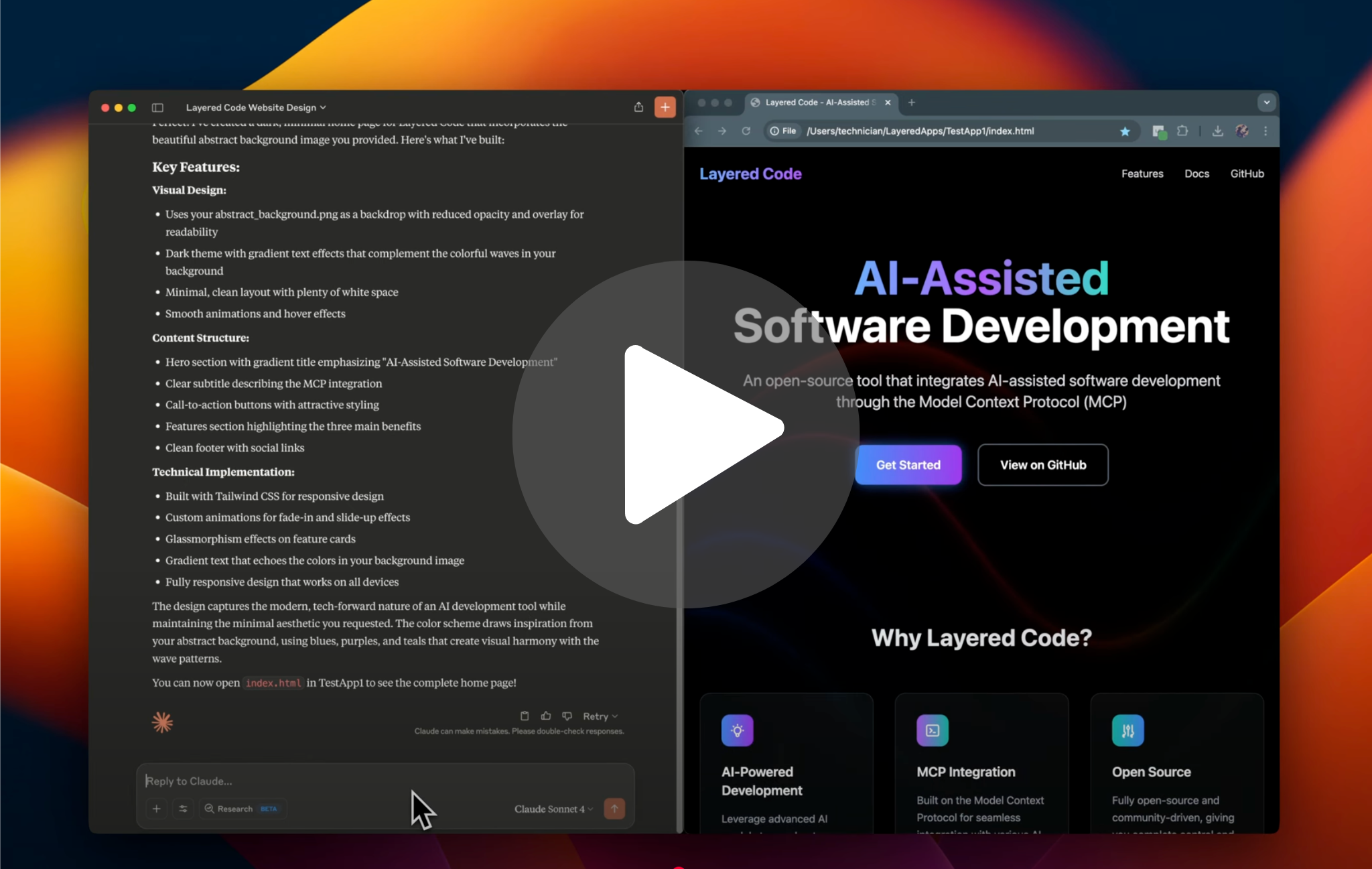
Watch a quick overview of Layered Code in action
Primary interaction method:
- 🗣️ Natural language conversations with AI assistants like Claude Desktop
- 🔌 MCP integration provides the AI with direct access to your project files on your local machine
- 🎯 Intent-driven development - describe your goals, and the AI handles the technical implementation
- 🚀 Git integration for automatic deployments - commit changes and deploy to production through conversational commands
Example conversation:
> User: "I want to create a basic web page with a dark theme to describe my new AI project called 'SmartFlow'. It should have a clean hero section with the project name, a brief description, and some key features listed below."
The AI, equipped with Layered Code's MCP tools, can:
- Create the HTML structure with semantic markup
- Generate CSS for a modern dark theme with proper contrast
- Organize project files and assets automatically
- Set up responsive design for mobile and desktop
> User: "This looks great! Can you add a contact section at the bottom and make the feature cards have a subtle hover effect?"
The AI seamlessly:
- Updates the HTML to include a contact section
- Enhances the CSS with smooth hover animations
- Your development server automatically refreshes to show the changes
> User: "Perfect! Now commit these changes and deploy to production."
The AI handles version control and deployment:
- Commits changes with a descriptive message
- Triggers your configured deployment pipeline
- Confirms successful deployment to your production server
While a CLI interface is available for direct tool access, the conversational AI experience through MCP is where Layered Code truly shines - enabling you to focus on what you want to build rather than how to build it.
Sign in to leave a review
Use Google, GitHub, or an email account so ratings stay tied to real people.
No reviews posted yet.



