
LG Therma V MCP Server
About
LG Therma V MCP server to communicate with heat pump via modbus
Details
- License
- MIT
Explore
- Integrates LG Therma V heat pumps via Modbus TCP
- Exposes heat pump controls as MCP tools
- Ready-to-use binary with no compilation needed
- Simple configuration for Claude Desktop
- MIT licensed open-source project
1. Modbus TCP connection to the LG Therma V heat pump. (such as Waveshare)
2. A MCP client, such as Claude Desktop
1. Copy the file claude_desktop_config.json to Claude Desktop config directory.
- On Mac, this is usually /Library/Application\ Support/Claude/claude_desktop_config.json
- On Linux, this is usually ~/.config/Claude/claude_desktop_config.json
- On Windows, this is usually AppData\Claude\claude_desktop_config.json
2. Open the claude_desktop_config.json file and change "command":"<path to lg-thermav-mcp-server>" to the path of the lg-thermav-mcp-server binary.
3. Open the claude_desktop_config.json file and change "MODBUS_URL": "<modbus-url>" to the URL of your modbus TCP connection. For example, tcp://192.168.1.10:4196
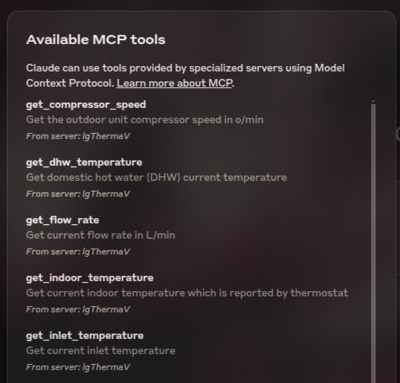
4. Open Claude Desktop and start a new conversation. You should see available LG Therma V tools if everything is set up correctly.
<div align="center">

<h3 align="center"> </h3>
</h3>
</div>
The LG Therma V MCP Server is a Model Context Protocol (MCP) server that provides seamless integration with Therma V heats pumps via modbus, enabling advanced automation and interaction capabilities for developers and tools.
⚠️ Note
This project is in early development and is not yet ready for production use. The API may change, and some features may not be fully implemented.
Demo
A sample conversation with Claude AI can be viewed here
Prerequisites
1. Modbus TCP connection to the LG Therma V heat pump. (such as Waveshare)
2. A MCP client, such as Claude Desktop
Installation
1. Grab the binary for your system from the releases page.
2. Unzip the binary and optionaly place it into your path.
3. Make sure the binary is executable. On Linux and Mac, you can do this by running chmod +x lg-thermav-mcp-server.
Usage with Claude Desktop
1. Copy the file claude_desktop_config.json to Claude Desktop config directory.
- On Mac, this is usually /Library/Application\ Support/Claude/claude_desktop_config.json
- On Linux, this is usually ~/.config/Claude/claude_desktop_config.json
- On Windows, this is usually AppData\Claude\claude_desktop_config.json
2. Open the claude_desktop_config.json file and change "command":"<path to lg-thermav-mcp-server>" to the path of the lg-thermav-mcp-server binary.
3. Open the claude_desktop_config.json file and change "MODBUS_URL": "<modbus-url>" to the URL of your modbus TCP connection. For example, tcp://192.168.1.10:4196
4. Open Claude Desktop and start a new conversation. You should see available LG Therma V tools if everything is set up correctly.
License
This project is licensed under the MIT License. See the LICENSE file for details.
Sign in to leave a review
Use Google, GitHub, or an email account so ratings stay tied to real people.
No reviews posted yet.



