
Mcp Server Suivi Post
About
This project is an example about how to build a MCP server using Spring AI. It's currently build using Spring AI 1.0.0-M7, which is a milestone version. The final version will be released in the next weeks. ## Prerequisites - Java 21 - Spring Boot 3.4.x - Maven 3.x - Docker to build it (or another container engine…
Explore
- Built with Spring AI 1.0.0-M7 (milestone version)
- Packaged as a Docker image for easy deployment
- Integrates with MCP clients like Claude Desktop and VS Code
- Uses Java 21 and Spring Boot 3.4.x
- Java 21
- Spring Boot 3.4.x
- Maven 3.x
- Docker to build it (or another container engine like Podman)
This project is an example about how to build a MCP server using Spring AI.
It's currently build using Spring AI 1.0.0-M7, which is a milestone version. The final version will be released in the next weeks.
Prerequisites
- Java 21
- Spring Boot 3.4.x
- Maven 3.x
- Docker to build it (or another container engine like Podman)
Build
To build the project, run the following command:
``mvn clean install
then, we need to build the docker image:
cd docker
or `build.cmd
It will build a docker image named with the tag latest.
Then, you can use this image in a MCP client application like Claude Desktop or VS Code 1.99+.
Integration with Claude Desktop
To use MCP servers with Claude Desktop, you need to install the MCP plugin. You can find the installation instructions here:
https://modelcontextprotocol.io/quickstart/user
You have to edit the Claude Desktop configuration file
claude_desktop_config.json to add the MCP server:
{
"mcpServers": {
"mcp-suivi-suivi-post": {
"command": "podman",
"args": ["run", "-i", "--rm", "scottin/mcp-suivi-suivi-post"]
}
}
}
``
Note: Don't forget to quit and restart Claude Desktop to apply the changes.
You will the avaibles tools, provided by the MCP servers, in the "Tools" menu of Claude Desktop.
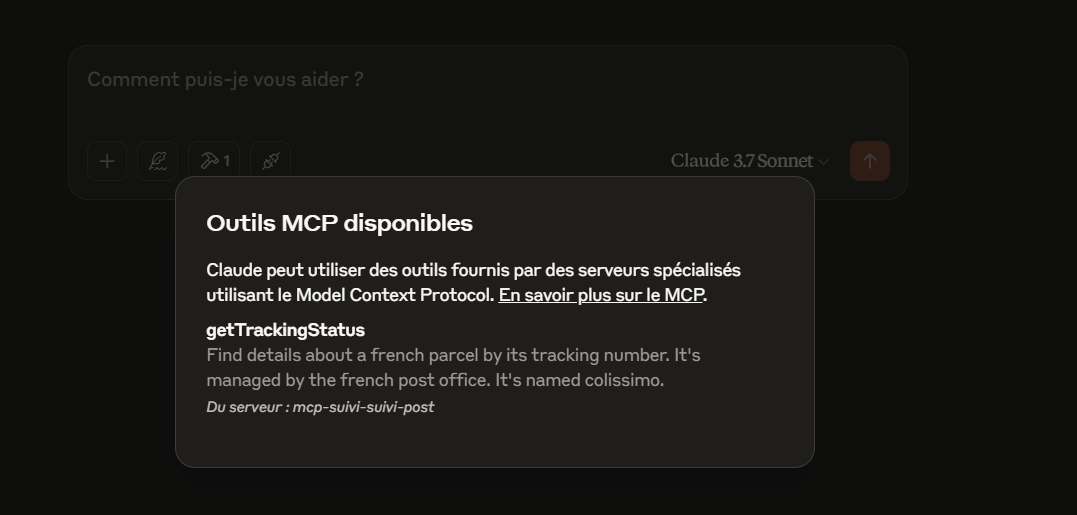
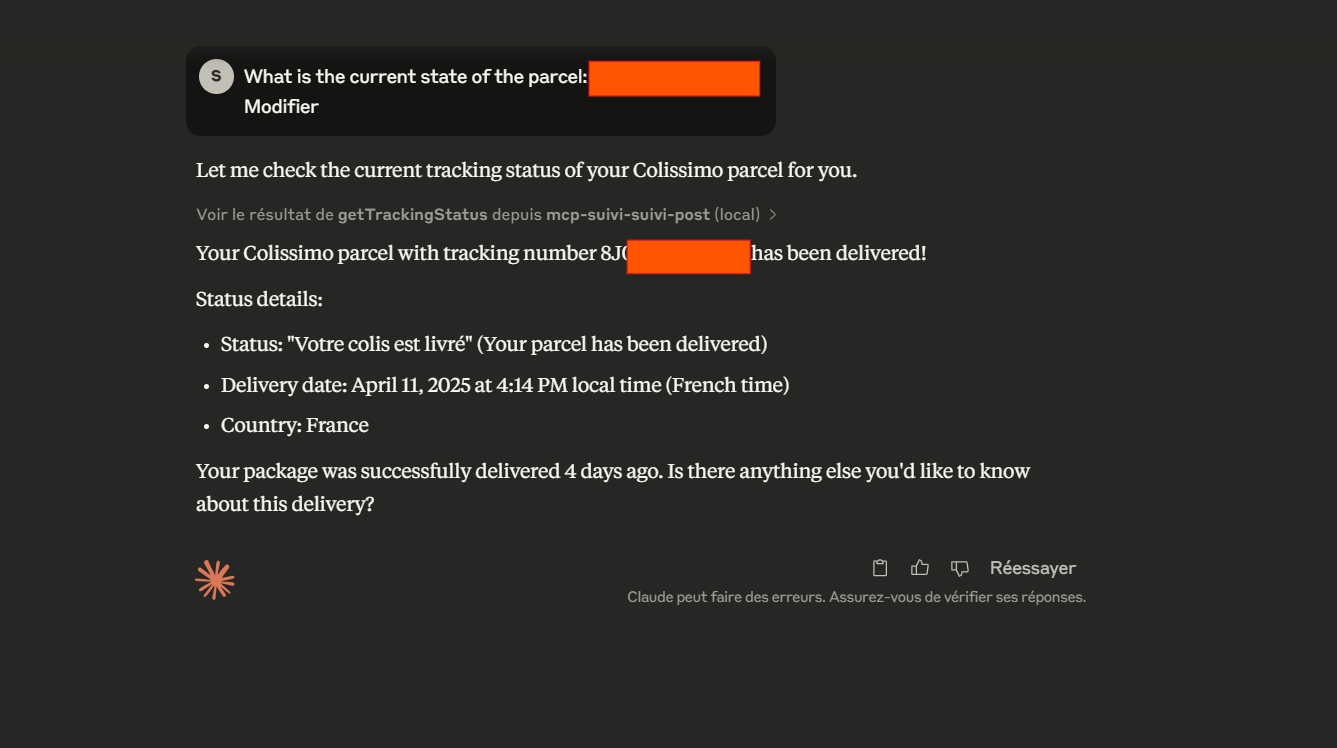
Then, you could ask a question through the chat prompt, and the MCP server(s) will be called with the right tools to provide the answer:
Sign in to leave a review
Use Google, GitHub, or an email account so ratings stay tied to real people.
No reviews posted yet.



