
System Resource Monitor
About
# System Resource Monitor MCP Server An MCP server that provides Claude with real-time system monitoring capabilities, including CPU, memory, disk, network, battery, and internet speed metrics using `systeminformation` and multi-source speed tests.  ## Tools - **get_cpu_usage** -…
Details
- License
- MIT
Explore
- Get real-time CPU load as a percentage (overall and per-core)
- Report total, used, and free memory in GB
- Display disk usage for the largest drive
- Return real-time network RX/TX rates and totals
- Provide battery charge percentage, status, and time remaining
- Measure internet download and upload speeds in Mbps

Setting up with Highlight
This MCP is not yet compatible with Highlight’s one-click setup. However, you can still use it with Highlight by following these steps:
- Download and install Highlight from highlightai.com/download
- Navigate to the plugins tab and select "Add Custom Plugin"
-
Configure the plugin with the settings below
Plugin Name
System Resource MonitorCommand (node, npx, python, etc.)Please refer to the README for specific instructions on how to obtain API keys or other required environment variables.
- Enable "Start Automatically" if you want the plugin to start when Highlight launches





From the repository
Clone this repository:
git clone [email protected]:abhinav7895/system-mcp.git
Navigate to the directory and install dependencies:
cd system-resource-monitor && npm install
1. Download Claude Desktop here.
2. Add this to your claude_desktop_config.json:
{
"mcpServers": {
"system-resource-monitor": {
"command": "node",
"args": ["/absolute/path/to/dist/index.js"]
}
}
}
Access the config file:
vim ~/Library/Application\ Support/Claude/claude_desktop_config.json
(Adjust the path to dist/index.js based on your project location.)
- get_cpu_usage
- Retrieves the current CPU load as a percentage, including overall and per-core usage.
- Inputs: None
- Output: Text (e.g., CPU Load: 12.34% (Cores: 10.50, 15.20, 8.90, 14.60%))
- get_memory_usage
- Reports total, used, and free memory in GB, plus percentage used.
- Inputs: None
- Output: Text (e.g., Memory: 65.43% used (7.82GB / 16.00GB))
- get_disk_space
- Shows disk usage for the largest drive in GB and percentage.
- Inputs: None
- Output: Text (e.g., Disk (/): 78.90% used (189.50GB / 250.00GB))
- get_network_usage
- Returns real-time network RX/TX rates (KB/s) and total data since boot (MB).
- Inputs: None
- Output: Text (e.g., Network (eth0): RX: 25.50KB/s, TX: 10.20KB/s (Total: RX 150.34MB, TX 75.89MB))
- get_battery_status
- Provides battery charge percentage, charging status, and time remaining (if applicable).
- Inputs: None
- Output: Text (e.g., Battery: 85% (charging), 120 min remaining or No battery detected)
- get_internet_speed
- Measures internet speed using multiple download sources (including a user-uploaded file) and upload tests, returning median speeds in Mbps.
- Inputs: None
- Output: Text (e.g., Internet Speed: Download 45.67Mbps, Upload 8.45Mbps)
Claude Desktop / Cursor
Paste into your MCP client config file to install this server.
{
    "mcpServers": {
        "system resource monitor": {
            "system-resource-monitor": {
                "command": "node",
                "args": [
                    "/Users/username/Developer/projects/mcp/system-resource-monitor/build/index.js"
                ]
            }
        }
    }
}McpServers
{
"system-resource-monitor": {
"command": "node",
"args": [
"/Users/username/Developer/projects/mcp/system-resource-monitor/build/index.js"
]
}
}An MCP server that provides Claude with real-time system monitoring capabilities, including CPU, memory, disk, network, battery, and internet speed metrics using systeminformation and multi-source speed tests.
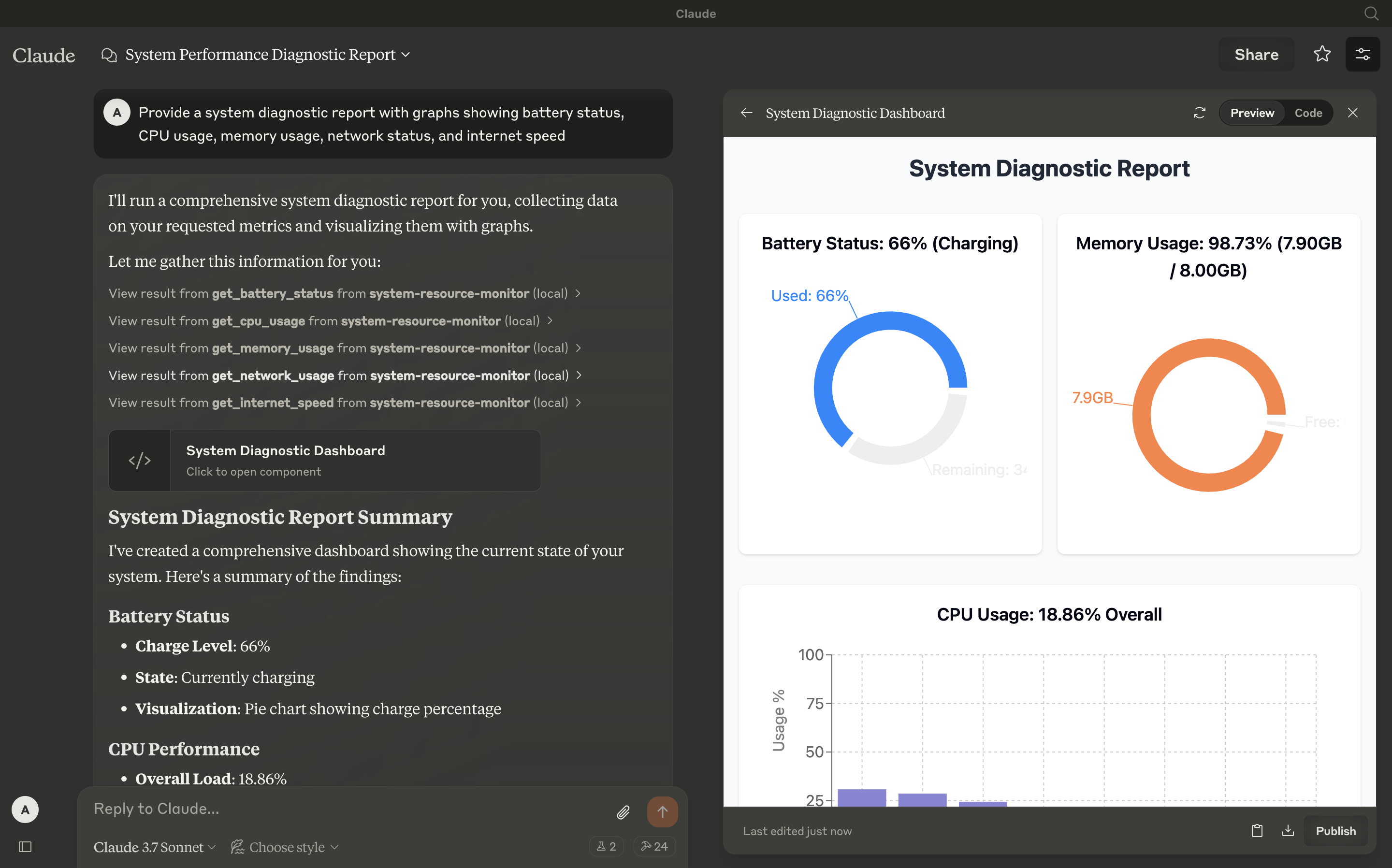
Tools
- get_cpu_usage
- Retrieves the current CPU load as a percentage, including overall and per-core usage.
- Inputs: None
- Output: Text (e.g., CPU Load: 12.34% (Cores: 10.50, 15.20, 8.90, 14.60%))
- get_memory_usage
- Reports total, used, and free memory in GB, plus percentage used.
- Inputs: None
- Output: Text (e.g., Memory: 65.43% used (7.82GB / 16.00GB))
- get_disk_space
- Shows disk usage for the largest drive in GB and percentage.
- Inputs: None
- Output: Text (e.g., Disk (/): 78.90% used (189.50GB / 250.00GB))
- get_network_usage
- Returns real-time network RX/TX rates (KB/s) and total data since boot (MB).
- Inputs: None
- Output: Text (e.g., Network (eth0): RX: 25.50KB/s, TX: 10.20KB/s (Total: RX 150.34MB, TX 75.89MB))
- get_battery_status
- Provides battery charge percentage, charging status, and time remaining (if applicable).
- Inputs: None
- Output: Text (e.g., Battery: 85% (charging), 120 min remaining or No battery detected)
- get_internet_speed
- Measures internet speed using multiple download sources (including a user-uploaded file) and upload tests, returning median speeds in Mbps.
- Inputs: None
- Output: Text (e.g., Internet Speed: Download 45.67Mbps, Upload 8.45Mbps)
Configuration
Step 1: Clone and Install
Clone this repository:
git clone [email protected]:abhinav7895/system-mcp.git
Navigate to the directory and install dependencies:
cd system-resource-monitor && npm install
Step 2: Build the Project
Compile the TypeScript code:
npm run build
This generates the dist/index.js file, ready to run as an MCP server.
Step 3: Configure Claude Desktop
1. Download Claude Desktop here.
2. Add this to your claude_desktop_config.json:
{
  "mcpServers": {
    "system-resource-monitor": {
      "command": "node",
      "args": ["/absolute/path/to/dist/index.js"]
    }
  }
}
Access the config file:
vim ~/Library/Application\ Support/Claude/claude_desktop_config.json
(Adjust the path to dist/index.js based on your project location.)
Step 4: Testing
Ensure Claude Desktop recognizes the tools by checking for the hammer icon:

Click the hammer icon to see available tools:
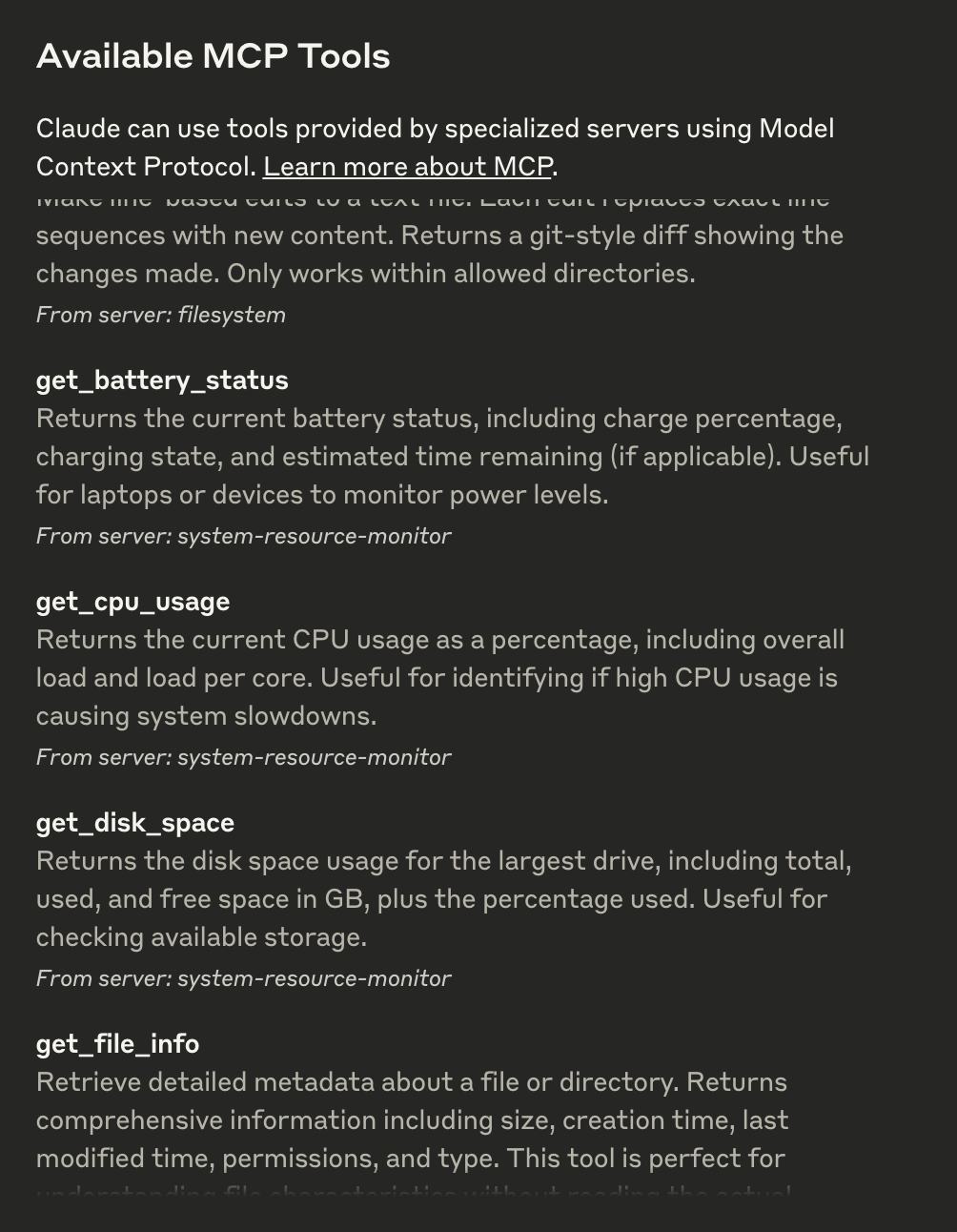
If all six tools (get_cpu_usage, get_memory_usage, etc.) appear, the integration is active. You can now ask questions like:
- "What’s my CPU usage?"
- "How fast is my internet?"
Step 5: Advanced Customization
- Internet Speed Test: Modify testUrls in index.ts to use different download sources or adjust uploadSizeBytes (default 80KB) for upload tests.
- Logging: Console logs provide detailed test output; disable them in production by removing console.log statements.
Troubleshooting
- Tool Not Showing: Verify the server is running (node dist/index.js) and the config path is correct.
- Internet Speed Errors: Ensure network connectivity and test URLs are accessible. Check console logs for specific failures.
- Refer to the MCP troubleshooting guide
License
This MCP server is licensed under the MIT License. You are free to use, modify, and distribute the software under the terms of the MIT License. See the LICENSE file for details.
Sign in to leave a review
Use Google, GitHub, or an email account so ratings stay tied to real people.
No reviews posted yet.



