📊 Metabase MCP Server
About
Backend integration layer that connects your Metabase instance with AI assistants using the Model Context Protocol (MCP)
Details
- License
- Apache-2.0
Explore

Setting up with Highlight
This MCP is not yet compatible with Highlight’s one-click setup. However, you can still use it with Highlight by following these steps:
- Download and install Highlight from highlightai.com/download
- Navigate to the plugins tab and select "Add Custom Plugin"
-
Configure the plugin with the settings below
Plugin Name
📊 Metabase MCP ServerCommand (node, npx, python, etc.)Please refer to the README for specific instructions on how to obtain API keys or other required environment variables.
- Enable "Start Automatically" if you want the plugin to start when Highlight launches





From the repository
First, install Node.js if you haven't already:
- Download from: nodejs.org
- Or install via package manager:
Install uv which includes Python and package management:
Windows:
powershell -ExecutionPolicy ByPass -c "irm https://astral.sh/uv/install.ps1 | iex"
macOS/Linux:
curl -LsSf https://astral.sh/uv/install.sh | sh
Or install via package managers:
This command will automatically:
- Install the required Python version (if not already available)
- Create a virtual environment for the project
- Install all necessary packages and dependencies
uv sync
You have three options to configure your Metabase credentials for the MCP Server:
Option 1: Using a .env file (Recommended)
Create a .env file in the project root:
METABASE_URL=http://localhost:3000
METABASE_API_KEY=mb_xxx_your_key
PORT=3200
HOST=localhost
TRANSPORT=streamable-http
LOG_LEVEL=DEBUG
Option 2: Using command-line arguments
Pass configuration directly via command line:
uv run src/metabase_mcp_server.py --metabase-url http://localhost:3000 --metabase-api-key "YOUR_API_KEY" --port 3200 --host localhost --transport streamable-http --log-level DEBUG
Option 3: Using environment variables in MCP client config
Configure directly in your MCP client without a .env file (see examples below).
{
"mcpServers": {
"metabase": {
"type": "stdio",
"command": "C:\\Users\\YourName\\Projects\\metabase-mcp-server\\.venv\\Scripts\\python.exe",
"args": [
"C:\\Users\\YourName\\Projects\\metabase-mcp-server\\src\\metabase_mcp_server.py"
],
"env": {
"METABASE_URL": "http://localhost:3000",
"METABASE_API_KEY": "mb_xxx_your_key",
"PORT": 3200,
"HOST": "localhost",
"TRANSPORT": "streamable-http",
"LOG_LEVEL": "DEBUG"
}
}
}
}
For stdio transport (recommended for local MCP server):
Windows:
{
"mcpServers": {
"metabase": {
"type": "stdio",
"command": "C:\\Users\\YourName\\Projects\\metabase-mcp-server\\.venv\\Scripts\\python.exe",
"args": [
"C:\\Users\\YourName\\Projects\\metabase-mcp-server\\src\\metabase_mcp_server.py"
]
}
}
}
Mac:
{
"mcpServers": {
"metabase": {
"type": "stdio",
"command": "/Users/YourName/Projects/metabase-mcp-server/venv/Scripts/python",
"args": [
"/Users/YourName/Projects/metabase-mcp-server/src/metabase_mcp_server.py"
]
}
}
}
The Metabase MCP Server supports flexible configuration through environment variables, command-line arguments, or a combination of both.
| Variable | Description | Default Value | Example |
| ------------------ | -------------------------- | ----------------- | --------------------------- |
| METABASE_URL | Your Metabase instance URL | Required | http://127.0.0.1:3000 |
| METABASE_API_KEY | Your Metabase API key | Required | mb_xxx_your_api_key |
| TRANSPORT | Transport protocol | streamable-http | stdio, streamable-http |
| HOST | Host for HTTP transports | localhost | 0.0.0.0, 127.0.0.1 |
| PORT | Port for HTTP transports | 3200 | 8080, 9000 |
| LOG_LEVEL | Logging level | INFO | DEBUG, WARNING, ERROR |
Configuration values are applied in the following priority order (highest to lowest):
1. Command-line arguments (overrides everything)
2. Environment variables (overrides defaults)
3. Default values
To get your Metabase API key:
1. Log into your Metabase instance
2. Click on your profile picture (top-right corner)
3. Select "Account settings"
4. Navigate to the "API Keys" tab
5. Click "Create API Key"
6. Give your key a descriptive name (e.g., "MCP Server Key")
7. Copy the generated key (starts with mb_)
⚠️ Important: Store your API key securely and never commit it to version control. The key provides full access to your Metabase instance.
---
For production use or team collaboration, you can deploy the Metabase MCP Server remotely. We use this approach internally at Codewalnut.
We've included Docker configuration files to make remote deployment straightforward.
docker run -d \
-p 3200:3200 \
-e METABASE_URL="http://your-metabase-instance.com" \
-e METABASE_API_KEY="mb_xxx_your_api_key" \
metabase-mcp-server
- Cloud Providers: AWS ECS, Google Cloud Run, Azure Container Instances
- VPS/Dedicated Servers: DigitalOcean, Linode, Vultr
- Container Platforms: Kubernetes, Docker Swarm
- Platform-as-a-Service: Railway, Render, Fly.io
Our team at CodeWalnut offers deployment and consulting services. Contact us for enterprise-grade setup and support.
---
```bash
npm install -g @modelcontextprotocol/inspector
Function
Description
get_metabase_collection
Get a collection by ID
create_metabase_collection
Create a new collection
update_metabase_collection
Update collection metadata
delete_metabase_collection
Delete a collection
get_metabase_cards
List all charts
get_card_query_results
Get results from a chart query
create_metabase_card
Create a new chart
update_metabase_card
Update an existing chart
delete_metabase_card
Delete a chart
get_metabase_dashboards
List all dashboards
get_dashboard_by_id
Get a dashboard by ID
get_dashboard_cards
Get cards in a dashboard
get_dashboard_items
Get all dashboard items
create_metabase_dashboard
Create a dashboard
update_metabase_dashboard
Update a dashboard
delete_metabase_dashboard
Delete a dashboard
copy_metabase_dashboard
Create a copy of an existing dashboard
get_metabase_databases
List databases
create_metabase_database
Create a new database connection
update_metabase_database
Update a database connection
delete_metabase_database
Delete a database connection
get_metabase_users
List all users
get_metabase_current_user
Get current user details
create_metabase_user
Create a new user
update_metabase_user
Update user info
delete_metabase_user
Delete a user
get_metabase_groups
List user groups
create_metabase_group
Create a user group
delete_metabase_group
Delete a user group
execute_sql_query
Execute a native SQL query
Metabase MCP Server is a backend integration layer that connects your Metabase instance with AI assistants using the Model Context Protocol (MCP). This allows business leaders, product managers and analysts to interact with business intelligence assets like dashboards and charts using natural language—through any MCP client (e.g., Claude Desktop).
Instead of navigating through menus or constructing SQL queries manually, you can:
- You can ask a question and get an instant insight.
- Generate dashboards and charts by describing what you want.
- Manage user access and database connections through simple instructions.
This project makes Metabase not just a dashboarding tool—but a conversational, intelligent business assistant.
---
| Function | Description |
| ---------------------------- | -------------------------------------- |
| Collection Operations | |
| get_metabase_collection | Get a collection by ID |
| create_metabase_collection | Create a new collection |
| update_metabase_collection | Update collection metadata |
| delete_metabase_collection | Delete a collection |
| Chart (Card) Operations | |
| get_metabase_cards | List all charts |
| get_card_query_results | Get results from a chart query |
| create_metabase_card | Create a new chart |
| update_metabase_card | Update an existing chart |
| delete_metabase_card | Delete a chart |
| Dashboard Operations | |
| get_metabase_dashboards | List all dashboards |
| get_dashboard_by_id | Get a dashboard by ID |
| get_dashboard_cards | Get cards in a dashboard |
| get_dashboard_items | Get all dashboard items |
| create_metabase_dashboard | Create a dashboard |
| update_metabase_dashboard | Update a dashboard |
| delete_metabase_dashboard | Delete a dashboard |
| copy_metabase_dashboard | Create a copy of an existing dashboard |
| Database Operations | |
| get_metabase_databases | List databases |
| create_metabase_database | Create a new database connection |
| update_metabase_database | Update a database connection |
| delete_metabase_database | Delete a database connection |
| User Operations | |
| get_metabase_users | List all users |
| get_metabase_current_user | Get current user details |
| create_metabase_user | Create a new user |
| update_metabase_user | Update user info |
| delete_metabase_user | Delete a user |
| Group Operations | |
| get_metabase_groups | List user groups |
| create_metabase_group | Create a user group |
| delete_metabase_group | Delete a user group |
| SQL Operations | |
| execute_sql_query | Execute a native SQL query |
---
Claude Desktop / Cursor
Paste into your MCP client config file to install this server.
{
    "mcpServers": {
        "\ud83d\udcca metabase mcp server": {
            "metabase-mcp-server-cw-codewalnut": {
                "command": "uv",
                "args": [
                    "venv",
                    ".venv"
                ]
            }
        }
    }
}McpServers
{
"metabase-mcp-server-cw-codewalnut": {
"command": "uv",
"args": [
"venv",
".venv"
]
}
}📚 Table of Contents
1. What is this tool about?
2. Video Walkthrough
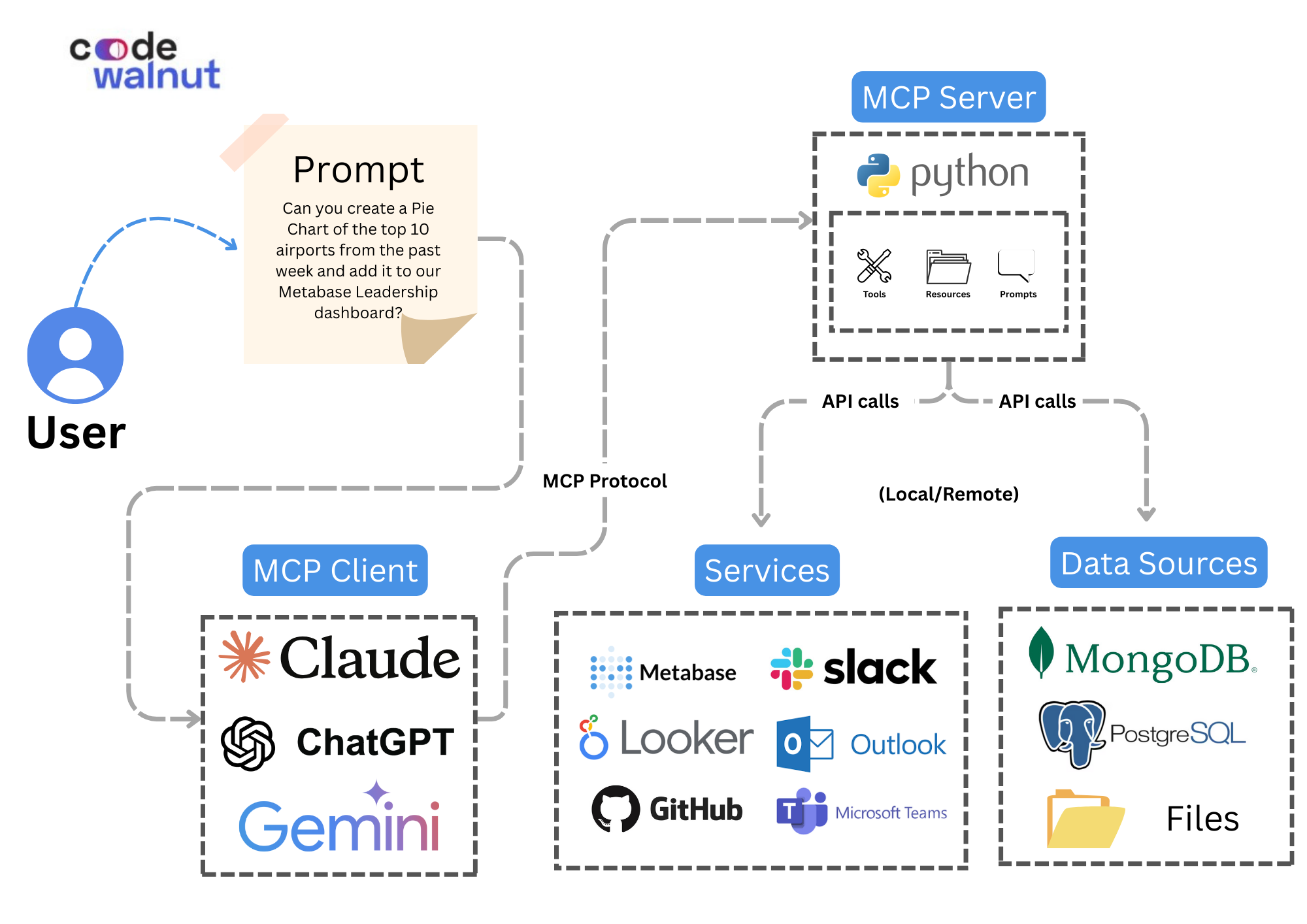
3. Architecture Diagram
4. Getting Started
- Set Up Metabase
- Install uv Package Manager
- Clone or Download the Repository
- Install dependencies
- Configure Your Credentials
- Connect to Your MCP client
5. Configuration Options
6. Getting Your Metabase API Key
7. DXT File Support
8. How to Create Your Own DXT File
9. Remote Deployment
10. Debugging with MCP Inspector
11. Available Tools
12. Example Prompts to Try
13. Connect with Us
14. License
---
😊 What is this tool about?
Metabase MCP Server is a backend integration layer that connects your Metabase instance with AI assistants using the Model Context Protocol (MCP). This allows business leaders, product managers and analysts to interact with business intelligence assets like dashboards and charts using natural language—through any MCP client (e.g., Claude Desktop).
Instead of navigating through menus or constructing SQL queries manually, you can:
- You can ask a question and get an instant insight.
- Generate dashboards and charts by describing what you want.
- Manage user access and database connections through simple instructions.
This project makes Metabase not just a dashboarding tool—but a conversational, intelligent business assistant.
---
🎥 Video Walkthrough
Watch this video to see the Metabase MCP Server in action:

---
📐 Architecture Diagram
---
🚀 Getting Started
1. Set Up Metabase (If you haven't already)
Follow the official Metabase installation guide: Metabase Docs
2. Install uv Package Manager
Install uv which includes Python and package management:
Windows:
powershell -ExecutionPolicy ByPass -c "irm https://astral.sh/uv/install.ps1 | iex"
macOS/Linux:
curl -LsSf https://astral.sh/uv/install.sh | sh
Or install via package managers:
```bash
Sign in to leave a review
Use Google, GitHub, or an email account so ratings stay tied to real people.
No reviews posted yet.