
Mobile Mcp
About
Model Context Protocol Server for Mobile Automation and Scraping (iOS, Android, Emulators, Simulators and Real Devices)
Details
- License
- MIT
Explore
- 🚀 Fast and lightweight: Uses native accessibility trees for most interactions, or screenshot based coordinates where a11y labels are not available.
- 🤖 LLM-friendly: No computer vision model required in Accessibility (Snapshot).
- 🧿 Visual Sense: Evaluates and analyses what's actually rendered on screen to decide the next action. If accessibility data or view-hierarchy coordinates are unavailable, it falls back to screenshot-based analysis.
- 📊 Deterministic tool application: Reduces ambiguity found in purely screenshot-based approaches by relying on structured data whenever possible.
- 📺 Extract structured data: Enables you to extract structred data from anything visible on screen.

Setting up with Highlight
This MCP is not yet compatible with Highlight’s one-click setup. However, you can still use it with Highlight by following these steps:
- Download and install Highlight from highlightai.com/download
- Navigate to the plugins tab and select "Add Custom Plugin"
-
Configure the plugin with the settings below
Plugin Name
Mobile McpCommand (node, npx, python, etc.)Please refer to the README for specific instructions on how to obtain API keys or other required environment variables.
- Enable "Start Automatically" if you want the plugin to start when Highlight launches





From the repository
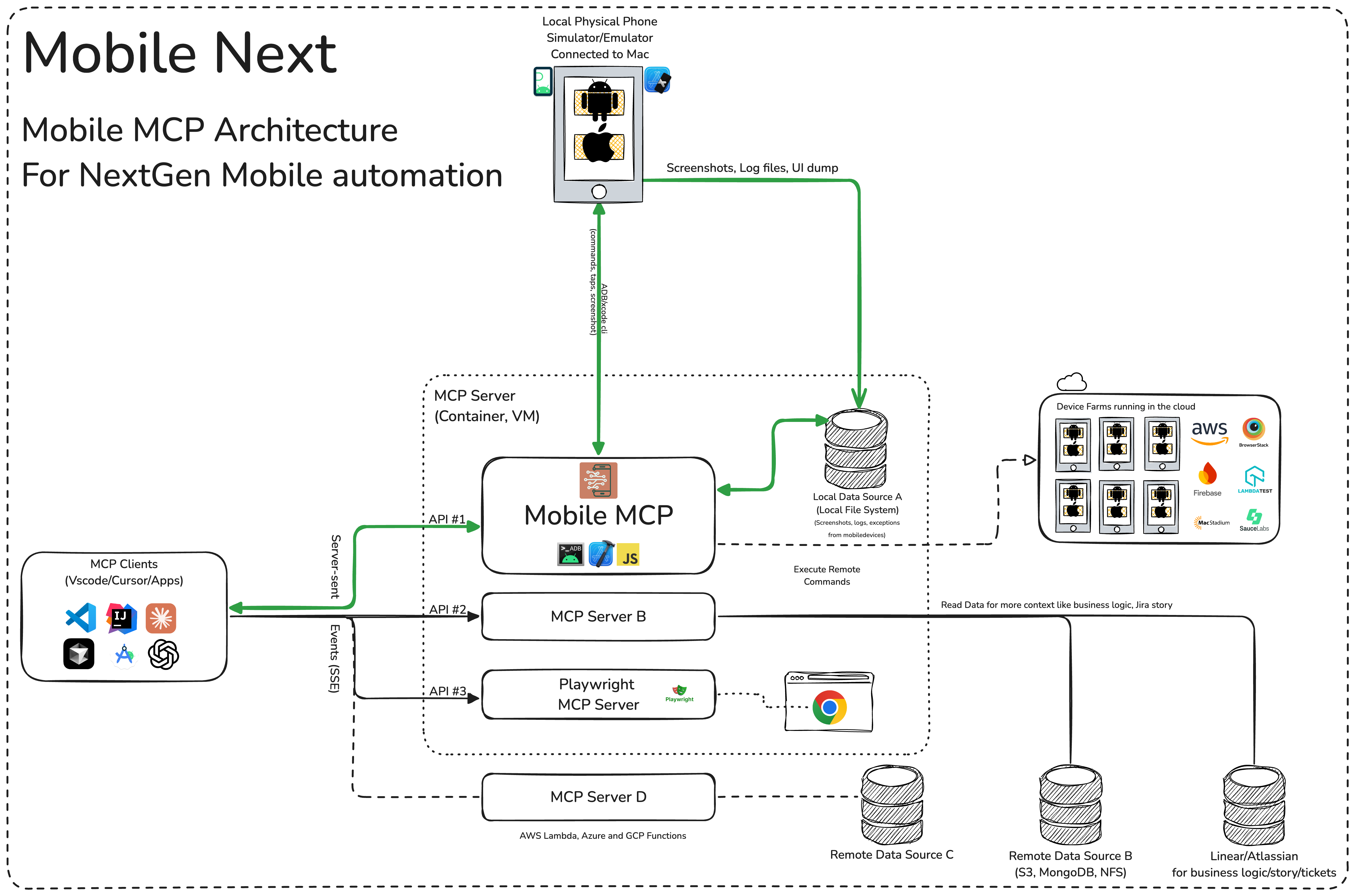
What you will need to connect MCP with your agent and mobile devices:
- Xcode command line tools
- Android Platform Tools
- node.js v22+
- MCP supported foundational models or agents, like Claude MCP, OpenAI Agent SDK, Copilot Studio
Standard config works in most of the tools:
{
"mcpServers": {
"mobile-mcp": {
"command": "npx",
"args": ["-y", "@mobilenext/mobile-mcp@latest"]
}
}
}
<details>
<summary>Amp</summary>
Add via the Amp VS Code extension settings screen or by updating your settings.json file:
"amp.mcpServers": {
"mobile-mcp": {
"command": "npx",
"args": [
"@mobilenext/mobile-mcp@latest"
]
}
}
Amp CLI:
Run the following command in your terminal:
amp mcp add mobile-mcp -- npx @mobilenext/mobile-mcp@latest
</details>
<details>
<summary>Cline</summary>
To setup Cline, just add the json above to your MCP settings file.
</details>
<details>
<summary>Claude Code</summary>
Use the Claude Code CLI to add the Mobile MCP server:
claude mcp add mobile-mcp -- npx -y @mobilenext/mobile-mcp@latest
<details>
<summary>Claude Desktop</summary>
Follow the MCP install guide, use json configuration above.
</details>
<details>
<summary>Codex</summary>
Use the Codex CLI to add the Mobile MCP server:
codex mcp add mobile-mcp npx "@mobilenext/mobile-mcp@latest"
Alternatively, create or edit the configuration file ~/.codex/config.toml and add:
[mcp_servers.mobile-mcp]
command = "npx"
args = ["@mobilenext/mobile-mcp@latest"]
For more information, see the Codex MCP documentation.
</details>
<details>
<summary>Copilot</summary>
Use the Copilot CLI to interactively add the Mobile MCP server:
/mcp add
You can edit the configuration file ~/.copilot/mcp-config.json and add:
{
"mcpServers": {
"mobile-mcp": {
"type": "local",
"command": "npx",
"tools": [
"*"
],
"args": [
"@mobilenext/mobile-mcp@latest"
]
}
}
}
For more information, see the Copilot CLI documentation.
</details>
<details>
<summary>Cursor</summary>

Go to Cursor Settings -> MCP -> Add new MCP Server. Name to your liking, use command type with the command npx -y @mobilenext/mobile-mcp@latest. You can also verify config or add command like arguments via clicking Edit.
</details>
<details>
<summary>Gemini CLI</summary>
Use the Gemini CLI to add the Mobile MCP server:
gemini mcp add mobile-mcp npx -y @mobilenext/mobile-mcp@latest
</details>
<details>
<summary>Goose</summary>
When you do not have a real device connected to your machine, you can run Mobile MCP with an emulator or simulator in the background.
For example, on Android:
1. Start an emulator (avdmanager / emulator command).
2. Run Mobile MCP with the desired flags
On iOS, you'll need Xcode and to run the Simulator before using Mobile MCP with that simulator instance.
- xcrun simctl list
- xcrun simctl boot "iPhone 16"
mobile_list_available_devices
List all available devices. This includes both physical mobile devices and mobile simulators and emulators. It returns both Android and iOS devices. These are local devices already connected to this machine, ready to use immediately at no cost - for devices from the shared remote cloud fleet, use mobile_list_remote_devices instead.
mobile_login_to_cloud_provider
Start authenticating this machine with the remote device cloud provider. This is required once before mobile_list_remote_devices or mobile_allocate_remote_device will work; if either of those fails with an authentication error, call this tool and then retry. This starts a browser-based device-code login and returns quickly with a URL and a one-time code - it does NOT wait for the login to complete. Show the URL and code to the user verbatim and ask them to open the URL and enter the code in their own browser. The login keeps running in the background after this tool returns; once the user confirms they've completed it, retry the remote devices tool that originally failed. Only call this after the user has explicitly asked to connect to, log into, or use remote/cloud devices - never call it speculatively, since it interrupts the user to act in their browser.
mobile_list_remote_devices
List the catalog of device models (make, platform, OS version) available to reserve from the remote cloud device fleet. This is different from mobile_list_available_devices, which lists real devices and simulators/emulators already connected to this local machine and ready to use immediately at no cost. Remote devices live in a shared cloud fleet: they are not usable until reserved with mobile_allocate_remote_device, and reserving one may be a limited/billed resource. Requires mobile_login_to_cloud_provider to have been called first; if this fails with an authentication error, call that tool then retry.
mobile_allocate_remote_device
Reserve a physical device from the remote cloud fleet for exclusive use, returning a device identifier usable with the other mobile_* tools. Unlike local devices, a remote device is a shared and billed resource borrowed for the session - only call this after the user has explicitly asked to use a remote/cloud device, never speculatively or as a fallback when a local device isn't found. Requires mobile_login_to_cloud_provider to have been called first; if this fails with an authentication error, call that tool then retry. Use mobile_list_remote_devices first to see which names and versions actually exist in the fleet before filtering by them. Release the device with mobile_release_remote_device once the whole task is finished - releasing wipes the device's state, so do not release and reallocate between steps of the same task just to be tidy.
mobile_release_remote_device
Release a device previously reserved with mobile_allocate_remote_device back to the remote cloud fleet so it becomes available to others. Releasing is destructive to the device's state: apps installed, files pushed, and any other changes made during this session are lost, and a later mobile_allocate_remote_device call may take time and could return a different physical unit. Only release once the whole task is finished - if there is more work to do on the same device shortly, keep holding it rather than releasing and reallocating.
mobile_list_apps
List all the installed apps on the device
mobile_launch_app
Launch an app on mobile device. Use this to open a specific app. You can find the package name of the app by calling list_apps_on_device.
mobile_terminate_app
Stop and terminate an app on mobile device
mobile_install_app
Install an app on mobile device
mobile_uninstall_app
Uninstall an app from mobile device
mobile_get_screen_size
Get the screen size of the mobile device in pixels
mobile_click_on_screen_at_coordinates
Click on the screen at given x,y coordinates. If clicking on an element, use the list_elements_on_screen tool to find the coordinates.
mobile_double_tap_on_screen
Double-tap on the screen at given x,y coordinates.
mobile_long_press_on_screen_at_coordinates
Long press on the screen at given x,y coordinates. If long pressing on an element, use the list_elements_on_screen tool to find the coordinates.
mobile_list_elements_on_screen
List elements on screen and their coordinates, with display text or accessibility label. Do not cache this result.
mobile_press_button
Press a button on device
mobile_open_url
Open a URL in browser on device
mobile_swipe_on_screen
Swipe on the screen
mobile_type_keys
Type text into the focused element
mobile_save_screenshot
Save a screenshot of the mobile device to a file
mobile_take_screenshot
Take a screenshot of the mobile device. Use this to understand what's on screen, if you need to press an element that is available through view hierarchy then you must list elements on screen instead. Do not cache this result.
mobile_set_orientation
Change the screen orientation of the device
mobile_get_orientation
Get the current screen orientation of the device
mobile_start_screen_recording
Start recording the screen of a mobile device. The recording runs in the background until stopped with mobile_stop_screen_recording. Returns the path where the recording will be saved.
mobile_stop_screen_recording
Stop an active screen recording on a mobile device. Returns the file path, size, and approximate duration of the recording.
mobile_list_crashes
List crash reports available on the device
mobile_get_crash
Get the full content of a crash report by its ID. Use mobile_list_crashes to find available crash IDs.
<details>
<summary>📱 <strong>Click to expand tool list</strong> - List of Mobile MCP tools for automation and development</summary>
> For detailed implementation and parameter specifications, see src/server.ts
Claude Desktop / Cursor
Paste into your MCP client config file to install this server.
{
    "mcpServers": {
        "mobile mcp": {
            "mobile-mcp": {
                "command": "npx",
                "args": [
                    "-y",
                    "@mobilenext/mobile-mcp@latest"
                ]
            }
        }
    }
}McpServers
{
    "mobile-mcp": {
        "command": "npx",
        "args": [
            "-y",
            "@mobilenext/mobile-mcp@latest"
        ]
    }
}
<p align="center">
<a href="https://raw.githubusercontent.com/mobile-next/mobile-next-assets/refs/heads/main/mobile-mcp-arch-1.png">
</a>
</p>
Sign in to leave a review
Use Google, GitHub, or an email account so ratings stay tied to real people.
No reviews posted yet.