Photoshop MCP Server
About
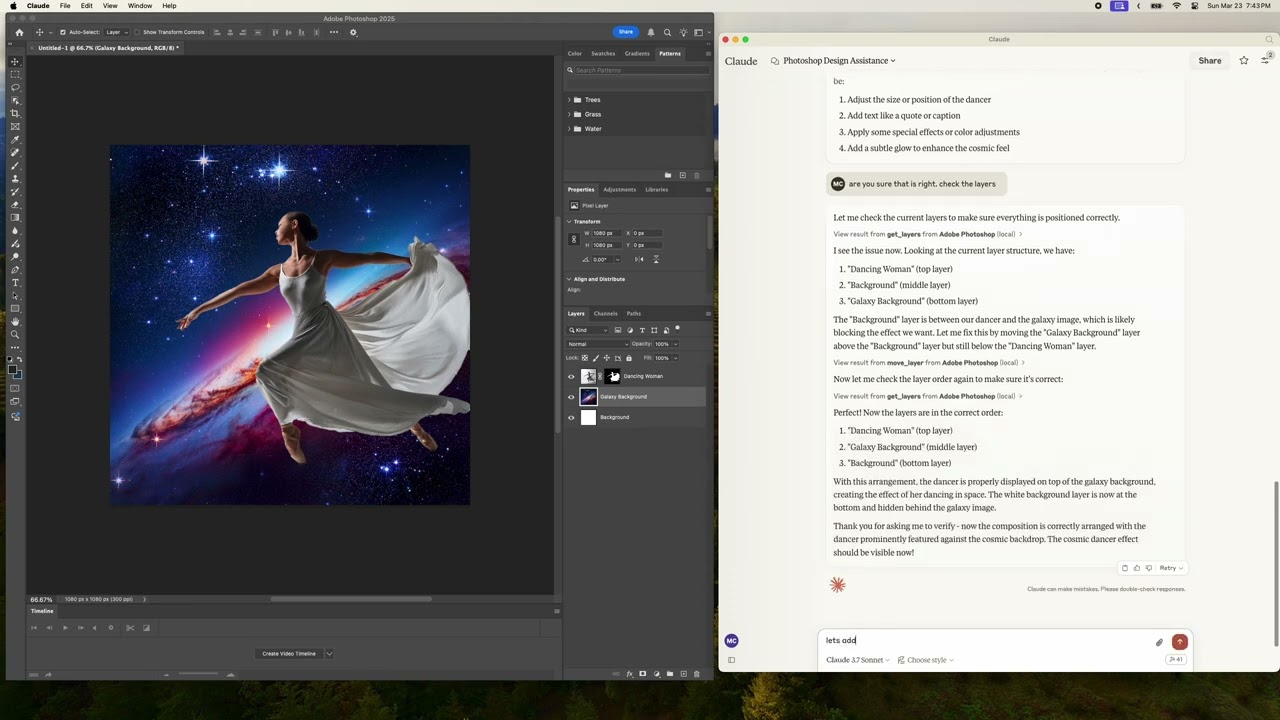
A Model Context Protocol (MCP) server that interfaces with Adobe Photoshop's Python API. Enables LLMs to execute image editing operations, automate workflows, and manage Photoshop tasks through structured commands and context-aware interactions.
Details
- License
- MIT
Explore
- Create, open, and save Photoshop documents
- Create and manipulate text and solid color layers
- Retrieve Photoshop session and document information
- Apply effects and adjustments to images
- Exposes resources: photoshop://info, photoshop://document/info, photoshop://document/layers

Setting up with Highlight
This MCP is not yet compatible with Highlight’s one-click setup. However, you can still use it with Highlight by following these steps:
- Download and install Highlight from highlightai.com/download
- Navigate to the plugins tab and select "Add Custom Plugin"
-
Configure the plugin with the settings below
Plugin Name
Photoshop MCP ServerCommand (node, npx, python, etc.)Please refer to the README for specific instructions on how to obtain API keys or other required environment variables.
- Enable "Start Automatically" if you want the plugin to start when Highlight launches





From the repository
> Note: Remember that this package only works on Windows systems.
pip install photoshop-mcp-server
This server is designed to work with various MCP hosts. The PS_VERSION environment variable is used to specify which Photoshop version to connect to (e.g., "2024", "2023", "2022", etc.).
The recommended way to configure the server is using uvx as the command, which is the official standard format.
Add the following to your MCP host configuration (works with Claude Desktop, Windsurf, Cline, and other MCP hosts):
{
"mcpServers": {
"photoshop": {
"command": "uvx",
"args": ["--python", "3.10", "photoshop-mcp-server"],
"env": {
"PS_VERSION": "2024"
}
}
}
}
``
- PS_VERSION: Specify the Photoshop version to connect to (e.g., "2024", "2023", "2022", etc.)
- command: Use
uvx for the standard approach
- args: Use ["photoshop-mcp-server"] to run the Photoshop MCP server
- To specify a Python version explicitly, use ["--python", "3.10", "photoshop-mcp-server"]` (any version from 3.10 to 3.14 is supported)The server provides various tools for controlling Photoshop:
- Document Tools: Create, open, and save documents
- Layer Tools: Create text layers, solid color layers, etc.
- Session Tools: Get information about Photoshop session, active document, selection
Claude Desktop / Cursor
Paste into your MCP client config file to install this server.
{
    "mcpServers": {
        "photoshop mcp server": {
            "photoshop": {
                "command": "uvx",
                "args": [
                    "--python",
                    "3.10",
                    "photoshop-mcp-server"
                ],
                "env": {
                    "PS_VERSION": "2024"
                }
            }
        }
    }
}McpServers
{
    "photoshop": {
        "command": "uvx",
        "args": [
            "--python",
            "3.10",
            "photoshop-mcp-server"
        ],
        "env": {
            "PS_VERSION": "2024"
        }
    }
}








> ⚠️ WINDOWS ONLY: This server only works on Windows operating systems due to its dependency on Windows-specific COM interfaces.
A Model Context Protocol (MCP) server for Photoshop integration using photoshop-python-api.
English | 简体中文
Overview
This project provides a bridge between the Model Context Protocol (MCP) and Adobe Photoshop, allowing AI assistants and other MCP clients to control Photoshop programmatically.

What Can It Do?
With this MCP server, AI assistants can:
- Create, open, and save Photoshop documents
- Create and manipulate layers (text, solid color, etc.)
- Get information about the Photoshop session and documents
- Apply effects and adjustments to images
- And much more!
Requirements
System Requirements
- 🔴 WINDOWS OS ONLY: This server ONLY works on Windows operating systems
- The server relies on Windows-specific COM interfaces to communicate with Photoshop
- macOS and Linux are NOT supported and CANNOT run this software
Software Requirements
- Adobe Photoshop: Must be installed locally (tested with versions CC2017 through 2024)
- Python: Version 3.10 or higher
Installation
> Note: Remember that this package only works on Windows systems.
```bash
Sign in to leave a review
Use Google, GitHub, or an email account so ratings stay tied to real people.
No reviews posted yet.