
Quick Example
About
# Standardizing LLM Interaction with MCP Servers Model Context Protocol, or MCP, is [an open protocol that standardizes how applications provide context to LLMs](https://modelcontextprotocol.io/introduction). In other words it provides a unified framework for LLM based applications to connect to connect to data…
Explore
- Demonstrates tools, resources, and prompts in a single server
- Integrates a vector database for RAG-style queries
- Allows users to choose existing resources for context
- Provides reusable prompt templates for analytical workflows
- Includes a simple CLI client for testing interaction patterns

Setting up with Highlight
This MCP is not yet compatible with Highlight’s one-click setup. However, you can still use it with Highlight by following these steps:
- Download and install Highlight from highlightai.com/download
- Navigate to the plugins tab and select "Add Custom Plugin"
-
Configure the plugin with the settings below
Plugin Name
Quick ExampleCommand (node, npx, python, etc.)Please refer to the README for specific instructions on how to obtain API keys or other required environment variables.
- Enable "Start Automatically" if you want the plugin to start when Highlight launches





From the repository
1. Clone the Repo
git clone https://github.com/ALucek/quick-mcp-example.git
cd quick-mcp-example
2. Create the ChromaDB Database
Follow the instructions in MCP_setup.ipynb to create the vector database and embed a pdf into it.
3. Create the Virtual Environment and Install Packages
uv sync
4. Run the Client & Server
python client.py mcp_server.py
Tools are functions that the LLM can invoke to perform actions or retrieve information. Each tool is defined with:
{
name: string; // Unique identifier for the tool
description?: string; // Human-readable description
inputSchema: { // JSON Schema for the tool's parameters
type: "object",
properties: { ... } // Tool-specific parameters
}
}
Tools allow LLMs to interact with external systems, execute code, query databases, or perform calculations. They represent actions that have effects or compute new information.
Claude Desktop / Cursor
Paste into your MCP client config file to install this server.
{
    "mcpServers": {
        "quick example": {
            "quick-example": {
                "command": "npx",
                "args": [
                    "-y",
                    "mcprouter"
                ]
            }
        }
    }
}McpServers
{
"quick-example": {
"command": "npx",
"args": [
"-y",
"mcprouter"
]
}
}Standardizing LLM Interaction with MCP Servers
Model Context Protocol, or MCP, is an open protocol that standardizes how applications provide context to LLMs. In other words it provides a unified framework for LLM based applications to connect to connect to data sources, get context, use tools, and execute standard prompts.
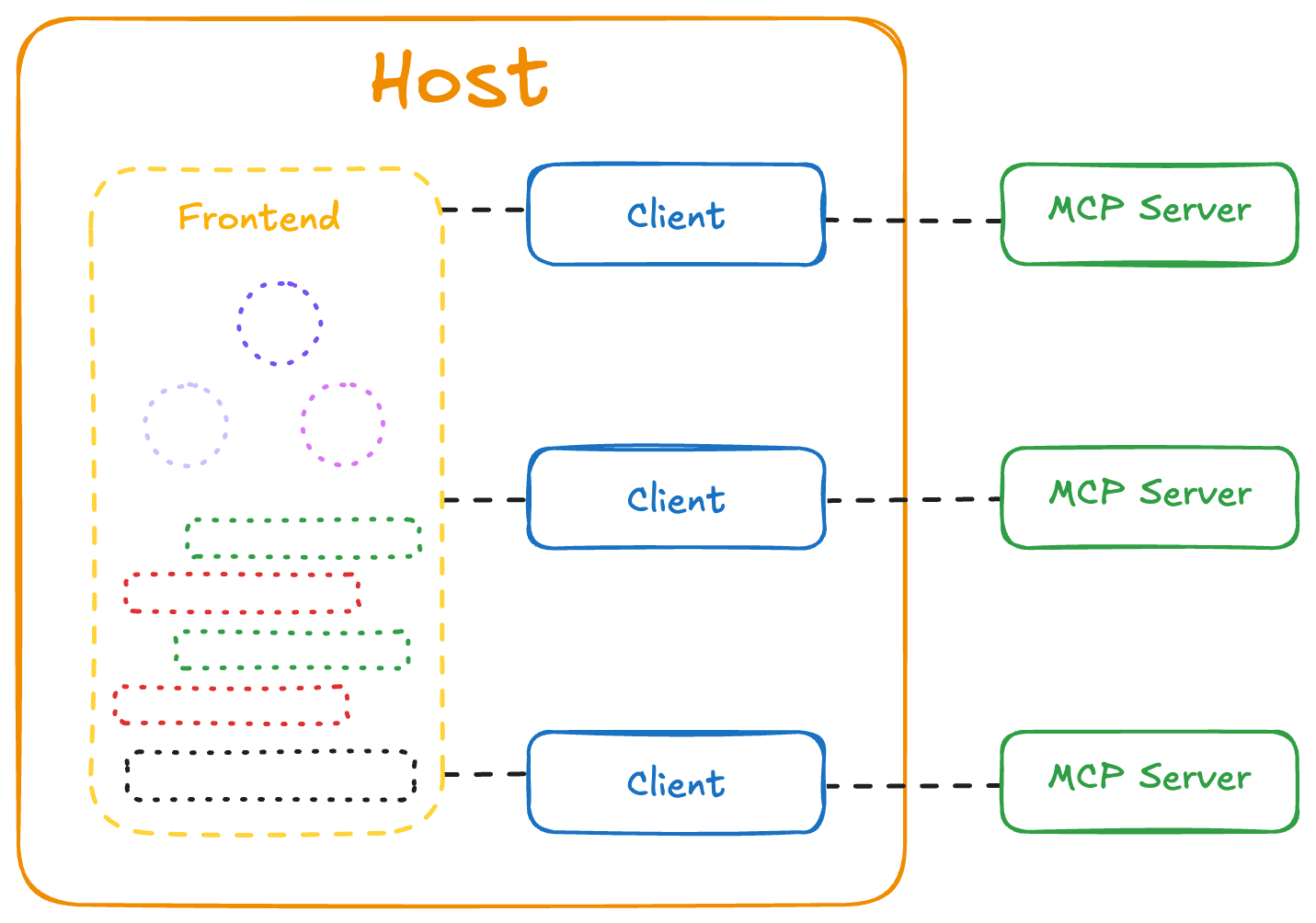
The MCP ecosystem outlines three specific components:
- MCP Servers handle: tool availability (exposing what functions are available), tool execution (running those functions when requested), static content as resources (providing data that can be referenced), preset prompts (standardized templates for common tasks)
- Clients manage: Connections to servers, LLM integration, message passing between components
- Hosts provide: Frontend interfaces, surfacing of MCP functionality to users, integration points for the overall ecosystem
This architecture creates a modular system where different components can be developed independently while maintaining interoperability. This let's users make MCP servers for different LLM related functionalities then plug and play across a variety of supported applications. Commonly used to integrate services APIs and tools, or connect to local datasources on your own machine.
MCP Server Components
MCP servers form the foundation of the protocol by exposing standardized capabilities through well-defined interfaces. Hosts and clients can then connect to these servers using the protocol standard, but how these capabilities are presented to users remains flexible and open to developers. That means that the actual implementation and user experience is entirely up to the developer - whether through command line interfaces, graphical applications, or embedded within larger systems.
In this guide, we'll focus on building an example MCP server with core capabilities, along with a simple client implementation to demonstrate the interaction patterns. To start, let's go over the main components of an MCP Server:
Tools
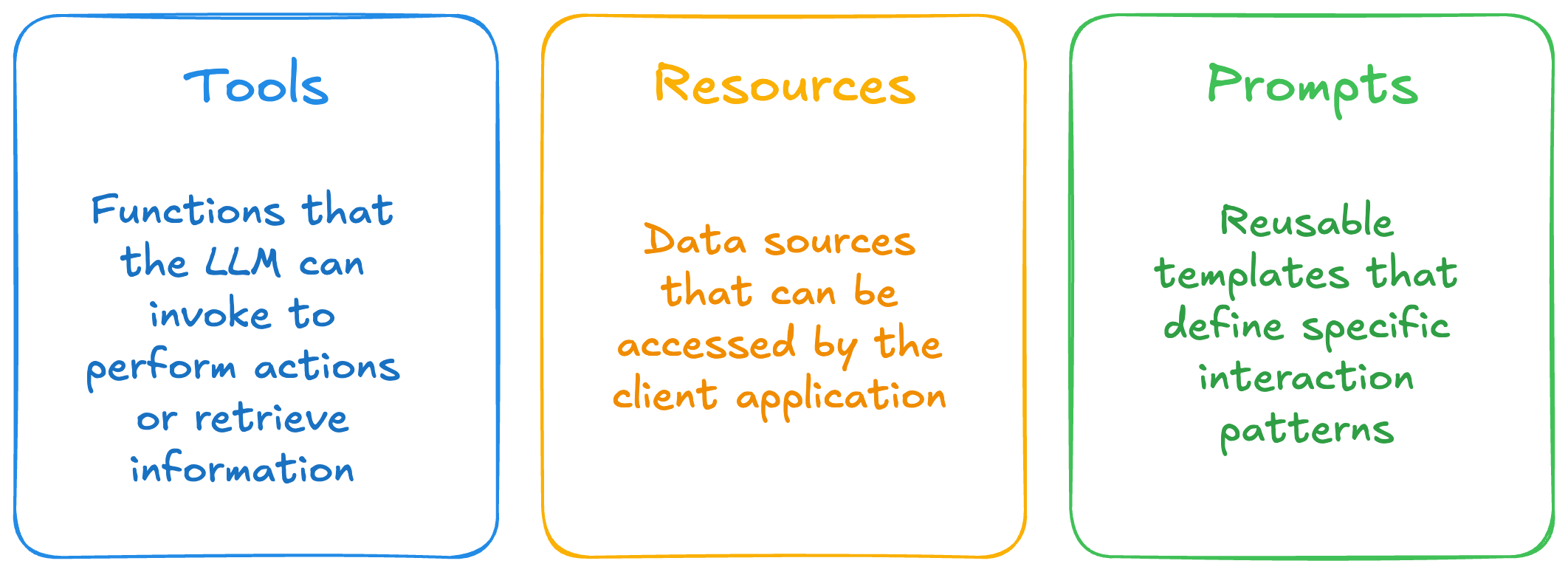
Tools are functions that the LLM can invoke to perform actions or retrieve information. Each tool is defined with:
{
name: string; // Unique identifier for the tool
description?: string; // Human-readable description
inputSchema: { // JSON Schema for the tool's parameters
type: "object",
properties: { ... } // Tool-specific parameters
}
}
Tools allow LLMs to interact with external systems, execute code, query databases, or perform calculations. They represent actions that have effects or compute new information.
Resources
Resources represent data sources that can be accessed by the client application. They are identified by URIs and can include:
{
uri: string; // Unique identifier for the resource
name: string; // Human-readable name
description?: string; // Optional description
mimeType?: string; // Optional MIME type
}
Resources can be static (like configuration files) or dynamic (like database records or API responses). They provide context to the LLM without requiring function calls.
Prompts
Prompts are reusable templates that define specific interaction patterns. They allow servers to expose standardized conversation flows:
{
name: string; // Unique identifier for the prompt
description?: string; // Human-readable description
arguments?: [ // Optional list of arguments
{
name: string; // Argument identifier
description?: string; // Argument description
required?: boolean; // Whether argument is required
}
]
}
Prompts help create consistent, purpose-built interactions for common tasks, allowing users to invoke them through UI elements like slash commands.
Note: While tools are designed specifically for LLM interaction (similar to function calling), prompts and resources serve different purposes in the MCP ecosystem. Prompts are typically user-controlled templates that can be invoked directly through UI elements like slash commands, and resources are application-controlled data sources that may be presented to users for selection before being included in the LLM context.
More details and additional functionality can be found in the MCP Official Documentation
---
Setting Up Our Example
Our MCP Server will highlight tools, resources, and prompts. The core concept is to create a simple knowledgebase chatbot flow that will be have the functionality to:
1. Let the LLM use tools to query a vector database for RAG responses
2. Let the user choose existing resources to provide context
3. Let the user execute standard prompts for more complex analytical workflows
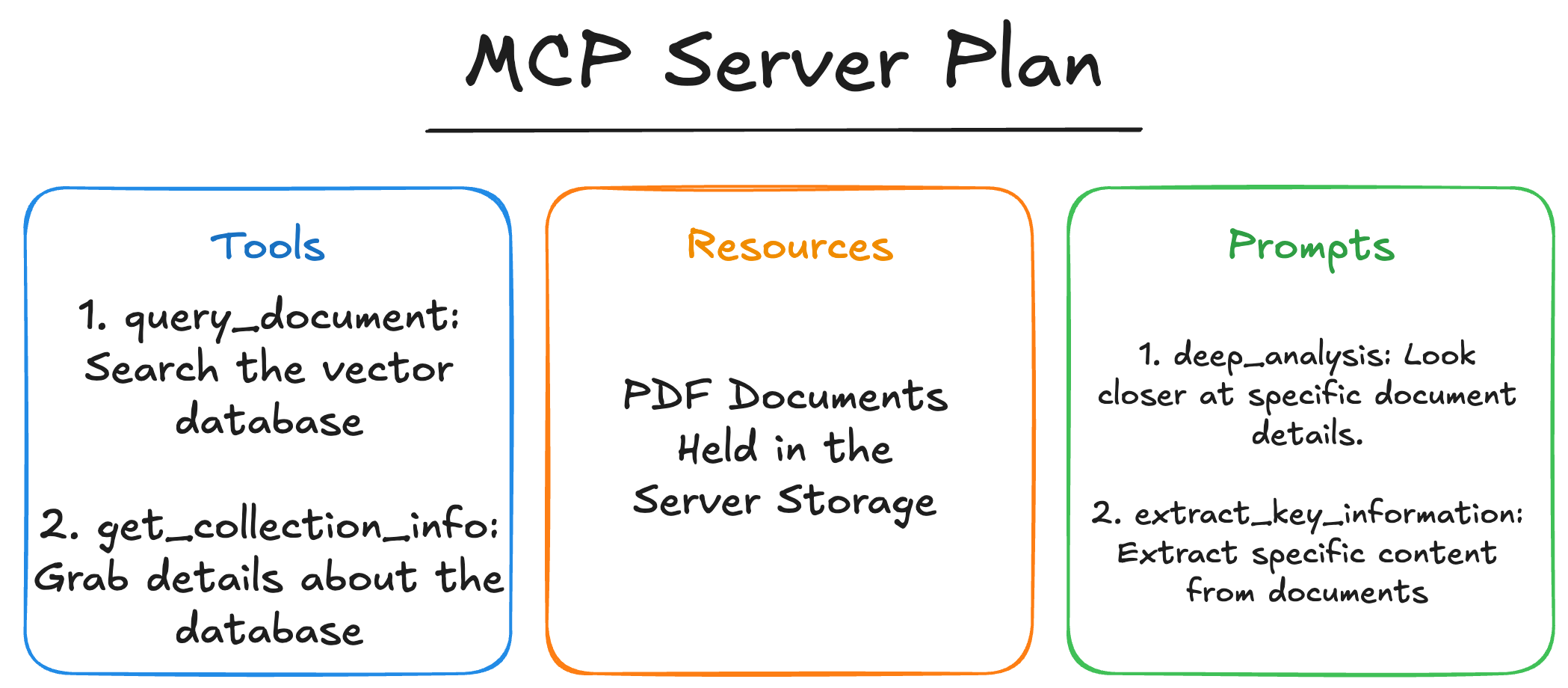
The above diagram is what's implemented in mcp_server.py with a corresponding simple CLI client in client.py.
As a useful resource, check out MCP's Server List for official integrations and community-made servers.
---
Setup and Installation
1. Clone the Repo
git clone https://github.com/ALucek/quick-mcp-example.git

cd quick-mcp-example
2. Create the ChromaDB Database
Follow the instructions in MCP_setup.ipynb to create the vector database and embed a pdf into it.
3. Create the Virtual Environment and Install Packages
# Using uv (recommended)

uv venv

source .venv/bin/activate  # On macOS/Linux

OR

.venv\Scripts\activate     # On Windows
Install dependencies
uv sync
4. Run the Client & Server
python client.py mcp_server.py
Sign in to leave a review
Use Google, GitHub, or an email account so ratings stay tied to real people.
No reviews posted yet.



