
Serena
About
Serena MCP server for semantic code retrieval, code editing, and IDE-like context tools that help AI coding agents work inside a codebase.
Details
- License
- MIT
Explore
Serena provides a wide range of tools for efficient code retrieval, editing and refactoring, as well as
a memory system for long-lived agent workflows.
Given its large scope, Serena adapts to your needs by offering a multi-layered configuration system.
<details>
<summary>Details</summary>

Setting up with Highlight
This MCP is not yet compatible with Highlight’s one-click setup. However, you can still use it with Highlight by following these steps:
- Download and install Highlight from highlightai.com/download
- Navigate to the plugins tab and select "Add Custom Plugin"
-
Configure the plugin with the settings below
Plugin Name
SerenaCommand (node, npx, python, etc.)Please refer to the README for specific instructions on how to obtain API keys or other required environment variables.
- Enable "Start Automatically" if you want the plugin to start when Highlight launches





From the repository
Prerequisites. Serena is managed by uv, and installing uv is the only required prerequisite.
> [!NOTE]
> When using the language server backend, some additional dependencies may need to be installed to support certain languages;
> see the Language Support page for details.
Install Serena. Serena is installed via uv as follows:
uv tool install -p 3.13 serena-agent
After successful installation, the command serena should be available in your shell.
Initialise Serena. To initialise Serena and verify that your setup works correctly, simply run:
serena init
By default, this will set up Serena to use the language server backend. To use the JetBrains backend instead, add the parameters -b JetBrains
(see the JetBrains Plugin documentation page for additional usage details).
Either way, you should receive a success message indicating that Serena has been initialised successfully.
Configuring Your Client. To connect Serena to your preferred MCP client, you typically need to configure a launch command in your client.
Follow the link for specific instructions on how to set up Serena for Claude Code, Codex, Claude Desktop, MCP-enabled IDEs and other clients (such as local and web-based GUIs).
> [!TIP]
> While getting started quickly is easy, Serena is a powerful toolkit with many configuration options.
> We highly recommend reading through the user guide to get the most out of Serena.
>
> Specifically, we recommend to read about ...
> Serena's project-based workflow and
> configuring Serena.
https://github.com/user-attachments/assets/8d11646e-b80e-4723-b9d7-32d6101b5f58
:tv: Longer video: Introduction to Serena in 5 Minutes (YouTube)
Active tools, tool descriptions, prompts, language backend details and many other aspects of Serena
can be flexibly configured on a per-case basis by simply adjusting a few lines of YAML.
To achieve this, Serena offers multiple levels of (composable) configuration:
global configuration
MCP launch command (CLI) configuration
per-project configuration (with local overrides)
execution context-specific configuration (e.g. for particular clients)
- dynamically composable configuration fragments (modes)
</details>
Claude Desktop / Cursor
Paste into your MCP client config file to install this server.
{
    "mcpServers": {
        "serena": {
            "serena": {
                "command": "uv",
                "args": [
                    "tool",
                    "install",
                    "-p",
                    "3.13",
                    "serena-agent"
                ]
            }
        }
    }
}McpServers
{
    "serena": {
        "command": "uv",
        "args": [
            "tool",
            "install",
            "-p",
            "3.13",
            "serena-agent"
        ]
    }
}
How Serena Works
Serena provides the necessary tools for coding workflows,
but an LLM is required to do the actual work, orchestrating tool use.
Serena can extend the functionality of your existing AI client via the model context protocol (MCP).
Most modern AI chat clients directly support MCP, including
terminal-based clients like Claude Code, Codex, OpenCode, or Gemini-CLI,
IDEs and IDE assistant plugins for VSCode, Cursor and JetBrains IDEs (Copilot, Junie, JetBrains AI Assistant, etc.),
desktop and web clients like Claude Desktop, Codex App, or OpenWebUI.
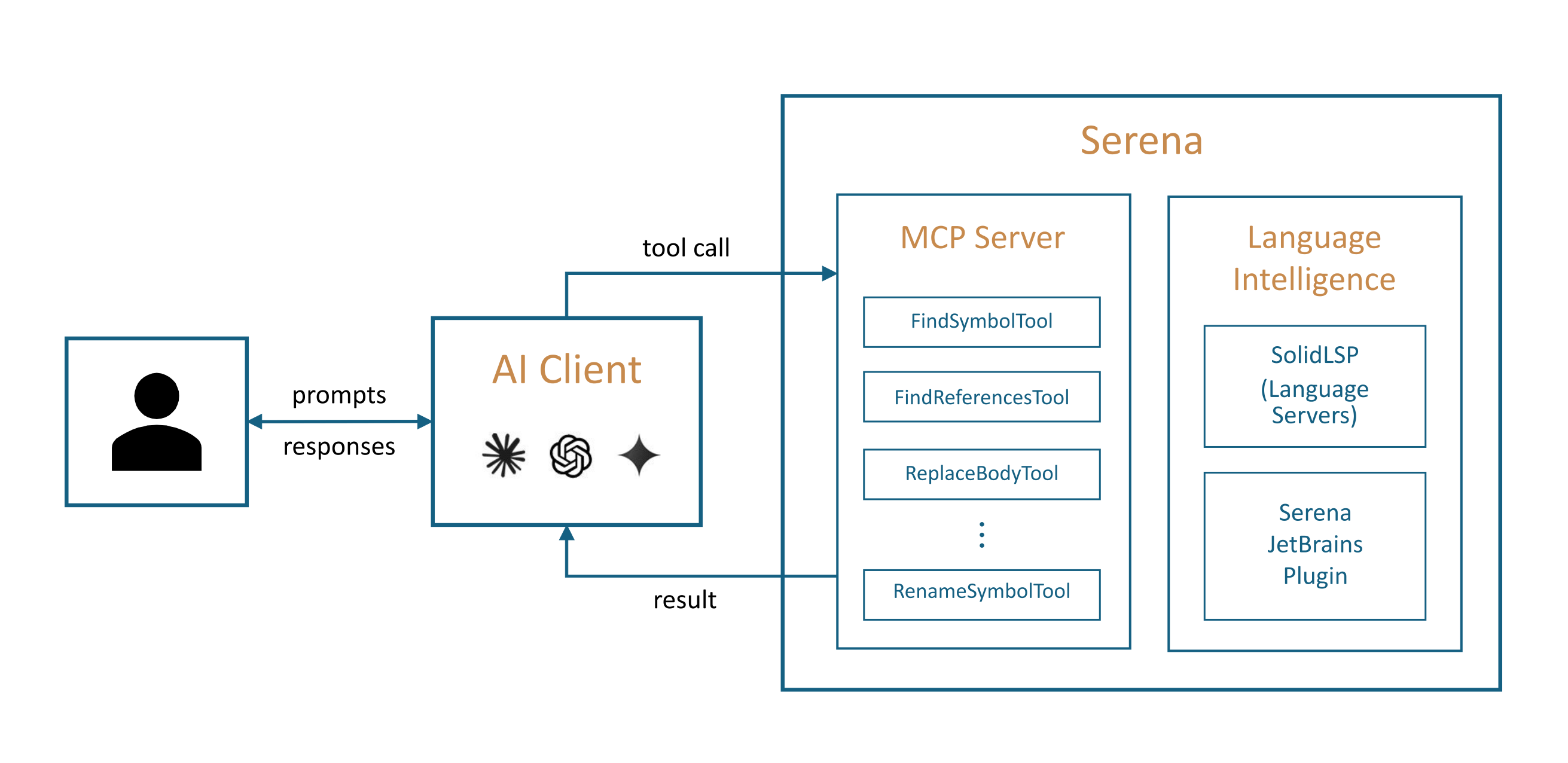
:tv: See also: Introduction to Serena in 5 Minutes (YouTube)
To connect the Serena MCP server to your client, you either
provide the client with a launch command that allows it to start the MCP server, or
* start the Serena MCP server yourself in HTTP mode and provide the client with the URL.
See the Quick Start section below for information on how to get started.
Sign in to leave a review
Use Google, GitHub, or an email account so ratings stay tied to real people.
No reviews posted yet.





