
Skyvern
About
AI-powered browser automation MCP server — navigate sites, fill forms, extract data, and handle logins via Claude Code CLI
Details
- Transport
- SSE
Explore
This is our planned roadmap for the next few months. If you have any suggestions or would like to see a feature added, please don't hesitate to reach out to us via email or discord.
- [x] Open Source - Open Source Skyvern's core codebase
- [x] [BETA] Workflow support - Allow support to chain multiple Skyvern calls together
- [x] Improved context - Improve Skyvern's ability to understand content around interactable elements by introducing feeding relevant label context through the text prompt
- [x] Cost Savings - Improve Skyvern's stability and reduce the cost of running Skyvern by optimizing the context tree passed into Skyvern
- [x] Self-serve UI - Deprecate the Streamlit UI in favour of a React-based UI component that allows users to kick off new jobs in Skyvern
- [x] Workflow UI Builder - Introduce a UI to allow users to build and analyze workflows visually
- [x] Chrome Viewport streaming - Introduce a way to live-stream the Chrome viewport to the user's browser (as a part of the self-serve UI)
- [x] Past Runs UI - Deprecate the Streamlit UI in favour of a React-based UI that allows you to visualize past runs and their results
- [X] Auto workflow builder ("Observer") mode - Allow Skyvern to auto-generate workflows as it's navigating the web to make it easier to build new workflows
- [ ] Prompt Caching - Introduce a caching layer to the LLM calls to dramatically reduce the cost of running Skyvern (memorize past actions and repeat them!)
- [ ] Web Evaluation Dataset - Integrate Skyvern with public benchmark tests to track the quality of our models over time
- [ ] Improved Debug mode - Allow Skyvern to plan its actions and get "approval" before running them, allowing you to debug what it's doing and more easily iterate on the prompt
- [ ] Chrome Extension - Allow users to interact with Skyvern through a Chrome extension (incl voice mode, saving tasks, etc.)
- [ ] Skyvern Action Recorder - Allow Skyvern to watch a user complete a task and then automatically generate a workflow for it
- [ ] Interactable Livestream - Allow users to interact with the livestream in real-time to intervene when necessary (such as manually submitting sensitive forms)
- [ ] Integrate LLM Observability tools - Integrate LLM Observability tools to allow back-testing prompt changes with specific data sets + visualize the performance of Skyvern over time
- [ ] Langchain Integration - Create langchain integration in langchain_community to use Skyvern as a "tool".

Setting up with Highlight
This MCP is not yet compatible with Highlight’s one-click setup. However, you can still use it with Highlight by following these steps:
- Download and install Highlight from highlightai.com/download
- Navigate to the plugins tab and select "Add Custom Plugin"
-
Configure the plugin with the settings below
Plugin Name
SkyvernCommand (node, npx, python, etc.)Please refer to the README for specific instructions on how to obtain API keys or other required environment variables.
- Enable "Start Automatically" if you want the plugin to start when Highlight launches





From the repository
> ⚠️ REQUIREMENT: This project requires at least Python 3.11 ⚠️
1. Install Skyvern
pip install skyvern
2. Run Skyvern
skyvern quickstart
3. Run task
Run a skyvern task locally:
from skyvern import Skyvern
skyvern = Skyvern()
task = await skyvern.local.run_task(prompt="Find the top post on hackernews today")
print(task)
A local browser will pop up. Skyvern will start executing the task in the browser and close the it when the task is done. You will be able to review the task from http://localhost:8080/history
You can also run a task autonomously on Skyvern Cloud:
from skyvern import Skyvern
skyvern = Skyvern(api_key="SKYVERN API KEY")
task = await skyvern.agent.run_task(prompt="Find the top post on hackernews today")
print(task)
Or any hosted Skyvern service:
skyvern = Skyvern(base_url="http://localhost:8000", api_key="SKYVERN API KEY")
task = await skyvern.agent.run_task(prompt="Find the top post on hackernews today")
print(task)
1. Make sure you have Docker Desktop installed and running on your machine
1. Make sure you don't have postgres running locally (Run docker ps to check)
1. Clone the repository and navigate to the root directory
1. Fill in the LLM provider key on the docker-compose.yml. If you want to run Skyvern on a remote server, make sure you set the correct server ip for the UI container in docker-compose.yml.
2. Run the following command via the commandline:
docker compose up -d
3. Navigate to
http://localhost:8080 in your browser to start using the UI
> Important: Only one Postgres container can run on port 5432 at a time. If you switch from the CLI-managed Postgres to Docker Compose, you must first remove the original container:
>
> docker rm -f postgresql-container
> If you encounter any database related errors while using Docker to run Skyvern, check which Postgres container is running with docker ps.
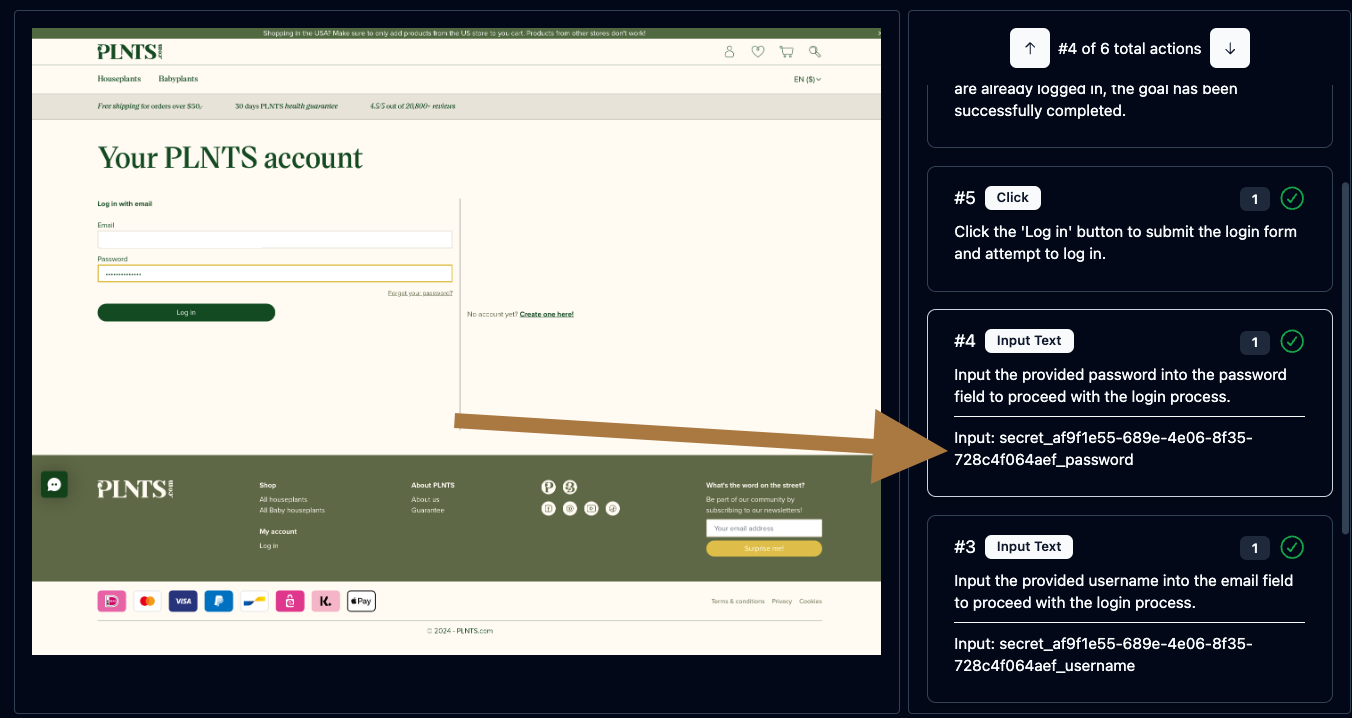
Skyvern supports a number of different authentication methods to make it easier to automate tasks behind a login. If you'd like to try it out, please reach out to us via email or discord.
<p align="center">
</p>
The following command sets up your development environment to use pre-commit (our commit hook handler)
skyvern quickstart contributors
1. Navigate to http://localhost:8080 in your browser to start using the UI
The Skyvern CLI supports Windows, WSL, macOS, and Linux environments.
| Variable | Description| Type | Sample Value|
| -------- | ------- | ------- | ------- |
| LLM_KEY | The name of the model you want to use | String | See supported LLM keys above |
| SECONDARY_LLM_KEY | The name of the model for mini agents skyvern runs with | String | See supported LLM keys above |
| LLM_CONFIG_MAX_TOKENS | Override the max tokens used by the LLM | Integer | 128000 |
Claude Desktop / Cursor
Paste into your MCP client config file to install this server.
{
    "mcpServers": {
        "skyvern": {
            "Skyvern": {
                "env": {
                    "SKYVERN_BASE_URL": "https://api.skyvern.com",
                    "SKYVERN_API_KEY": "YOUR_SKYVERN_API_KEY"
                },
                "command": "PATH_TO_PYTHON",
                "args": [
                    "-m",
                    "skyvern",
                    "run",
                    "mcp"
                ]
            }
        }
    }
}McpServers
{
    "Skyvern": {
        "env": {
            "SKYVERN_BASE_URL": "https://api.skyvern.com",
            "SKYVERN_API_KEY": "YOUR_SKYVERN_API_KEY"
        },
        "command": "PATH_TO_PYTHON",
        "args": [
            "-m",
            "skyvern",
            "run",
            "mcp"
        ]
    }
}
Skyvern Tasks
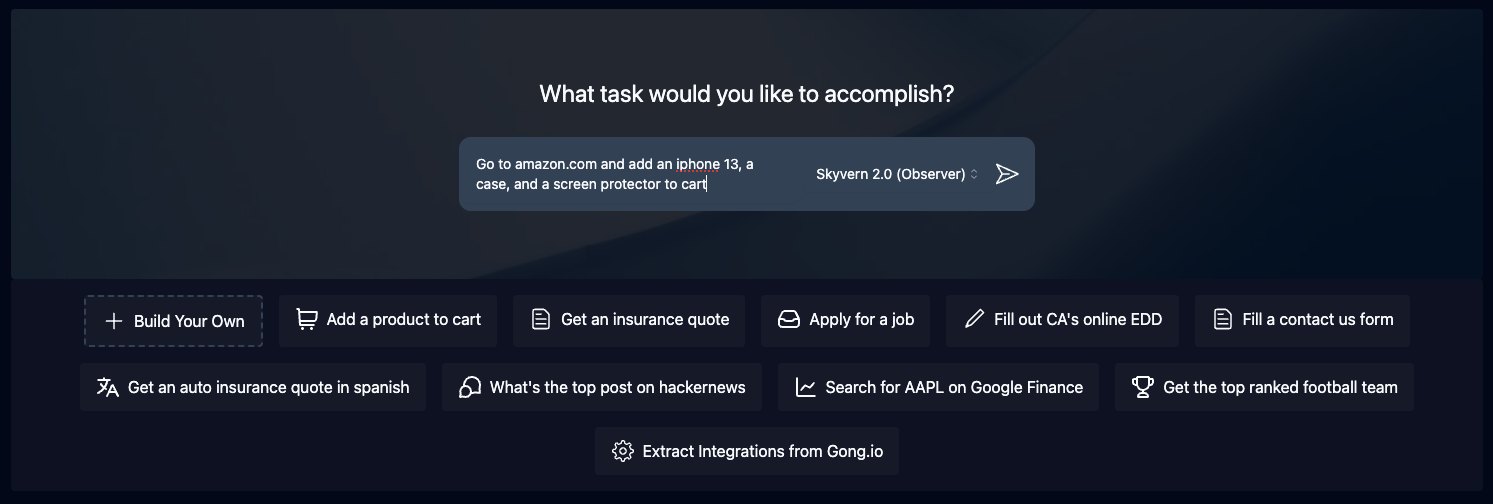
Tasks are the fundamental building block inside Skyvern. Each task is a single request to Skyvern, instructing it to navigate through a website and accomplish a specific goal.Tasks require you to specify a url, prompt, and can optionally include a data schema (if you want the output to conform to a specific schema) and error codes (if you want Skyvern to stop running in specific situations).
<p align="center">
</p>
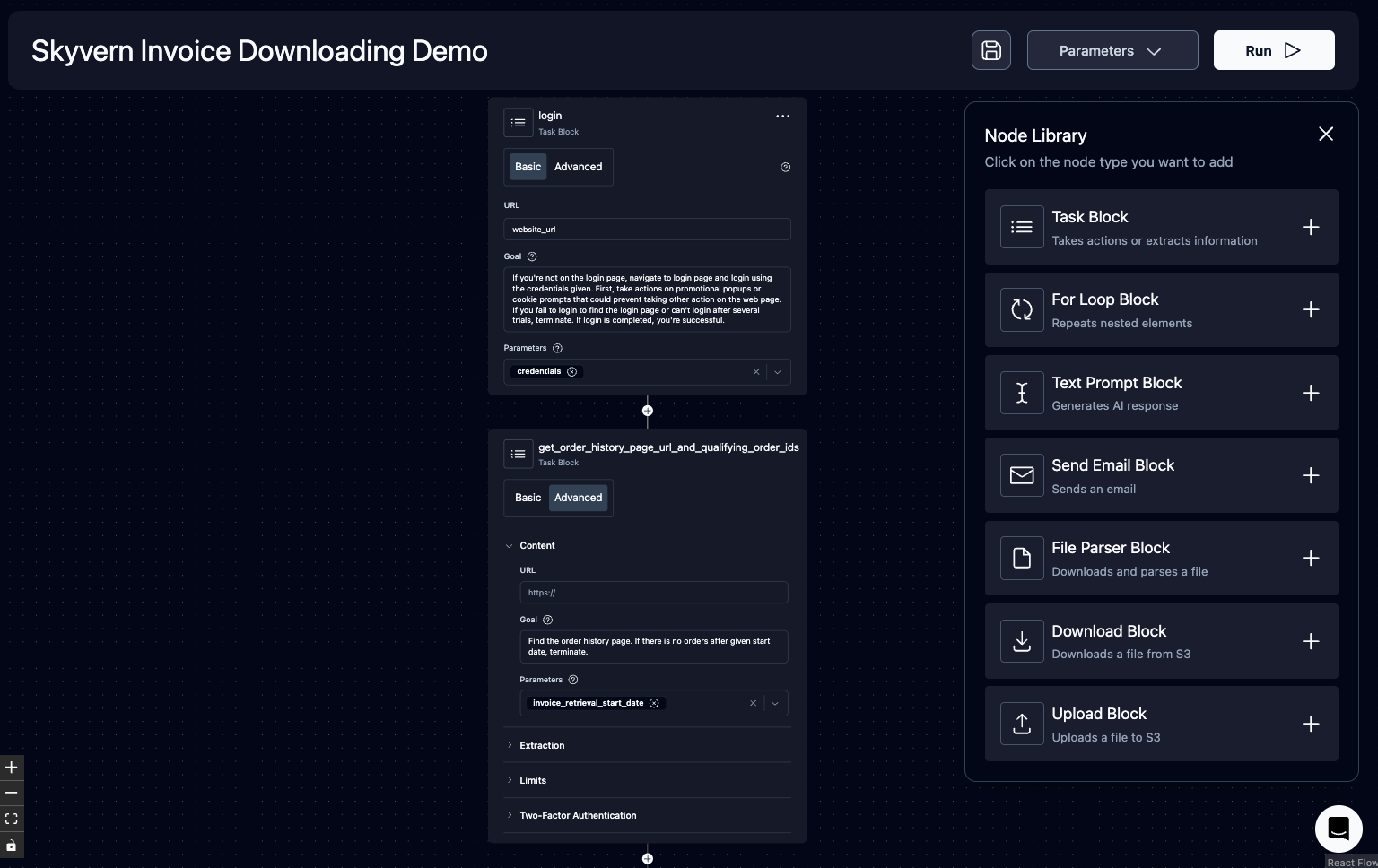
Skyvern Workflows
Workflows are a way to chain multiple tasks together to form a cohesive unit of work.For example, if you wanted to download all invoices newer than January 1st, you could create a workflow that first navigated to the invoices page, then filtered down to only show invoices newer than January 1st, extracted a list of all eligible invoices, and iterated through each invoice to download it.
Another example is if you wanted to automate purchasing products from an e-commerce store, you could create a workflow that first navigated to the desired product, then added it to a cart. Second, it would navigate to the cart and validate the cart state. Finally, it would go through the checkout process to purchase the items.
Supported workflow features include:
1. Navigation
1. Action
1. Data Extraction
1. Loops
1. File parsing
1. Uploading files to block storage
1. Sending emails
1. Text Prompts
1. Tasks (general)
1. (Coming soon) Conditionals
1. (Coming soon) Custom Code Block
<p align="center">
</p>
Livestreaming
Skyvern allows you to livestream the viewport of the browser to your local machine so that you can see exactly what Skyvern is doing on the web. This is useful for debugging and understanding how Skyvern is interacting with a website, and intervening when necessaryForm Filling
Skyvern is natively capable of filling out form inputs on websites. Passing in information via thenavigation_goal will allow Skyvern to comprehend the information and fill out the form accordingly.
Data Extraction
Skyvern is also capable of extracting data from a website.You can also specify a data_extraction_schema directly within the main prompt to tell Skyvern exactly what data you'd like to extract from the website, in jsonc format. Skyvern's output will be structured in accordance to the supplied schema.
File Downloading
Skyvern is also capable of downloading files from a website. All downloaded files are automatically uploaded to block storage (if configured), and you can access them via the UI.Authentication
Skyvern supports a number of different authentication methods to make it easier to automate tasks behind a login. If you'd like to try it out, please reach out to us via email or discord.<p align="center">
</p>
🔐 2FA Support (TOTP)
Skyvern supports a number of different 2FA methods to allow you to automate workflows that require 2FA.Examples include:
1. QR-based 2FA (e.g. Google Authenticator, Authy)
1. Email based 2FA
1. SMS based 2FA
🔐 Learn more about 2FA support here.
Password Manager Integrations
Skyvern currently supports the following password manager integrations: - [x] Bitwarden - [ ] 1Password - [ ] LastPassModel Context Protocol (MCP)
Skyvern supports the Model Context Protocol (MCP) to allow you to use any LLM that supports MCP.See the MCP documentation here
Zapier / Make.com / N8N Integration
Skyvern supports Zapier, Make.com, and N8N to allow you to connect your Skyvern workflows to other apps.Sign in to leave a review
Use Google, GitHub, or an email account so ratings stay tied to real people.
No reviews posted yet.