
interactive-mcp
About
📇 - Enables interactive LLM workflows by adding local user prompts and chat capabilities directly into the MCP loop.
Details
- License
- MIT
Explore
- Exposes five tools for user interaction
- Request user input with predefined options
- Send OS completion notifications
- Start, ask in, and stop persistent chat sessions
- Customizable timeout per prompt

Setting up with Highlight
This MCP is not yet compatible with Highlight’s one-click setup. However, you can still use it with Highlight by following these steps:
- Download and install Highlight from highlightai.com/download
- Navigate to the plugins tab and select "Add Custom Plugin"
-
Configure the plugin with the settings below
Plugin Name
interactive-mcpCommand (node, npx, python, etc.)Please refer to the README for specific instructions on how to obtain API keys or other required environment variables.
- Enable "Start Automatically" if you want the plugin to start when Highlight launches





From the repository
- Node.js: Check package.json for version compatibility.
- pnpm: Used for package management. Install via npm install -g pnpm after installing Node.js.
This server is ideal for scenarios where an LLM needs to interact directly with the user on their local machine, such as:
- Interactive setup or configuration processes.
- Gathering feedback during code generation or modification.
- Clarifying instructions or confirming actions in pair programming.
- Any workflow requiring user input or confirmation during LLM operation.
This section explains how to configure MCP clients to use the interactive-mcp server.
By default, user prompts will time out after 30 seconds. You can customize server options like timeout or disabled tools by adding command-line flags directly to the args array when configuring your client.
Please make sure you have the npx command available.
Add the following minimal configuration to your claude_desktop_config.json (Claude Desktop) or mcp.json (Cursor):
{
"mcpServers": {
"interactive": {
"command": "npx",
"args": ["-y", "interactive-mcp"]
}
}
}
With specific version
{
"mcpServers": {
"interactive": {
"command": "npx",
"args": ["-y", "[email protected]"]
}
}
}
Example with Custom Timeout (30s):
{
"mcpServers": {
"interactive": {
"command": "npx",
"args": ["-y", "interactive-mcp", "-t", "30"]
}
}
}
Add the following minimal configuration to your User Settings (JSON) file or .vscode/mcp.json:
{
"mcp": {
"servers": {
"interactive-mcp": {
"command": "npx",
"args": ["-y", "interactive-mcp"]
}
}
}
}
This section is primarily for developers looking to modify or contribute to the server. If you just want to _use_ the server with an MCP client, see the "Client Configuration" section above.
1. Clone the repository:
git clone https://github.com/ttommyth/interactive-mcp.git
cd interactive-mcp
2. Install dependencies:
pnpm install
pnpm start
request_user_input
<description> Send a question to the user via a pop-up command prompt. **Crucial for clarifying requirements, confirming plans, or resolving ambiguity.** You should call this tool whenever it has **any** uncertainty or needs clarification or confirmation, even for trivial or silly questions. Feel free to ask anything! **Proactive questioning is preferred over making assumptions.** </description> <importantNotes> - (!important!) **Use this tool FREQUENTLY** for any question that requires user input or confirmation. - (!important!) Continue to generate existing messages after user answers. - (!important!) Provide predefined options for quick selection if applicable. - (!important!) **Essential for validating assumptions before proceeding with significant actions (e.g., code edits, running commands).** </importantNotes> <whenToUseThisTool> - When you need clarification on user requirements or preferences - When multiple implementation approaches are possible and user input is needed - **Before making potentially impactful changes (code edits, file operations, complex commands)** - When you need to confirm assumptions before proceeding - When you need additional information not available in the current context - When validating potential solutions before implementation - When facing ambiguous instructions that require clarification - When seeking feedback on generated code or solutions - When needing permission to modify critical files or functionality - **Whenever you feel even slightly unsure about the user's intent or the correct next step.** </whenToUseThisTool> <features> - Pop-up command prompt display for user input - Returns user response or timeout notification (timeout defaults to 60 seconds)) - Maintains context across user interactions - Handles empty responses gracefully - Properly formats prompt with project context </features> <bestPractices> - Keep questions concise and specific - Provide clear options when applicable - Do not ask the question if you have another tool that can answer the question - e.g. when you searching file in the current repository, do not ask the question "Do you want to search for a file in the current repository?" - e.g. prefer to use other tools to find the answer (Cursor tools or other MCP Server tools) - Limit questions to only what's necessary **to resolve the uncertainty** - Format complex questions into simple choices - Reference specific code or files when relevant - Indicate why the information is needed - Use appropriate urgency based on importance </bestPractices> <parameters> - projectName: Identifies the context/project making the request (used in prompt formatting) - message: The specific question for the user (appears in the prompt) - predefinedOptions: Predefined options for the user to choose from (optional) </parameters> <examples> - "Should I implement the authentication using JWT or OAuth?" - "Do you want to use TypeScript interfaces or type aliases for this component?" - "I found three potential bugs. Should I fix them all or focus on the critical one first?" - "Can I refactor the database connection code to use connection pooling?" - "Is it acceptable to add React Router as a dependency?" - "I plan to modify function X in file Y. Is that correct?" </examples>
message_complete_notification
<description> Notify when a response has completed. Use this tool **once** at the end of **each and every** message to signal completion to the user. </description> <importantNotes> - (!important!) **MANDATORY:** ONLY use this tool exactly once per message to signal completion. **Do not forget this step.** </importantNotes> <whenToUseThisTool> - When you've completed answering a user's query - When you've finished executing a task or a sequence of tool calls - When a multi-step process is complete - When you want to provide a summary of completed actions just before ending the response </whenToUseThisTool> <features> - Cross-platform OS notifications (Windows, macOS, Linux) - Reusable tool to signal end of message - Should be called exactly once per LLM response </features> <bestPractices> - Keep messages concise - Use projectName consistently to group notifications by context </bestPractices> <parameters> - projectName: Identifies the context/project making the notification (appears in notification title) - message: The specific notification text (appears in the body) </parameters> <examples> - { "projectName": "MyApp", "message": "Feature implementation complete. All tests passing." } - { "projectName": "MyLib", "message": "Analysis complete: 3 issues found and fixed." } </examples>
start_intensive_chat
<description> Start an intensive chat session for gathering multiple answers quickly from the user. **Highly recommended** for scenarios requiring a sequence of related inputs or confirmations. Very useful for gathering multiple answers from the user in a short period of time. Especially useful for brainstorming ideas or discussing complex topics with the user. </description> <importantNotes> - (!important!) Opens a persistent console window that stays open for multiple questions. - (!important!) Returns a session ID that **must** be used for subsequent questions via 'ask_intensive_chat'. - (!important!) **Must** be closed with 'stop_intensive_chat' when finished gathering all inputs. - (!important!) After starting a session, **immediately** continue asking all necessary questions using 'ask_intensive_chat' within the **same response message**. Do not end the response until the chat is closed with 'stop_intensive_chat'. This creates a seamless conversational flow for the user. </importantNotes> <whenToUseThisTool> - When you need to collect a series of quick answers from the user (more than 2-3 questions) - When setting up a project with multiple configuration options - When guiding a user through a multi-step process requiring input at each stage - When gathering sequential user preferences - When you want to maintain context between multiple related questions efficiently - When brainstorming ideas with the user interactively </whenToUseThisTool> <features> - Opens a persistent console window for continuous interaction - Supports starting with an initial question - Configurable timeout for each question (set via -t/--timeout, defaults to 60 seconds) - Returns a session ID for subsequent interactions - Keeps full chat history visible to the user - Maintains state between questions </features> <bestPractices> - Use a descriptive session title related to the task - Start with a clear initial question when possible - Do not ask the question if you have another tool that can answer the question - e.g. when you searching file in the current repository, do not ask the question "Do you want to search for a file in the current repository?" - e.g. prefer to use other tools to find the answer (Cursor tools or other MCP Server tools) - Always store the returned session ID for later use - Always close the session when you're done with stop_intensive_chat </bestPractices> <parameters> - sessionTitle: Title for the intensive chat session (appears at the top of the console) </parameters> <examples> - Start session for project setup: { "sessionTitle": "Project Configuration" } </examples>
ask_intensive_chat
<description> Ask a new question in an active intensive chat session previously started with 'start_intensive_chat'. </description> <importantNotes> - (!important!) Requires a valid session ID from 'start_intensive_chat'. - (!important!) Supports predefined options for quick selection. - (!important!) Returns the user's answer or indicates if they didn't respond. - (!important!) **Use this repeatedly within the same response message** after 'start_intensive_chat' until all questions are asked. </importantNotes> <whenToUseThisTool> - When continuing a series of questions in an intensive chat session. - When you need the next piece of information in a multi-step process initiated via 'start_intensive_chat'. - When offering multiple choice options to the user within the session. - When gathering sequential information from the user within the session. </whenToUseThisTool> <features> - Adds a new question to an existing chat session - Supports predefined options for quick selection - Returns the user's response - Maintains the chat history in the console </features> <bestPractices> - Ask one clear question at a time - Provide predefined options when applicable - Don't ask overly complex questions - Keep questions focused on a single piece of information </bestPractices> <parameters> - sessionId: ID of the intensive chat session (from start_intensive_chat) - question: The question text to display to the user - predefinedOptions: Array of predefined options for the user to choose from (optional) </parameters> <examples> - Simple question: { "sessionId": "abcd1234", "question": "What is your project named?" } - With predefined options: { "sessionId": "abcd1234", "question": "Would you like to use TypeScript?", "predefinedOptions": ["Yes", "No"] } </examples>
stop_intensive_chat
<description> Stop and close an active intensive chat session. **Must be called** after all questions have been asked using 'ask_intensive_chat'. </description> <importantNotes> - (!important!) Closes the console window for the intensive chat. - (!important!) Frees up system resources. - (!important!) **Should always be called** as the final step when finished with an intensive chat session, typically at the end of the response message where 'start_intensive_chat' was called. </importantNotes> <whenToUseThisTool> - When you've completed gathering all needed information via 'ask_intensive_chat'. - When the multi-step process requiring intensive chat is complete. - When you're ready to move on to processing the collected information. - When the user indicates they want to end the session (if applicable). - As the final action related to the intensive chat flow within a single response message. </whenToUseThisTool> <features> - Gracefully closes the console window - Cleans up system resources - Marks the session as complete </features> <bestPractices> - Always stop sessions when you're done to free resources - Provide a summary of the information collected before stopping </bestPractices> <parameters> - sessionId: ID of the intensive chat session to stop </parameters> <examples> - { "sessionId": "abcd1234" } </examples>
This server exposes the following tools via the Model Context Protocol (MCP):
- request_user_input: Asks the user a question and returns their answer. Can display predefined options.
- message_complete_notification: Sends a simple OS notification.
- start_intensive_chat: Initiates a persistent command-line chat session.
- ask_intensive_chat: Asks a question within an active intensive chat session.
- stop_intensive_chat: Closes an active intensive chat session.
Claude Desktop / Cursor
Paste into your MCP client config file to install this server.
{
    "mcpServers": {
        "interactive-mcp": {
            "interactive": {
                "command": "npx",
                "args": [
                    "-y",
                    "interactive-mcp"
                ]
            }
        }
    }
}McpServers
{
"interactive": {
"command": "npx",
"args": [
"-y",
"interactive-mcp"
]
}
}






A MCP Server implemented in Node.js/TypeScript, facilitating interactive communication between LLMs and users. Note: This server is designed to run locally alongside the MCP client (e.g., Claude Desktop, VS Code), as it needs direct access to the user's operating system to display notifications and command-line prompts.
_(Note: This project is in its early stages.)_
Want a quick overview? Check out the introductory blog post: Stop Your AI Assistant From Guessing — Introducing interactive-mcp
<div align="center">
<a href="https://glama.ai/mcp/servers/@ttommyth/interactive-mcp">
</a>
</div>
Tools
This server exposes the following tools via the Model Context Protocol (MCP):
- request_user_input: Asks the user a question and returns their answer. Can display predefined options.
- message_complete_notification: Sends a simple OS notification.
- start_intensive_chat: Initiates a persistent command-line chat session.
- ask_intensive_chat: Asks a question within an active intensive chat session.
- stop_intensive_chat: Closes an active intensive chat session.
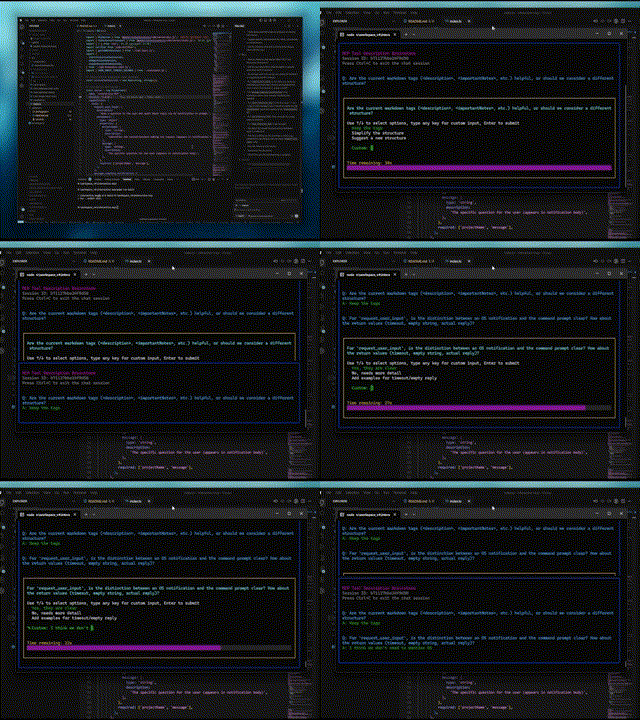
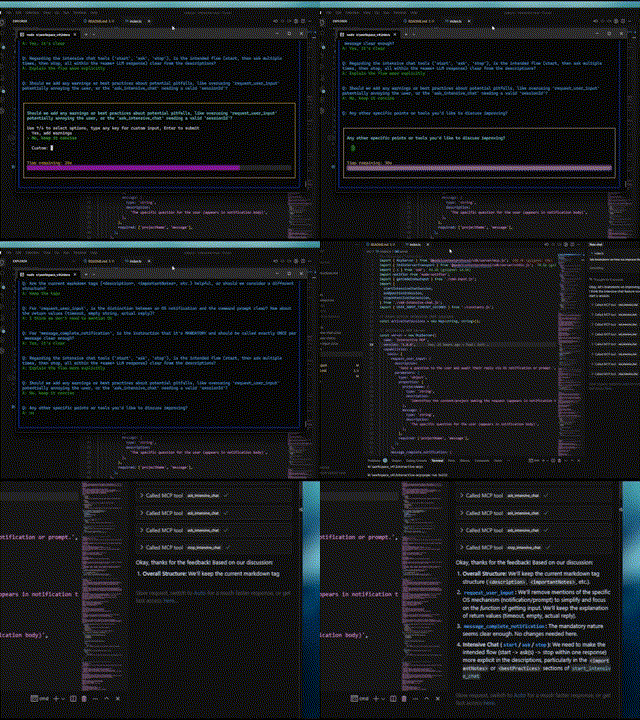
Demo
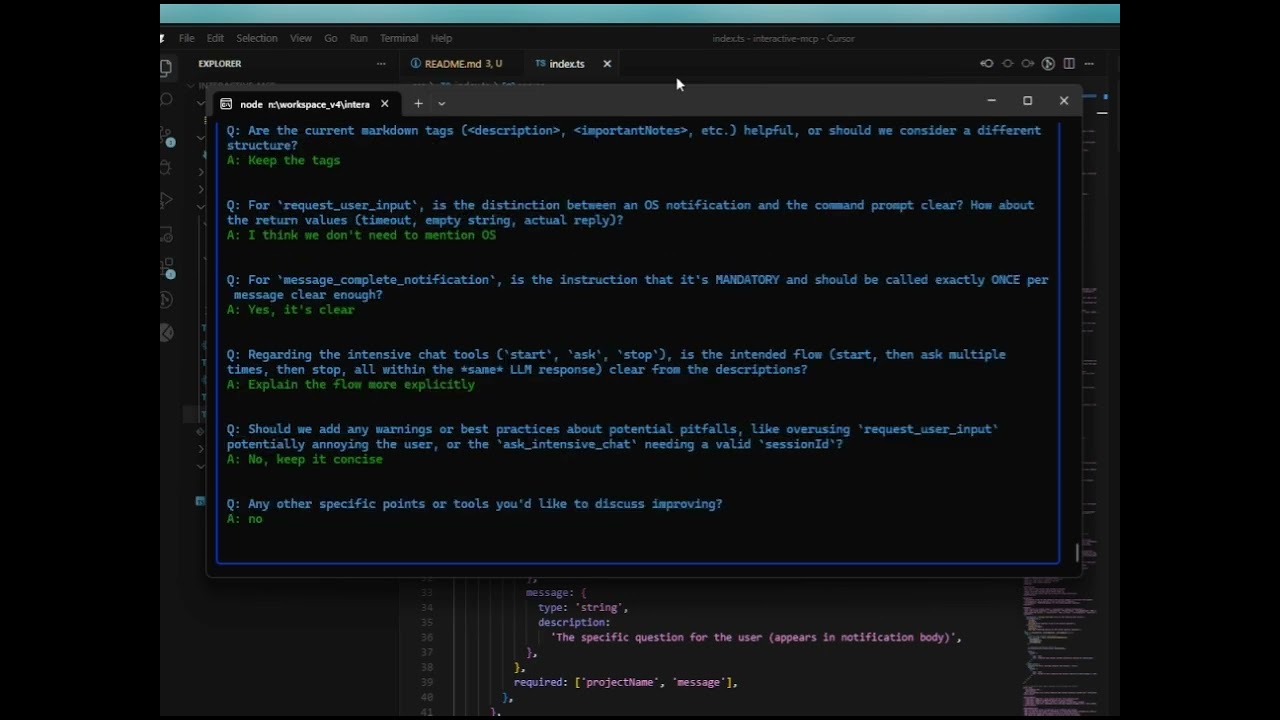
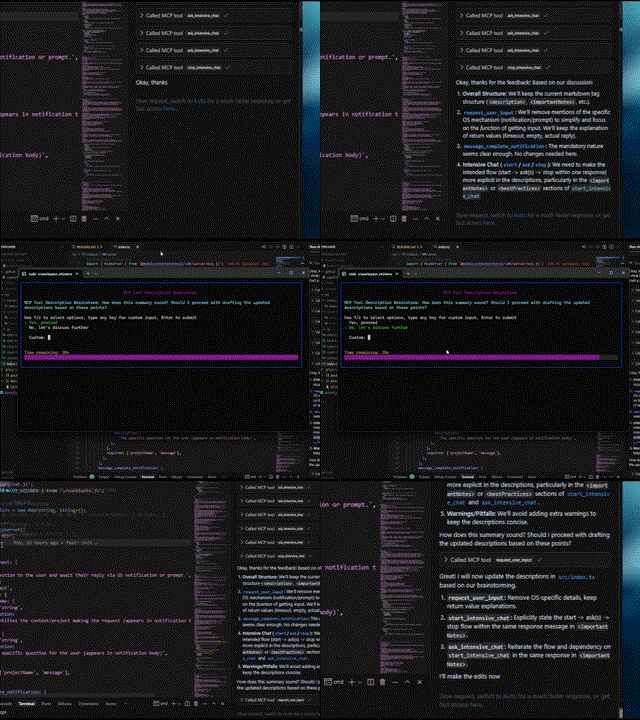
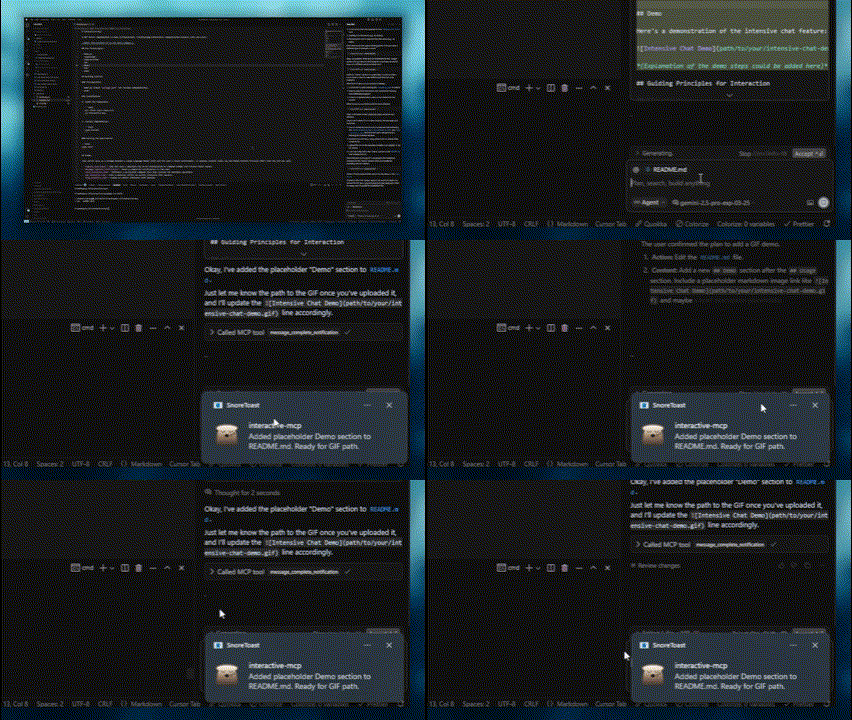
Here are demonstrations of the interactive features:
| Normal Question | Completion Notification |
| :--------------------------------------------------------: | :-----------------------------------------------------------------: |
|  |
|  |
|
| Intensive Chat Start | Intensive Chat End |
| :------------------------------------------------------------------: | :--------------------------------------------------------------: |
|  |
|  |
|
Usage Scenarios
This server is ideal for scenarios where an LLM needs to interact directly with the user on their local machine, such as:
- Interactive setup or configuration processes.
- Gathering feedback during code generation or modification.
- Clarifying instructions or confirming actions in pair programming.
- Any workflow requiring user input or confirmation during LLM operation.
Client Configuration
This section explains how to configure MCP clients to use the interactive-mcp server.
By default, user prompts will time out after 30 seconds. You can customize server options like timeout or disabled tools by adding command-line flags directly to the args array when configuring your client.
Please make sure you have the npx command available.
Usage with Claude Desktop / Cursor
Add the following minimal configuration to your claude_desktop_config.json (Claude Desktop) or mcp.json (Cursor):
{
  "mcpServers": {
    "interactive": {
      "command": "npx",
      "args": ["-y", "interactive-mcp"]
    }
  }
}
With specific version
{
  "mcpServers": {
    "interactive": {
      "command": "npx",
      "args": ["-y", "[email protected]"]
    }
  }
}
Example with Custom Timeout (30s):
{
  "mcpServers": {
    "interactive": {
      "command": "npx",
      "args": ["-y", "interactive-mcp", "-t", "30"]
    }
  }
}
Usage with VS Code
Add the following minimal configuration to your User Settings (JSON) file or .vscode/mcp.json:
{
  "mcp": {
    "servers": {
      "interactive-mcp": {
        "command": "npx",
        "args": ["-y", "interactive-mcp"]
      }
    }
  }
}
macOS Recommendations
For a smoother experience on macOS using the default Terminal.app, consider this profile setting:
- (Shell Tab): Under "When the shell exits" (Terminal > Settings > Profiles > _[Your Profile]_ > Shell), select "Close if the shell exited cleanly" or "Close the window". This helps manage windows when the MCP server starts and stops.
Development Setup
This section is primarily for developers looking to modify or contribute to the server. If you just want to _use_ the server with an MCP client, see the "Client Configuration" section above.
Prerequisites
- Node.js: Check package.json for version compatibility.
- pnpm: Used for package management. Install via npm install -g pnpm after installing Node.js.
Installation (Developers)
1. Clone the repository:
   git clone https://github.com/ttommyth/interactive-mcp.git
   cd interactive-mcp
2. Install dependencies:
pnpm install
Running the Application (Developers)
pnpm start
Command-Line Options
The interactive-mcp server accepts the following command-line options. These should typically be configured in your MCP client's JSON settings by adding them directly to the args array (see "Client Configuration" examples).
| Option | Alias | Description |
| ----------------- | ----- | ----------------------------------------------------------------------------------------------------------------------------------------------------------------------------------------------------- |
| --timeout | -t | Sets the default timeout (in seconds) for user input prompts. Defaults to 30 seconds. |
| --disable-tools | -d | Disables specific tools or groups (comma-separated list). Prevents the server from advertising or registering them. Options: request_user_input, message_complete_notification, intensive_chat. |
Example: Setting multiple options in the client config args array:
// Example combining options in client config's "args":
"args": [
  "-y", "interactive-mcp",
  "-t", "30", // Set timeout to 30 seconds
  "--disable-tools", "message_complete_notification,intensive_chat" // Disable notifications and intensive chat
]
Development Commands
- Build: pnpm build
- Lint: pnpm lint
- Format: pnpm format
Guiding Principles for Interaction
When interacting with this MCP server (e.g., as an LLM client), please adhere to the following principles to ensure clarity and reduce unexpected changes:
- Prioritize Interaction: Utilize the provided MCP tools (request_user_input, start_intensive_chat, etc.) frequently to engage with the user.
- Seek Clarification: If requirements, instructions, or context are unclear, always ask clarifying questions before proceeding. Do not make assumptions.
- Confirm Actions: Before performing significant actions (like modifying files, running complex commands, or making architectural decisions), confirm the plan with the user.
- Provide Options: Whenever possible, present the user with predefined options through the MCP tools to facilitate quick decisions.
You can provide these instructions to an LLM client like this:
```markdown
Sign in to leave a review
Use Google, GitHub, or an email account so ratings stay tied to real people.
No reviews posted yet.