
Model Context Protocol for Unreal Engine
About
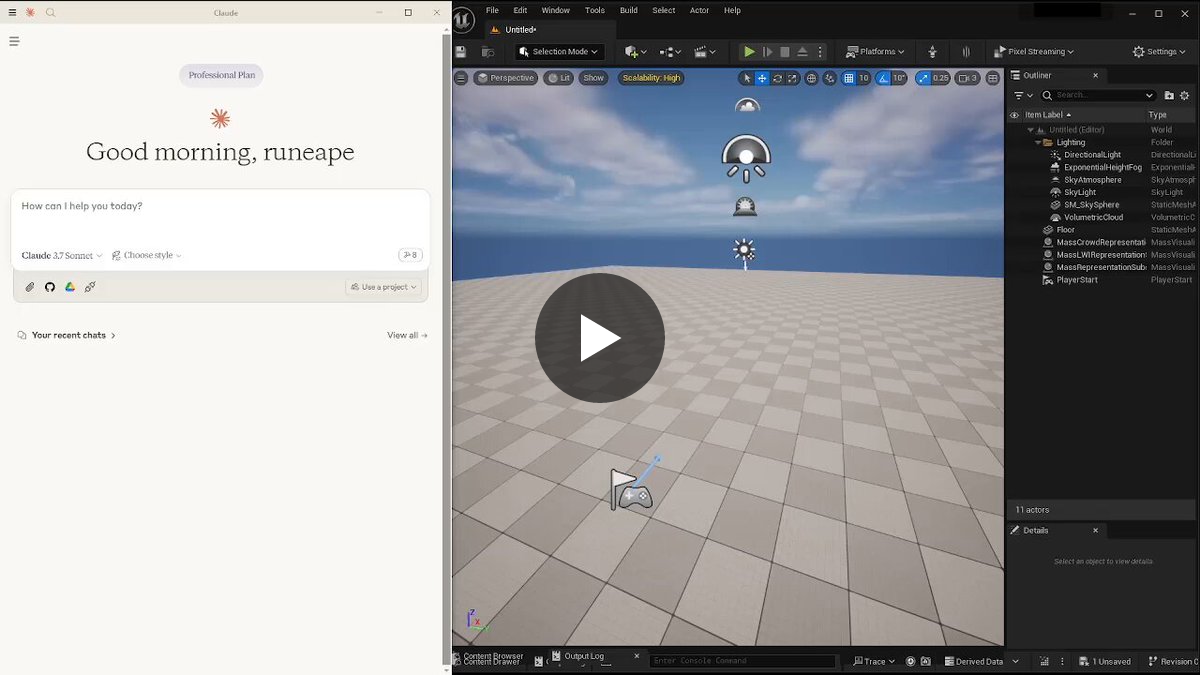
Enable AI assistant clients like Cursor, Windsurf and Claude Desktop to control Unreal Engine through natural language using the Model Context Protocol (MCP).
Details
- License
- MIT
Explore
- Create and manipulate actors (cubes, lights, cameras, etc.)
- Set and query actor transforms and properties
- Create Blueprint classes and add components
- Compile Blueprints and spawn Blueprint actors
- Add nodes to Blueprint graphs and connect them
- Control viewport focus and camera

Setting up with Highlight
This MCP is not yet compatible with Highlight’s one-click setup. However, you can still use it with Highlight by following these steps:
- Download and install Highlight from highlightai.com/download
- Navigate to the plugins tab and select "Add Custom Plugin"
-
Configure the plugin with the settings below
Plugin Name
Model Context Protocol for Unreal EngineCommand (node, npx, python, etc.)Please refer to the README for specific instructions on how to obtain API keys or other required environment variables.
- Enable "Start Automatically" if you want the plugin to start when Highlight launches





From the repository
- Unreal Engine 5.5+
- Python 3.12+
- MCP Client (e.g., Claude Desktop, Cursor, Windsurf)
See Python/README.md for detailed Python setup instructions, including:
- Setting up your Python environment
- Running the MCP server
- Using direct or server-based connections
Use the following JSON for your mcp configuration based on your MCP client.
{
"mcpServers": {
"unrealMCP": {
"command": "uv",
"args": [
"--directory",
"<path/to/the/folder/PYTHON>",
"run",
"unreal_mcp_server.py"
]
}
}
}
An example is found in mcp.json
Depending on which MCP client you're using, the configuration file location will differ:
| MCP Client | Configuration File Location | Notes |
|------------|------------------------------|-------|
| Claude Desktop | ~/.config/claude-desktop/mcp.json | On Windows: %USERPROFILE%\.config\claude-desktop\mcp.json |
| Cursor | .cursor/mcp.json | Located in your project root directory |
| Windsurf | ~/.config/windsurf/mcp.json | On Windows: %USERPROFILE%\.config\windsurf\mcp.json |
Each client uses the same JSON format as shown in the example above.
Simply place the configuration in the appropriate location for your MCP client.
set_unreal_engine_path
Set the Unreal Engine path
set_unreal_project_path
Set the Project path
get_unreal_engine_path
Get the current Unreal Engine path
get_unreal_project_path
Get the current Unreal Project path
editor_run_python
Execute any python within the Unreal Editor. All python must have `import unreal` at the top. CHECK THE UNREAL PYTHON DOCUMENTATION BEFORE USING THIS TOOL. NEVER EVER ADD COMMENTS
editor_list_assets
List all Unreal assets Example output: [''/Game/Characters/Hero/BP_Hero'', ''/Game/Maps/TestMap'', ''/Game/Materials/M_Basic''] Returns a Python list of asset paths.
editor_export_asset
Export an Unreal asset to text Example output: Binary data of the exported asset file Returns the raw binary content of the exported asset.
editor_get_asset_info
Get information about an asset, including LOD levels for StaticMesh and SkeletalMesh assets Example output: [{'name': 'SM_Cube', 'is_valid': True, 'is_u_asset': True, 'is_asset_loaded': True, 'class': 'StaticMesh', 'path': '/Game/Meshes/SM_Cube', 'package': 'SM_Cube', 'package_path': '/Game/Meshes/SM_Cube', 'lod_levels': [{'lod_index': 0, 'num_vertices': 24, 'num_triangles': 12}, {'lod_index': 1, 'num_vertices': 16, 'num_triangles': 8}]}] Returns asset metadata with LOD information for mesh assets.
editor_get_asset_references
Get references for an asset Example output: [{'name': '/Game/Materials/M_Character.M_Character', 'class': 'Material'}, {'name': '/Game/Blueprints/BP_Player.BP_Player', 'class': 'Blueprint'}] Returns list of assets that reference the specified asset.
editor_console_command
Run a console command in Unreal Example output: (No output for most commands, executed silently) Executes the console command without returning output.
editor_project_info
Get detailed information about the current project Example output: {'project_name': 'MyGame', 'project_directory': '/Users/dev/MyGame/', 'engine_version': '5.3.0', 'total_assets': 1250, 'asset_locations': {'Game': 800, 'Engine': 450}, 'enhanced_input_enabled': true, 'input_actions': ['/Game/Input/IA_Move'], 'game_modes': ['/Game/Core/GM_Main'], 'characters': ['/Game/Characters/B_Hero'], 'maps': ['/Game/Maps/L_TestMap']} Returns comprehensive project metadata and asset counts.
editor_get_map_info
Get detailed information about the current map/level Example output: {'map_name': 'TestMap', 'map_path': '/Game/Maps/TestMap', 'total_actors': 45, 'actor_types': {'StaticMeshActor': 20, 'DirectionalLight': 1, 'PlayerStart': 1}, 'lighting': {'has_lightmass_importance_volume': false, 'directional_lights': 1, 'point_lights': 3, 'spot_lights': 0}, 'streaming_levels': 0, 'streaming_level_names': []} Returns current level information with actor counts and lighting details.
editor_search_assets
Search for assets by name or path with optional class filter Example output: {'search_term': 'character', 'asset_class_filter': 'Blueprint', 'total_matches': 3, 'assets': [{'name': 'BP_Character', 'path': '/Game/Characters', 'class': 'Blueprint', 'package_name': 'BP_Character'}, {'name': 'BP_EnemyCharacter', 'path': '/Game/Enemies', 'class': 'Blueprint', 'package_name': 'BP_EnemyCharacter'}]} Returns search results with asset details, limited to 50 results.
editor_get_world_outliner
Get all actors in the current world with their properties Example output: {'world_name': 'TestMap', 'total_actors': 45, 'actors': [{'name': 'StaticMeshActor_0', 'class': 'StaticMeshActor', 'location': {'x': 0.0, 'y': 0.0, 'z': 0.0}, 'rotation': {'pitch': 0.0, 'yaw': 0.0, 'roll': 0.0}, 'scale': {'x': 1.0, 'y': 1.0, 'z': 1.0}, 'is_hidden': false, 'folder_path': '/Meshes', 'components': ['StaticMeshComponent', 'SceneComponent']}]} Returns complete world outliner with all actors and their transform data.
editor_validate_assets
Validate assets in the project to check for errors Example output: {'total_validated': 100, 'valid_assets': [{'path': '/Game/Meshes/SM_Cube', 'class': 'StaticMesh', 'size': '1024'}], 'invalid_assets': [{'path': '/Game/Missing/Asset', 'error': 'Asset does not exist'}], 'validation_summary': {'valid_count': 95, 'invalid_count': 5, 'success_rate': 95.0}} Returns validation results with asset status and error details.
editor_create_object
Create a new object/actor in the world Example output: {'success': true, 'actor_name': 'StaticMeshActor_1', 'actor_label': 'MyCube', 'class': 'StaticMeshActor', 'location': {'x': 100.0, 'y': 200.0, 'z': 0.0}, 'rotation': {'pitch': 0.0, 'yaw': 45.0, 'roll': 0.0}, 'scale': {'x': 1.0, 'y': 1.0, 'z': 1.0}} Returns created actor details with final transform values.
editor_update_object
Update an existing object/actor in the world Example output: {'success': true, 'actor_name': 'StaticMeshActor_1', 'actor_label': 'UpdatedCube', 'class': 'StaticMeshActor', 'location': {'x': 150.0, 'y': 200.0, 'z': 50.0}, 'rotation': {'pitch': 0.0, 'yaw': 90.0, 'roll': 0.0}, 'scale': {'x': 2.0, 'y': 2.0, 'z': 2.0}} Returns updated actor details with new transform values.
editor_delete_object
Delete an object/actor from the world Example output: {'success': true, 'message': 'Successfully deleted actor: MyCube', 'deleted_actor': {'actor_name': 'StaticMeshActor_1', 'actor_label': 'MyCube', 'class': 'StaticMeshActor', 'location': {'x': 100.0, 'y': 200.0, 'z': 0.0}}} Returns deletion confirmation with details of the deleted actor.
editor_take_screenshot
Take a screenshot of the Unreal Editor Example output: data:image/png;base64,iVBORw0KGgoAAAANSUhEUgAA... Returns a base64-encoded PNG image of the current editor view. IF THIS ERRORS OUT MAKE SURE THE UNREAL ENGINE WINDOW IS FOCUSED
editor_move_camera
Move the viewport camera to a specific location and rotation for positioning screenshots
Claude Desktop / Cursor
Paste into your MCP client config file to install this server.
{
    "mcpServers": {
        "model context protocol for unreal engine": {
            "unrealMCP": {
                "command": "uv",
                "args": [
                    "--directory",
                    "<path/to/the/folder/PYTHON>",
                    "run",
                    "unreal_mcp_server.py"
                ]
            }
        }
    }
}McpServers
{
"unrealMCP": {
"command": "uv",
"args": [
"--directory",
"<path/to/the/folder/PYTHON>",
"run",
"unreal_mcp_server.py"
]
}
}



</div>
This project enables AI assistant clients like Cursor, Windsurf and Claude Desktop to control Unreal Engine through natural language using the Model Context Protocol (MCP).
⚠️ Experimental Status
This project is currently in an EXPERIMENTAL state. The API, functionality, and implementation details are subject to significant changes. While we encourage testing and feedback, please be aware that:
- Breaking changes may occur without notice
- Features may be incomplete or unstable
- Documentation may be outdated or missing
- Production use is not recommended at this time
🌟 Overview
The Unreal MCP integration provides comprehensive tools for controlling Unreal Engine through natural language:
| Category | Capabilities |
|----------|-------------|
| Actor Management | • Create and delete actors (cubes, spheres, lights, cameras, etc.)<br>• Set actor transforms (position, rotation, scale)<br>• Query actor properties and find actors by name<br>• List all actors in the current level |
| Blueprint Development | • Create new Blueprint classes with custom components<br>• Add and configure components (mesh, camera, light, etc.)<br>• Set component properties and physics settings<br>• Compile Blueprints and spawn Blueprint actors<br>• Create input mappings for player controls |
| Blueprint Node Graph | • Add event nodes (BeginPlay, Tick, etc.)<br>• Create function call nodes and connect them<br>• Add variables with custom types and default values<br>• Create component and self references<br>• Find and manage nodes in the graph |
| Editor Control | • Focus viewport on specific actors or locations<br>• Control viewport camera orientation and distance |
All these capabilities are accessible through natural language commands via AI assistants, making it easy to automate and control Unreal Engine workflows.
🧩 Components
Sample Project (MCPGameProject) MCPGameProject
- Based off the Blank Project, but with the UnrealMCP plugin added.
Plugin (UnrealMCP) MCPGameProject/Plugins/UnrealMCP
- Native TCP server for MCP communication
- Integrates with Unreal Editor subsystems
- Implements actor manipulation tools
- Handles command execution and response handling
Python MCP Server Python/unreal_mcp_server.py
- Implemented in unreal_mcp_server.py
- Manages TCP socket connections to the C++ plugin (port 55557)
- Handles command serialization and response parsing
- Provides error handling and connection management
- Loads and registers tool modules from the tools directory
- Uses the FastMCP library to implement the Model Context Protocol
📂 Directory Structure
- MCPGameProject/ - Example Unreal project
- Plugins/UnrealMCP/ - C++ plugin source
- Source/UnrealMCP/ - Plugin source code
- UnrealMCP.uplugin - Plugin definition
- Python/ - Python server and tools
- tools/ - Tool modules for actor, editor, and blueprint operations
- scripts/ - Example scripts and demos
- Docs/ - Comprehensive documentation
- See Docs/README.md for documentation index
🚀 Quick Start Guide
Prerequisites
- Unreal Engine 5.5+ - Python 3.12+ - MCP Client (e.g., Claude Desktop, Cursor, Windsurf)Sample project
For getting started quickly, feel free to use the starter project in MCPGameProject. This is a UE 5.5 Blank Starter Project with the UnrealMCP.uplugin already configured.
1. Prepare the project
- Right-click your .uproject file
- Generate Visual Studio project files
2. Build the project (including the plugin)
- Open solution (.sln)
- Choose Development Editor as your target.
- Build
Plugin
Otherwise, if you want to use the plugin in your existing project:1. Copy the plugin to your project
- Copy MCPGameProject/Plugins/UnrealMCP to your project's Plugins folder
2. Enable the plugin
- Edit > Plugins
- Find "UnrealMCP" in Editor category
- Enable the plugin
- Restart editor when prompted
3. Build the plugin
- Right-click your .uproject file
- Generate Visual Studio project files
- Open solution (.sln)
- Build with your target platform and output settings
Python Server Setup
See Python/README.md for detailed Python setup instructions, including:
- Setting up your Python environment
- Running the MCP server
- Using direct or server-based connections
Configuring your MCP Client
Use the following JSON for your mcp configuration based on your MCP client.
{
  "mcpServers": {
    "unrealMCP": {
      "command": "uv",
      "args": [
        "--directory",
        "<path/to/the/folder/PYTHON>",
        "run",
        "unreal_mcp_server.py"
      ]
    }
  }
}
An example is found in mcp.json
MCP Configuration Locations
Depending on which MCP client you're using, the configuration file location will differ:
| MCP Client | Configuration File Location | Notes |
|------------|------------------------------|-------|
| Claude Desktop | ~/.config/claude-desktop/mcp.json | On Windows: %USERPROFILE%\.config\claude-desktop\mcp.json |.cursor/mcp.json
| Cursor | | Located in your project root directory |~/.config/windsurf/mcp.json
| Windsurf | | On Windows: %USERPROFILE%\.config\windsurf\mcp.json` |
Each client uses the same JSON format as shown in the example above.
Simply place the configuration in the appropriate location for your MCP client.
License
MITQuestions
For questions, you can reach me on X/Twitter: @chongdashu
Sign in to leave a review
Use Google, GitHub, or an email account so ratings stay tied to real people.
No reviews posted yet.





