
VSCode as MCP Server
About
Expose VSCode features such as file viewing and editing as MCP, enabling advanced AI-assisted coding directly from tools like Claude Desktop
Explore
- Review and accept/reject code changes via diffs
- Real-time diagnostic messages sent to the LLM
- Execute commands in VSCode’s integrated terminal
- Preview URLs in VSCode’s built-in browser
- Switch MCP server between multiple VSCode windows
- Relay external access to built-in MCP servers (experimental)

Setting up with Highlight
This MCP is not yet compatible with Highlight’s one-click setup. However, you can still use it with Highlight by following these steps:
- Download and install Highlight from highlightai.com/download
- Navigate to the plugins tab and select "Add Custom Plugin"
-
Configure the plugin with the settings below
Plugin Name
VSCode as MCP ServerCommand (node, npx, python, etc.)Please refer to the README for specific instructions on how to obtain API keys or other required environment variables.
- Enable "Start Automatically" if you want the plugin to start when Highlight launches





From the repository
1. Install the extension from the VSCode Marketplace.
2. Configure your MCP client:
- Using mcp-installer: You can simply instruct it to "install the vscode-as-mcp-server MCP server".
- Other clients like Claude Desktop: Add the following to your configuration file (claude_desktop_config.json):
{
"mcpServers": {
"vscode": {
"command": "npx",
"args": ["vscode-as-mcp-server"]
}
}
}
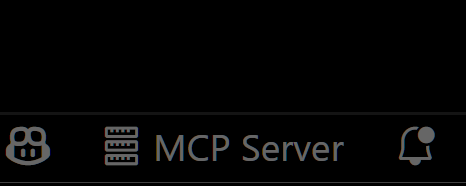
3. Check the MCP server status in the bottom-right VSCode status bar:
- (Server icon): Server is running
- ∅: Click to start the server
execute_command
Execute a command in a VSCode integrated terminal with proper shell integration. This tool provides detailed output and exit status information, and supports: - Custom working directory - Shell integration for reliable output capture - Output compression for large outputs - Detailed exit status reporting - Flag for potentially destructive commands (potentiallyDestructive: false to skip confirmation for read-only commands)
code_checker
Retrieve diagnostics from VSCode's language services for the active workspace. Use this tool after making changes to any code in the filesystem to ensure no new errors were introduced, or when requested by the user.
focus_editor
Open the specified file in the VSCode editor and navigate to a specific line and column. Use this tool to bring a file into focus and position the editor's cursor where desired. Note: This tool operates on the editor visual environment so that the user can see the file. It does not return the file contents in the tool call result.
list_debug_sessions
List all active debug sessions in the workspace.
start_debug_session
Start a new debug session with the provided configuration.
restart_debug_session
Restart a debug session by stopping it and then starting it with the provided configuration.
stop_debug_session
Stop all debug sessions that match the provided session name.
text_editor
A text editor tool that provides file manipulation capabilities using VSCode's native APIs: - view: Read file contents with optional line range - str_replace: Replace text in file - create: Create new file - insert: Insert text at specific line - undo_edit: Restore from backup Code Editing Tips: - VSCode may automatically prune unused imports when saving. To prevent this, make sure the imported type is actually used in your code before adding the import.
list_directory
List directory contents in a tree format, respecting .gitignore patterns. Shows files and directories with proper indentation and icons. Useful for exploring workspace structure while excluding ignored files.
get_terminal_output
Retrieve the output from a specific terminal by its ID. This tool allows you to check the current or historical output of a terminal, which is particularly useful when working with long-running commands or commands started in background mode with the execute_command tool.
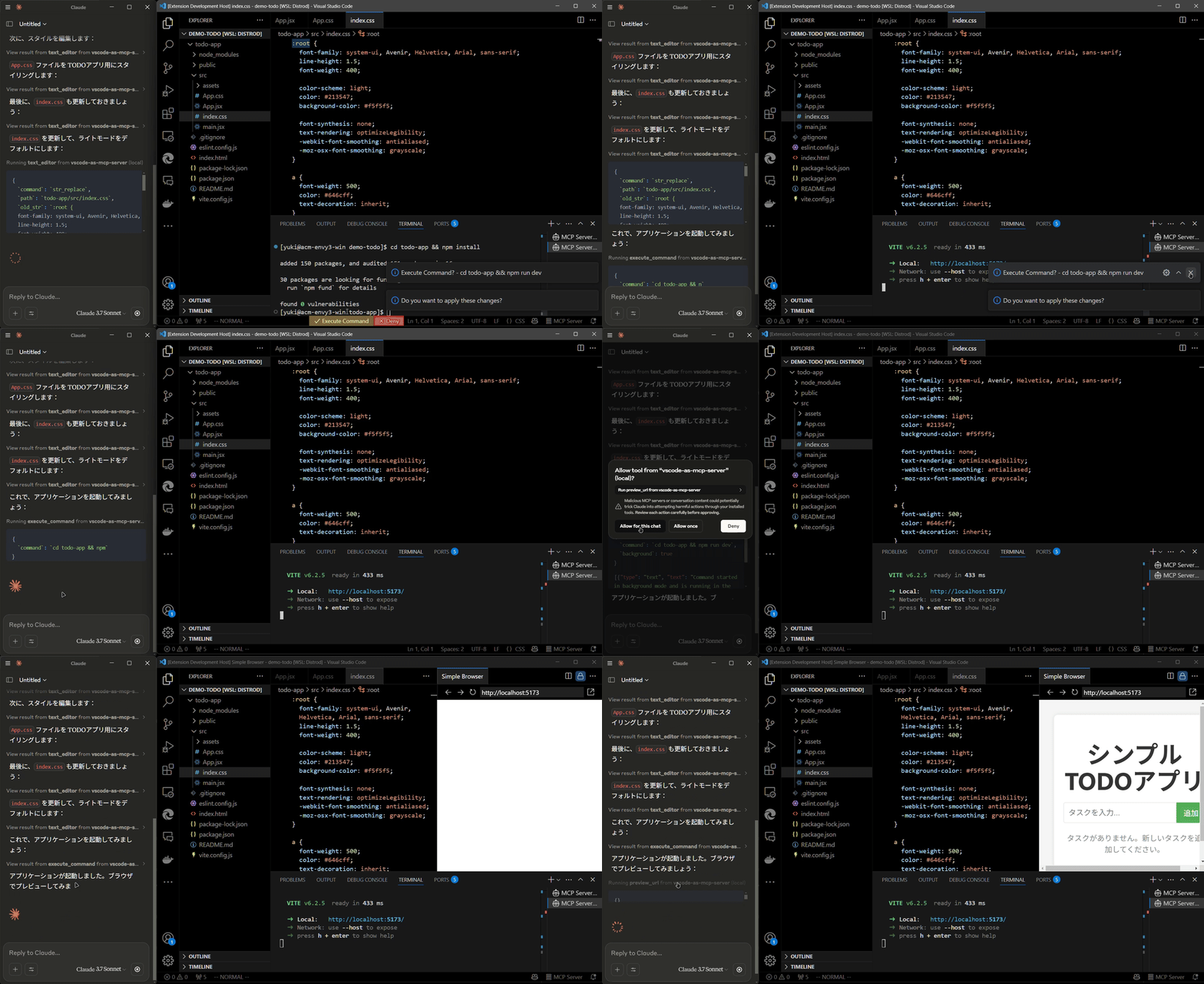
- Preview URLs directly within VSCode’s built-in browser (e.g., automatically opens browser preview after starting a Vite server).
- execute_command: Execute commands in VSCode’s integrated terminal
- code_checker: Retrieve current diagnostics for your code
- focus_editor: Focus specific locations within files
- list_debug_sessions / start_debug_session / restart_debug_session / stop_debug_session: Manage debug sessions
- text_editor: File operations (view, replace, create, insert, undo)
- list_directory: List directory contents in a tree format
- get_terminal_output: Fetch output from a specified terminal
- list_vscode_commands / execute_vscode_command: List and execute arbitrary VSCode commands
- preview_url: Open URLs within VSCode’s integrated browser
Claude Desktop / Cursor
Paste into your MCP client config file to install this server.
{
    "mcpServers": {
        "vscode as mcp server": {
            "vscode": {
                "command": "npx",
                "args": [
                    "vscode-as-mcp-server"
                ]
            }
        }
    }
}McpServers
{
"vscode": {
"command": "npx",
"args": [
"vscode-as-mcp-server"
]
}
}A VSCode extension that turns your VSCode into an MCP server, enabling advanced coding assistance from MCP clients like Claude Desktop.
Key Features
Code Editing Support
- Review proposed code changes from an LLM through diffs, allowing you to accept, reject, or provide feedback. - Real-time diagnostic messages (e.g., type errors) sent instantly to the LLM for immediate corrections.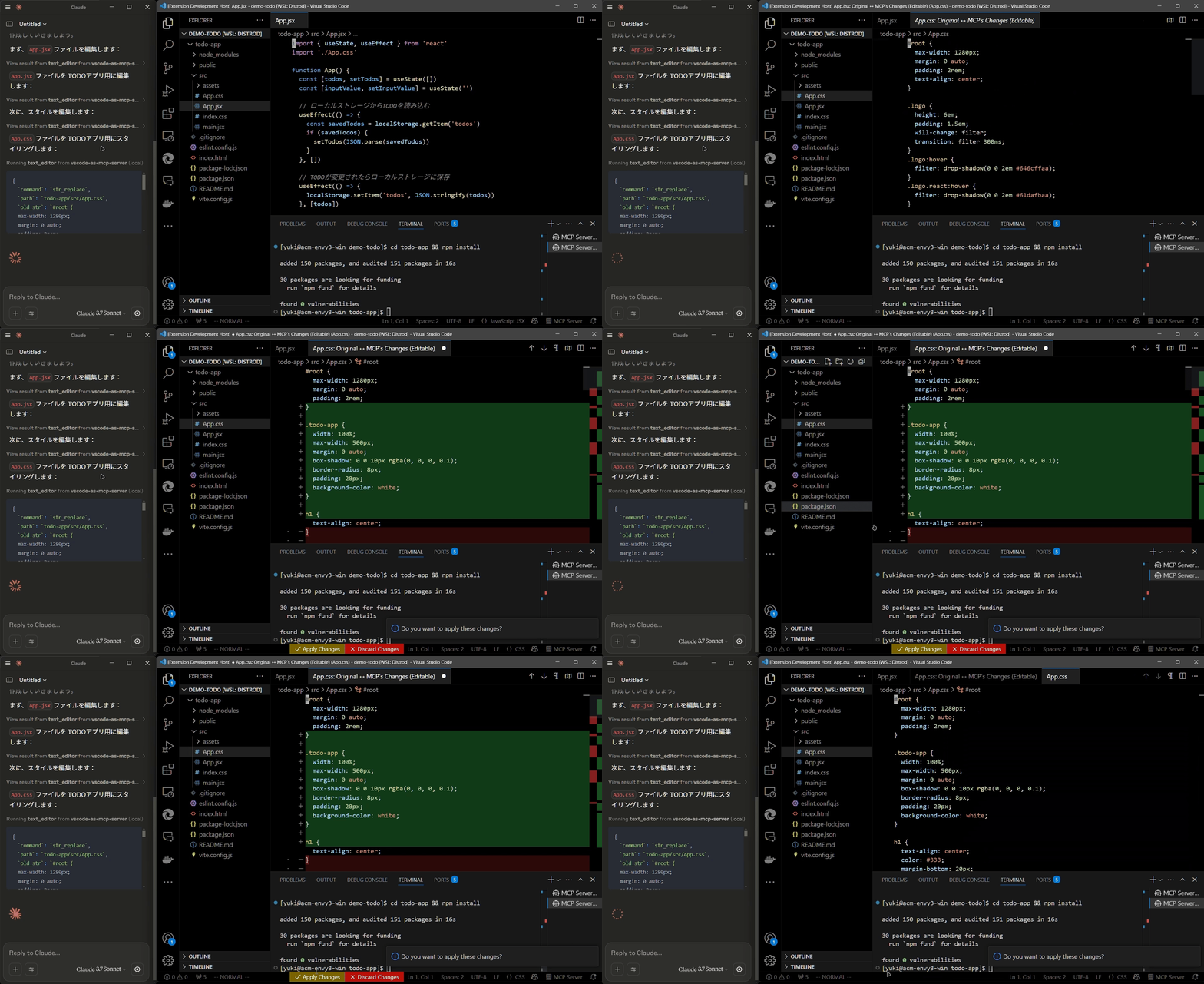
Terminal Operations
- Execute commands within VSCode’s integrated terminal (supports background/foreground execution, and timeout settings).Preview Tools
- Preview URLs directly within VSCode’s built-in browser (e.g., automatically opens browser preview after starting a Vite server).
Multi-instance Switching
- Easily switch the MCP server between multiple open VSCode windows.(Just by clicking the status bar item)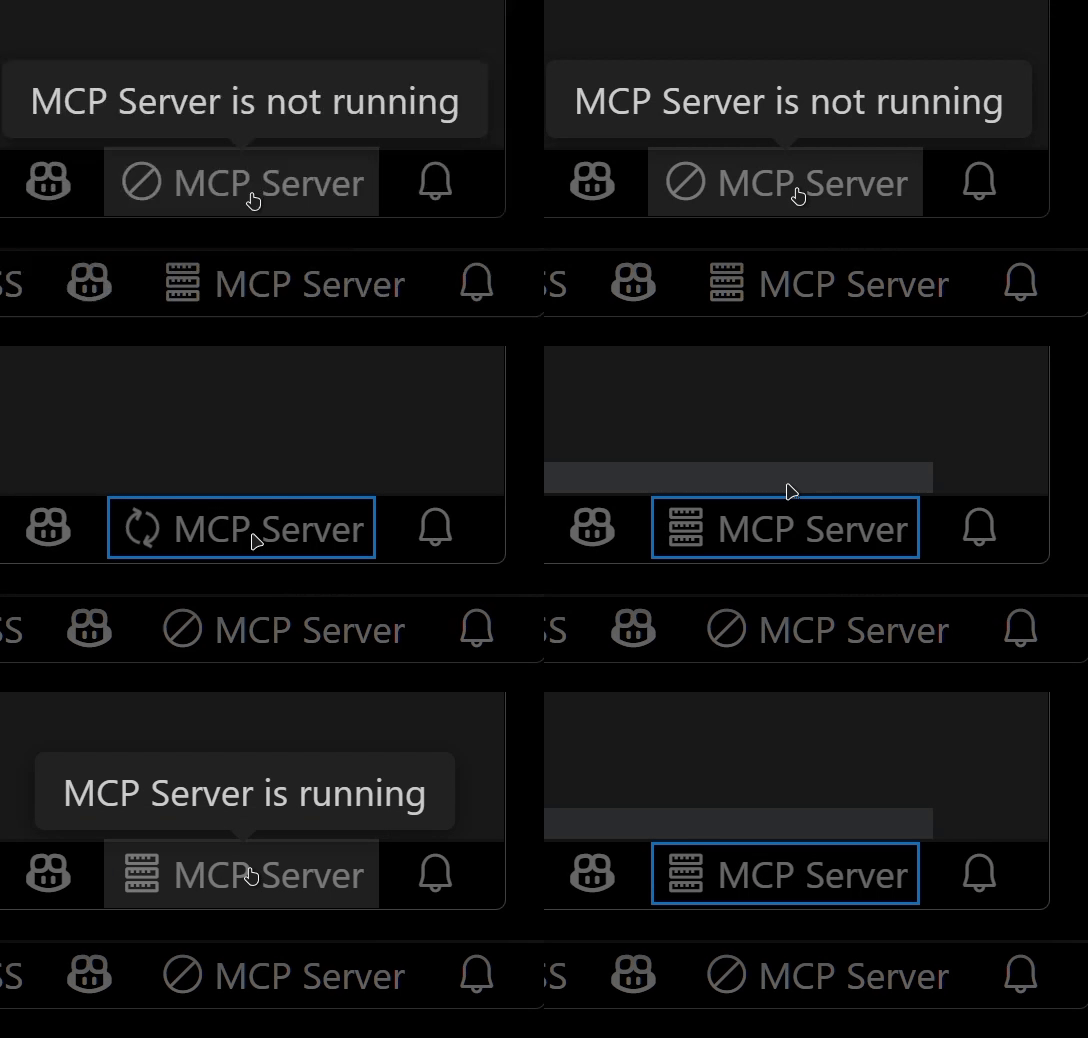
Relay Functionality (Experimental)
- Relay and expose built-in MCP servers introduced in VSCode 1.99 externally. - Allows external access to tools provided by other MCP extensions, such as GitHub Copilot.Available Built-in Tools
- execute_command: Execute commands in VSCode’s integrated terminal
- code_checker: Retrieve current diagnostics for your code
- focus_editor: Focus specific locations within files
- list_debug_sessions / start_debug_session / restart_debug_session / stop_debug_session: Manage debug sessions
- text_editor: File operations (view, replace, create, insert, undo)
- list_directory: List directory contents in a tree format
- get_terminal_output: Fetch output from a specified terminal
- list_vscode_commands / execute_vscode_command: List and execute arbitrary VSCode commands
- preview_url: Open URLs within VSCode’s integrated browser
Installation & Setup
1. Install the extension from the VSCode Marketplace.
2. Configure your MCP client:
- Using mcp-installer: You can simply instruct it to "install the vscode-as-mcp-server MCP server".
- Other clients like Claude Desktop: Add the following to your configuration file (claude_desktop_config.json):
    {
      "mcpServers": {
        "vscode": {
          "command": "npx",
          "args": ["vscode-as-mcp-server"]
        }
      }
    }
3. Check the MCP server status in the bottom-right VSCode status bar:
- (Server icon): Server is running
- ∅: Click to start the server
Motivation
This extension was developed to mitigate high costs associated with metered coding tools (like Roo Code and Cursor). It's an affordable, self-hosted alternative built directly into VSCode.
Bug reports and feedback are very welcome! 🙇
Future Roadmap
- Ability to select which built-in MCP servers to expose
- WebView-based approval UI (similar to Roo Code)
- Integration with VSCode's file history (Timeline)
- Instant toggling of auto-approvals and tool activation/deactivation
- Customizable server port configuration
Sign in to leave a review
Use Google, GitHub, or an email account so ratings stay tied to real people.
No reviews posted yet.



