🌦️ Weekly Weather MCP Server
About
Weather MCP server which returns 7 days of detailed weather forecasts anywhere in the world
Details
- License
- MIT
Explore
- 🌍 Support for querying weather conditions anywhere in the world
- 🌤️ Hourly forecasts for the next 48 hours
- 📅 Provides detailed 8-day forecasts (today + following 7 days), with morning, afternoon, and evening data points
- 🌧️ Weather summaries and precipitation probabilities
- 🌡️ Detailed weather information including temperature, humidity, wind speed, etc.
- 📍 Support for reporting results in different time zones
- 🗂️ No separate configuration file needed; API key can be passed directly through environment variables or parameters

Setting up with Highlight
This MCP is not yet compatible with Highlight’s one-click setup. However, you can still use it with Highlight by following these steps:
- Download and install Highlight from highlightai.com/download
- Navigate to the plugins tab and select "Add Custom Plugin"
-
Configure the plugin with the settings below
Plugin Name
🌦️ Weekly Weather MCP ServerCommand (node, npx, python, etc.)Please refer to the README for specific instructions on how to obtain API keys or other required environment variables.
- Enable "Start Automatically" if you want the plugin to start when Highlight launches





From the repository
- Free tier: 1,000 API calls per day
- Default limit: 2,000 API calls per day (can be adjusted in your account)
- Billing: Any calls beyond the free 1,000/day will be charged according to OpenWeatherMap pricing
- Usage cap: You can set a call limit in your account to prevent exceeding your budget (including capping your usage at the free tier limit so no costs can be incurred)
- If you reach your limit, you’ll receive a HTTP 429 error response
> Note: API key activation can take several minutes up to an hour. If you receive authentication errors shortly after subscribing or generating a new key, wait a bit and try again later.
python3 -m venv venv
source venv/bin/activate # Linux/Mac
pip3 install -r requirements.txt
This will install all the necessary dependencies to run the server and development tools.
export OPENWEATHER_API_KEY="your_api_key" # Linux/Mac
set OPENWEATHER_API_KEY=your_api_key # Windows
Add the following configuration to your MCP-supported client (e.g., Claude Desktop (instructions), Cursor):
{
"weather_forecast": {
"command": "python3",
"args": [
"/full_path/weather_mcp_server.py"
],
"env": {
"OPENWEATHER_API_KEY": "your_openweathermap_key_here"
},
"disabled": false,
"autoApprove": ["get_weather", "get_current_weather"]
}
}
If you’re using a virtual environment, your configuration should include the full path to the Python executable in the virtual environment:
{
"weather_forecast": {
"command": "/full_path/venv/bin/python3",
"args": [
"/full_path/weather_mcp_server.py"
],
"env": {
"OPENWEATHER_API_KEY": "your_openweathermap_key_here"
},
"disabled": false,
"autoApprove": ["get_weather", "get_current_weather"]
}
}
```
location
Location name as a string, e.g., “Beijing”, “New York”, “Tokyo”. The tool will handle geocoding this to a latitude/longitude coordinate.
api_key
OpenWeatherMap API key (optional, will read from environment variable if not provided)
timezone_offset
Timezone offset in hours, e.g., 8 for Beijing, -4 for New York. Default is 0 (UTC time). Times in the returned data will be accurate for this timezone.
Run directly without setting environment variables:
python weather_mcp_server.py
When calling the tool, you’ll need to provide the api_key parameter.
The server exposes two tools, get_weather and get_current_weather. Both tools accept the same parameters:
- location: Location name as a string, e.g., “Beijing”, “New York”, “Tokyo”. The tool will handle geocoding this to a latitude/longitude coordinate.
- api_key: OpenWeatherMap API key (optional, will read from environment variable if not provided)
- timezone_offset: Timezone offset in hours, e.g., 8 for Beijing, -4 for New York. Default is 0 (UTC time). Times in the returned data will be accurate for this timezone.
Claude Desktop / Cursor
Paste into your MCP client config file to install this server.
{
    "mcpServers": {
        "\ud83c\udf26\ufe0f weekly weather mcp server": {
            "weekly-weather-mcp": {
                "command": "python3",
                "args": [
                    "-m",
                    "venv",
                    "venv"
                ]
            }
        }
    }
}McpServers
{
    "weekly-weather-mcp": {
        "command": "python3",
        "args": [
            "-m",
            "venv",
            "venv"
        ]
    }
}
A weather forecast MCP (Model Context Protocol) server providing 8-day global weather forecasts and current weather conditions using the OpenWeatherMap One Call API 3.0.
> This project builds upon an earlier project by Zippland, with modifications to support full week forecasts and additional time-of-day data points.
<div align="center">
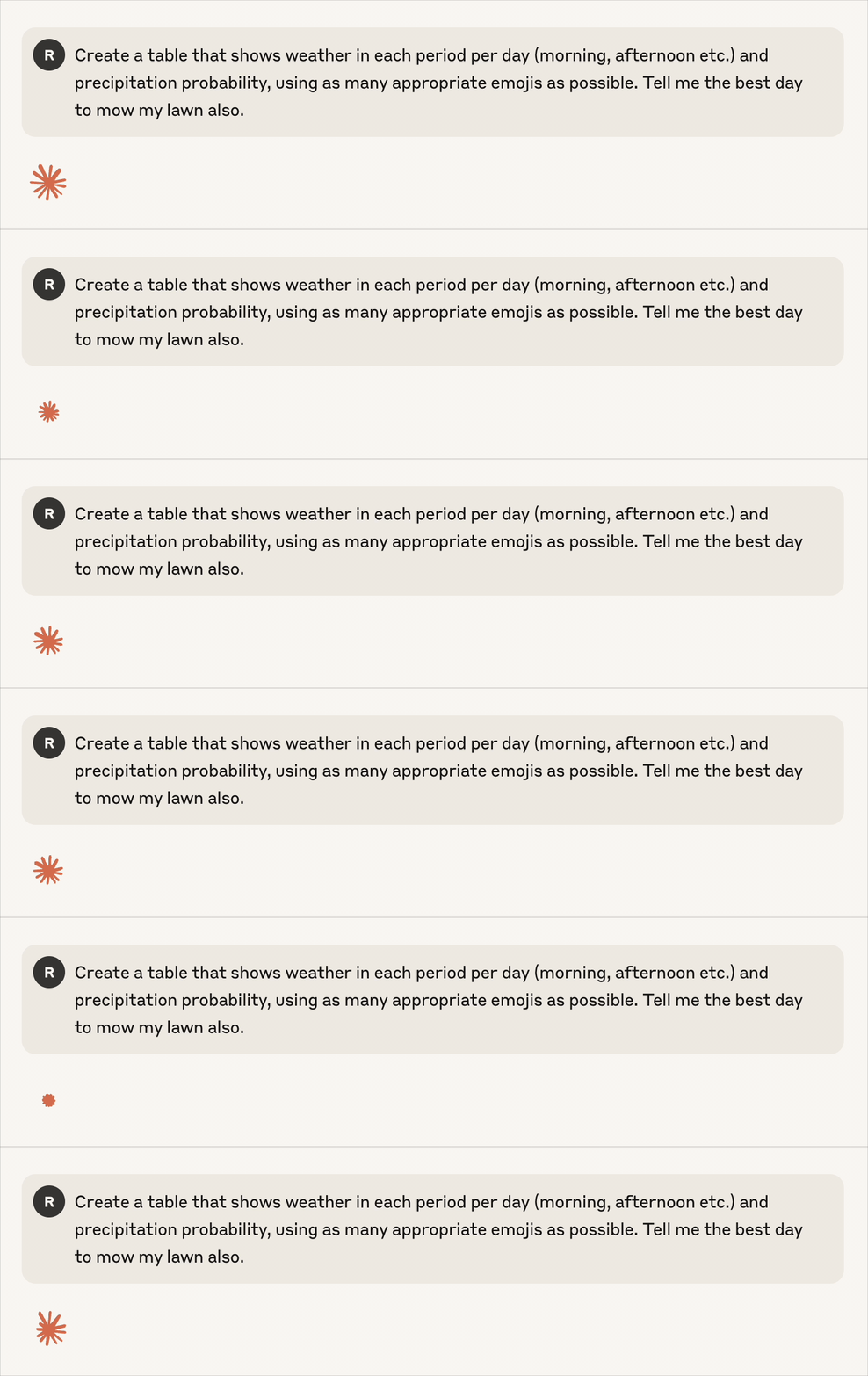
<p><em>Animation showing Claude Desktop processing the weather data from the MCP Server</em></p>
</div>
<br>
<div align="center">
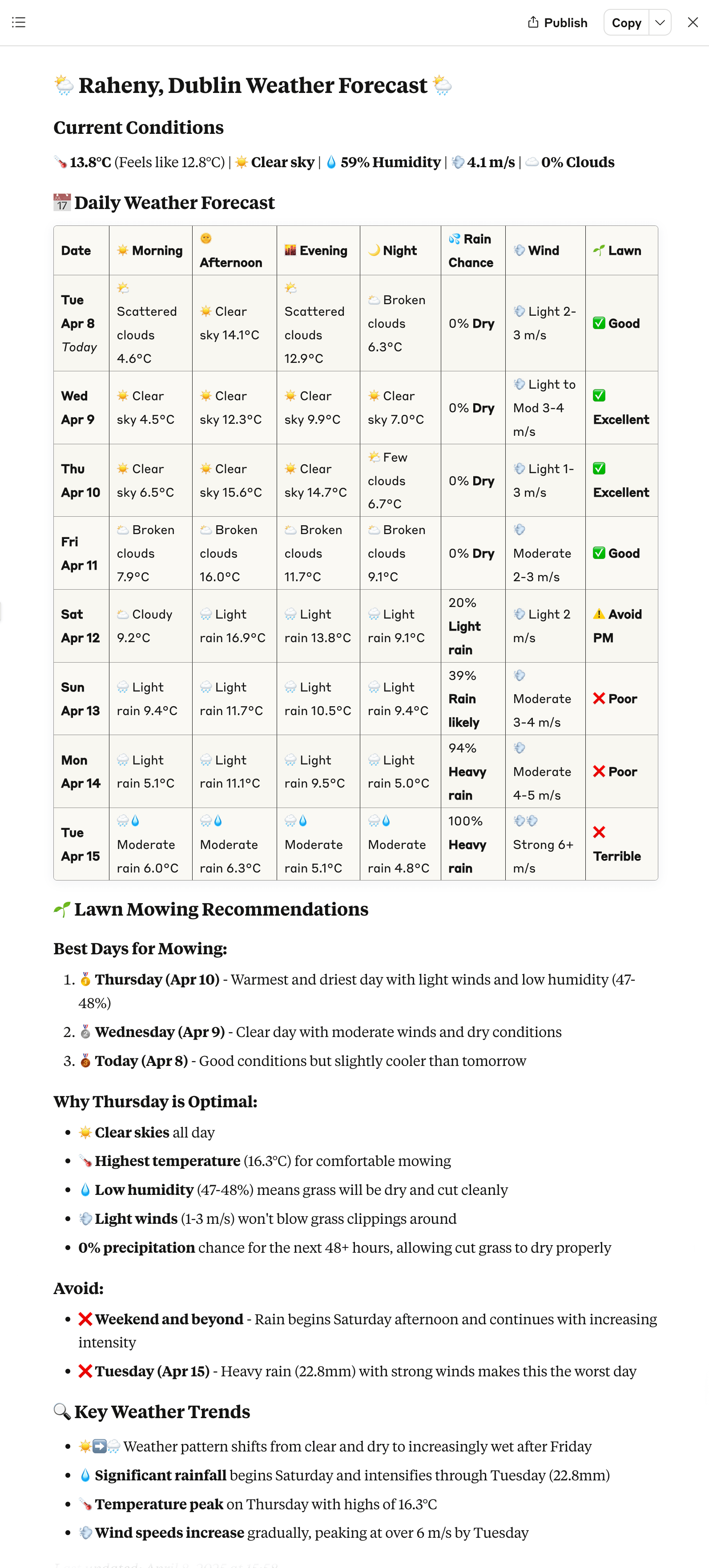
<p><em>Claude Desktop showing a detailed weather forecast with lawn mowing recommendations</em></p>
</div>
Features
- 🌍 Support for querying weather conditions anywhere in the world
- 🌤️ Hourly forecasts for the next 48 hours
- 📅 Provides detailed 8-day forecasts (today + following 7 days), with morning, afternoon, and evening data points
- 🌧️ Weather summaries and precipitation probabilities
- 🌡️ Detailed weather information including temperature, humidity, wind speed, etc.
- 📍 Support for reporting results in different time zones
- 🗂️ No separate configuration file needed; API key can be passed directly through environment variables or parameters
Usage
1. Get an OpenWeatherMap API Key with One Call API 3.0 Access (free)
1. Visit OpenWeatherMap and register an account
2. Subscribe to the “One Call API 3.0” plan (offers 1,000 API calls per day for free)
3. Wait for API key activation (this can take up to an hour)
About the One Call API 3.0
The One Call API 3.0 provides comprehensive weather data:
- Current weather conditions
- Minute forecast for 1 hour
- Hourly forecast for 48 hours
- Daily forecast for 8 days (including today)
- National weather alerts
- Historical weather data
API Usage and Limits
- Free tier: 1,000 API calls per day
- Default limit: 2,000 API calls per day (can be adjusted in your account)
- Billing: Any calls beyond the free 1,000/day will be charged according to OpenWeatherMap pricing
- Usage cap: You can set a call limit in your account to prevent exceeding your budget (including capping your usage at the free tier limit so no costs can be incurred)
- If you reach your limit, you’ll receive a HTTP 429 error response
> Note: API key activation can take several minutes up to an hour. If you receive authentication errors shortly after subscribing or generating a new key, wait a bit and try again later.
2. Clone the Repository and Install Dependencies
```bash
Sign in to leave a review
Use Google, GitHub, or an email account so ratings stay tied to real people.
No reviews posted yet.