MCP OpenAI Image Generation Server
About
MCP server for OpenAI Image Generation & Editing — text-to-image, image-to-image (with mask), no extra plugins.
Explore
Exposes OpenAI image generation capabilities through MCP tools.
Supports text-to-image generation using models like DALL-E 2, DALL-E 3, and gpt-image-1 (if available/enabled).
Supports image-to-image editing using DALL-E 2 and gpt-image-1 (if available/enabled).
Configurable via environment variables and command-line arguments.
Handles various parameters like size, quality, style, format, etc.
Saves generated/edited images to temporary files and returns the path along with the base64 data.
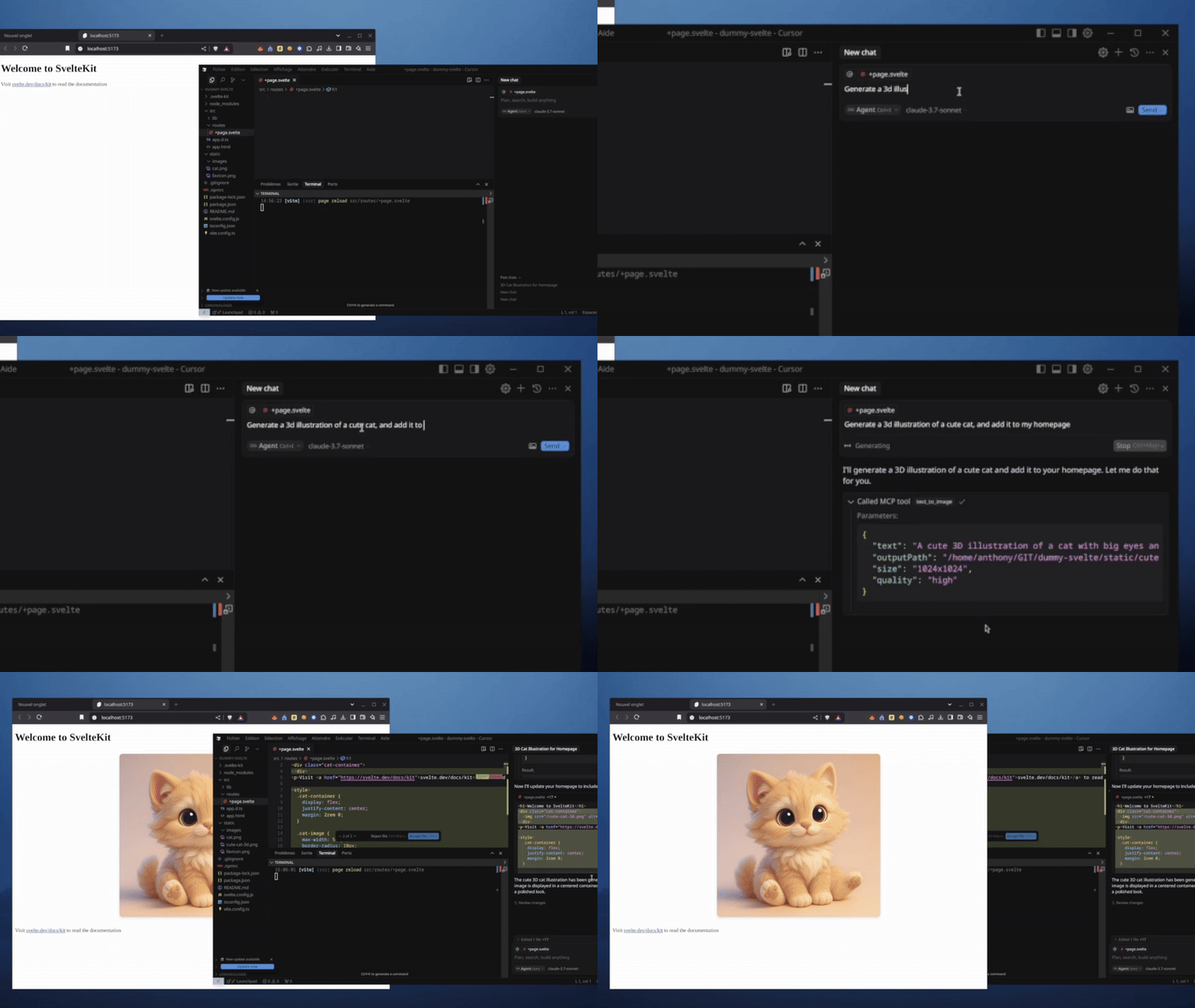
Here's an example of generating an image directly in Cursor using the text-to-image tool integrated via MCP:
<div align="center">
</div>

Setting up with Highlight
This MCP is not yet compatible with Highlight’s one-click setup. However, you can still use it with Highlight by following these steps:
- Download and install Highlight from highlightai.com/download
- Navigate to the plugins tab and select "Add Custom Plugin"
-
Configure the plugin with the settings below
Plugin Name
MCP OpenAI Image Generation ServerCommand (node, npx, python, etc.)Please refer to the README for specific instructions on how to obtain API keys or other required environment variables.
- Enable "Start Automatically" if you want the plugin to start when Highlight launches





From the repository
Node.js (v18 or later recommended)
npm or yarn
An OpenAI API key
You can run the server directly from npm using npx (requires Node.js and npm):
npx imagegen-mcp [options]
See the Running the Server section for more details on options and running locally.
This section provides details on running the server locally after cloning and setup. For a quick start without cloning, see the Quick Run with npx section.
Using ts-node (for development):
npx ts-node src/index.ts [options]
Using the compiled code:
node dist/index.js [options]
Options:
--models <model1> <model2> ...: Specify which OpenAI models the server should allow. If not provided, it defaults to allowing all models defined in src/libs/openaiImageClient.ts (currently gpt-image-1, dall-e-2, dall-e-3).
Example using npx (also works for local runs): ... --models gpt-image-1 dall-e-3
Example after cloning: node dist/index.js --models dall-e-3 dall-e-2
The server will start and listen for MCP requests via standard input/output (using StdioServerTransport).
The server exposes the following MCP tools:
Claude Desktop / Cursor
Paste into your MCP client config file to install this server.
{
    "mcpServers": {
        "mcp openai image generation server": {
            "image-generator-gpt-image-15": {
                "command": "npx imagegen-mcp --models gpt-image-1",
                "env": {
                    "OPENAI_API_KEY": "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"
                }
            }
        }
    }
}McpServers
{
    "image-generator-gpt-image-15": {
        "command": "npx imagegen-mcp --models gpt-image-1",
        "env": {
            "OPENAI_API_KEY": "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"
        }
    }
}
This project provides a server implementation based on the Model Context Protocol (MCP) that acts as a wrapper around OpenAI's Image Generation and Editing APIs (see OpenAI documentation).
Features
Exposes OpenAI image generation capabilities through MCP tools.
Supports text-to-image generation using models like DALL-E 2, DALL-E 3, and gpt-image-1 (if available/enabled).
Supports image-to-image editing using DALL-E 2 and gpt-image-1 (if available/enabled).
Configurable via environment variables and command-line arguments.
Handles various parameters like size, quality, style, format, etc.
Saves generated/edited images to temporary files and returns the path along with the base64 data.
Here's an example of generating an image directly in Cursor using the text-to-image tool integrated via MCP:
<div align="center">
</div>
Quick Run with npx
You can run the server directly from npm using npx (requires Node.js and npm):
npx imagegen-mcp [options]
See the Running the Server section for more details on options and running locally.
Prerequisites
Node.js (v18 or later recommended)
npm or yarn
An OpenAI API key
Integration with Cursor
You can easily integrate this server with Cursor to use its image generation capabilities directly within the editor:
1. Open Cursor Settings:
Go to File > Preferences > Cursor Settings (or use the shortcut Ctrl+, / Cmd+,).
2. Navigate to MCP Settings:
Search for "MCP" in the settings search bar.
Find the "Model Context Protocol: Custom Servers" setting.
3. Add Custom Server:
Click on "Edit in settings.json".
Add a new entry to the mcpServers array. It should look something like this:
    "mcpServers": [
        "image-generator-gpt-image": {
            "command": "npx imagegen-mcp --models gpt-image-1",
            "env": {
                "OPENAI_API_KEY": "xxx"
            }
        }
      // ... any other custom servers ...
    ]
Customize the command:
You can change the --models argument in the command field to specify which models you want Cursor to have access to (e.g., --models dall-e-3 or --models gpt-image-1). Make sure your OpenAI API key has access to the selected models.
4. Save Settings:
* Save the settings.json file.
Cursor should now recognize the "OpenAI Image Gen" server, and its tools (text-to-image, image-to-image) will be available in the MCP tool selection list (e.g., when using @ mention in chat or code actions).
Setup
1. Clone the repository:
    git clone <your-repository-url>

    cd <repository-directory>
2. Install dependencies:
    npm install

    # or

    yarn install
3. Configure Environment Variables:
Create a .env file in the project root by copying the example:
cp .env.example .env
Edit the
.env file and add your OpenAI API key: OPENAI_API_KEY=your_openai_api_key_here
Building
To build the TypeScript code into JavaScript:
```bash
npm run build
Sign in to leave a review
Use Google, GitHub, or an email account so ratings stay tied to real people.
No reviews posted yet.