MTG Assistant
About
A Model Context Protocol server that provides Magic: The Gathering card information fetching capabilities using the Scryfall API.
Explore
- Fetches card details from the Scryfall API.
- Provides one tool: get_mtg_card_info.
- Configurable for Linux, macOS, WSL, and Windows.
- Supports debug via the MCP inspector.
- Uses uv for dependency management and execution.

Setting up with Highlight
This MCP is not yet compatible with Highlight’s one-click setup. However, you can still use it with Highlight by following these steps:
- Download and install Highlight from highlightai.com/download
- Navigate to the plugins tab and select "Add Custom Plugin"
-
Configure the plugin with the settings below
Plugin Name
MTG AssistantCommand (node, npx, python, etc.)Please refer to the README for specific instructions on how to obtain API keys or other required environment variables.
- Enable "Start Automatically" if you want the plugin to start when Highlight launches





From the repository
This project uses uv for dependency management and running scripts.
uv run mcp-server-mtg-assistant
If the package were published, you could install it via pip:
pip install mcp-server-mtg-assistant
After installation, you could run it as a script:
python -m mcp_server_mtg_assistant
For development, you typically run it using uv run as shown above.
Add an entry to your client's MCP server configuration. The exact key ("mtg-assistant" in the examples) can be chosen by you.
Important: The configuration needs to point uv to the correct project directory using the --directory argument. The path style (/ vs \) depends on your operating system and how you run uv.
<details>
<summary>Default: Using uv Directly (Linux/macOS/WSL)</summary>
This is the standard approach if your MCP client and the server run in the same Linux, macOS, or WSL environment.
// Example for mcp.json or Claude settings
"mcpServers": {
"mtg-assistant": {
"command": "uv",
"args": [
"--directory",
"/path/to/mcp-servers/mcp-mtg-assistant", // Unix-style path
"run",
"mcp-server-mtg-assistant"
]
}
}
</details>
<details>
<summary>Windows Client + WSL Server</summary>
This configuration is recommended if your MCP client runs on Windows, but you want the server to execute within WSL It uses wsl.exe to invoke uv inside WSL.
Requirements:
uv must be installed inside your WSL distribution.
Adjust the path to uv inside WSL (e.g., /home/user/.cargo/bin/uv) if it's not in the WSL PATH.
Use the /mnt/... style path for the --directory argument accessible from within WSL.
// Example for mcp.json or Claude settings on Windows
"mcpServers": {
"mtg-assistant": {
"command": "wsl.exe",
"args": [
"/home/your-user/.cargo/bin/uv", // uv WSL PATH
"--directory",
"/mnt/d/repos/mcp-servers/mcp-mtg-assistant", // WSL-style path to project
"run",
"mcp-server-mtg-assistant"
]
}
}
</details>
<details>
<summary>Alternative: Using uv Directly on Windows</summary>
This assumes uv is installed directly on Windows and your MCP client also runs directly on Windows.
Use the Windows-style path (D:\...) for the --directory argument.
Be mindful of potential .venv conflicts if you also use WSL (see below).
// Example for mcp.json or Claude settings on Windows
"mcpServers": {
"mtg-assistant": {
"command": "uv",
"args": [
"--directory",
"D:\path\to\mcp-servers\mcp-mtg-assistant", // Windows-style path
"run",
"mcp-server-mtg-assistant"
]
}
}
</details>
Problem: uv run creates a .venv directory specific to the operating system/environment (e.g., Linux vs. Windows). If you switch between running the server directly on Windows and running it via WSL (or native Linux), the existing .venv might be incompatible.
- Solution: Before switching environments, delete the
.venv directory in the mcp-mtg-assistant project root. uv run will then create a fresh, compatible one for the environment you are using.
npx @modelcontextprotocol/inspector uv --directory /path/to/mcp-servers/mcp-mtg-assistant run mcp-server-mtg-assistant
npx @modelcontextprotocol/inspector wsl.exe /home/your-user/.cargo/bin/uv --directory /mnt/d/repos/mcp-servers/mcp-mtg-assistant run mcp-server-mtg-assistant
npx @modelcontextprotocol/inspector uv --directory D:\path\to\mcp-servers\mcp-mtg-assistant run mcp-server-mtg-assistant
get_mtg_card_info
Retrieves details for a specific Magic: The Gathering card from Scryfall.
query
(string, required): The search query string (e.g., card name, partial name, characteristics).
- get_mtg_card_info - Retrieves details for a specific Magic: The Gathering card from Scryfall.
- query (string, required): The search query string (e.g., card name, partial name, characteristics).
Claude Desktop / Cursor
Paste into your MCP client config file to install this server.
{
    "mcpServers": {
        "mtg assistant": {
            "mcp-mtg-assistant": {
                "command": "uv",
                "args": [
                    "run",
                    "mcp-server-mtg-assistant"
                ]
            }
        }
    }
}McpServers
{
    "mcp-mtg-assistant": {
        "command": "uv",
        "args": [
            "run",
            "mcp-server-mtg-assistant"
        ]
    }
}
MCP Server MTG Assistant
A Model Context Protocol server that provides Magic: The Gathering card information fetching capabilities using the Scryfall API.
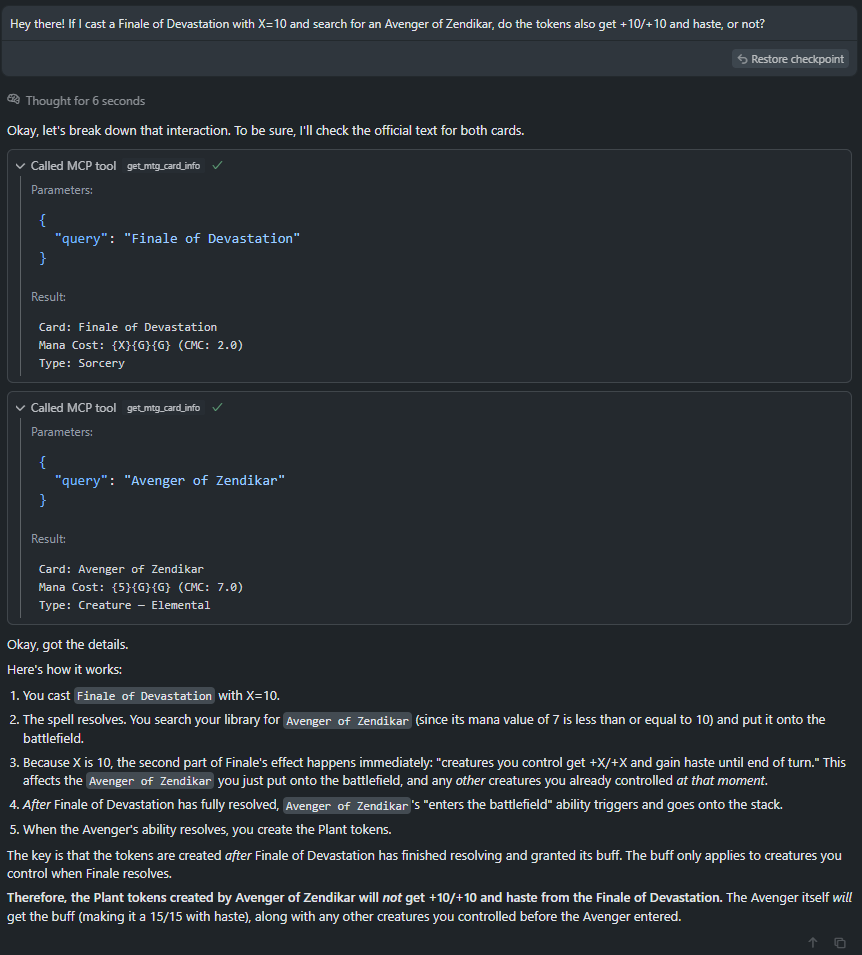
Example Rules Question Workflow
While primarily used for looking up specific card details, this server can also be a crucial first step in answering MTG rules questions.
User Query: "If I cast a Finale of Devastation with X=10 and search for an Avenger of Zendikar, do the tokens also get +10/+10 and haste, or not?"
Available Tools
- get_mtg_card_info - Retrieves details for a specific Magic: The Gathering card from Scryfall.
- query (string, required): The search query string (e.g., card name, partial name, characteristics).
Installation and Running
This project uses uv for dependency management and running scripts.
Using uv (recommended)
Ensure uv is installed. You can run the server directly from the project directory:
```bash
Sign in to leave a review
Use Google, GitHub, or an email account so ratings stay tied to real people.
No reviews posted yet.